How to Tell If You Are on a 3-Way Call on Android
Learn how to tell if you are on a 3-way call on Android, what the signs are, how conference calls work, and how to set one up yourself on any Android phone.
Conference calls on Android can feel a little opaque if you are not the one who set them up. Maybe someone merged a call without telling you, or you are wondering whether there is a third person listening to your conversation. Knowing how to tell if you are on a 3-way call on Android is not always obvious because the phone screen does not always make it clear. This guide covers the signs to look for, what the call screen tells you, how to manage active calls, and how to set up a three-way call yourself.
How 3-Way Calls Work on Android
A 3-way call on Android, also called a conference call, connects three people in the same phone conversation. One person initiates the call, adds a second caller, and merges both into a single shared call where everyone can hear and speak to each other.
The person who sets up the conference is the one who controls it. They can add participants, split the calls back into separate conversations, or end individual connections. The people who were added to the conference do not always know a third party has been brought in, which is why this question comes up.
Call waiting meaning is relevant here too. Call waiting lets you receive a second incoming call while already on a call. When someone answers the second call and then merges it with the first, that is how a three-way call gets created without you initiating it.
Signs You Are on a 3-Way Call on Android
The Call Screen Shows Multiple Participants
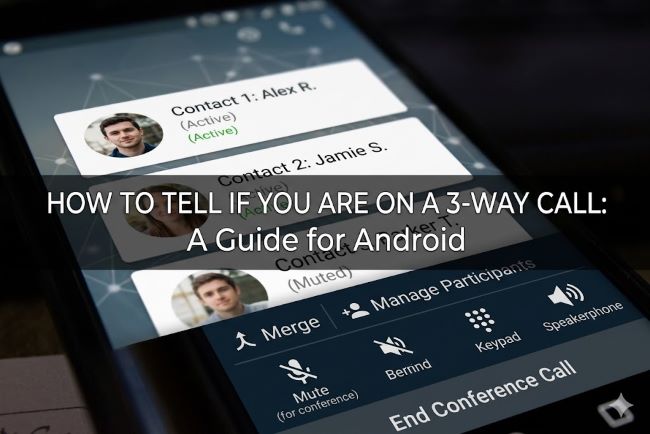
The clearest sign is the call screen itself. When a call has been merged into a conference, the Android call interface typically shows:
- The word Conference or Conference call at the top of the screen
- Multiple caller names or numbers listed on the screen
- A Manage or Manage conference button that lets you see who is connected
If you see any of these on your screen, you are on a conference call and there is more than one person on the line.
You Notice an Additional Voice
The simplest real-world indicator is what you actually hear. If you notice background noise that does not match the person you called, a second voice joining the conversation, or an echo that suggests more than one person is present, someone else is likely on the line.
The Person You Called Went Silent and Then Came Back
If the other person put you on hold briefly and then came back with a slightly different audio quality or tone, they may have answered a second call using call waiting and then merged it with yours. This is the most common way someone ends up on an unannounced conference call.
The Call Screen Shows “On Hold” for One Caller
If the person you are talking to puts you on hold while you are mid-conversation, look at your call screen. You may see a notification showing a second call is in progress. When they merge the calls, you join the conference.
How to Check Who Is on a 3-Way Call on Android
If the call screen shows Conference or multiple participants, you can check who is connected.
- During the call, tap the Manage or Manage conference button if it appears on screen. This is usually shown as a small arrow or a list icon next to the conference label.
- A list of active participants appears with their names or numbers.
- From this screen you can also individually end the connection with any participant if you are the call host.
Not all Android phones and carrier combinations show this option equally. Some devices show detailed participant lists, others only show the conference label without a breakdown. The experience varies by manufacturer (Samsung, Google Pixel, OnePlus, etc.) and by your carrier’s calling infrastructure.
How to Do a 3-Way Call on Android
If you want to set up a conference call yourself, here is how to do it on most Android phones.
Step-by-Step: Conference Call on Android
- Make your first call. Dial the first person and wait for them to pick up.
- Put the first caller on hold. Tap the Hold button or the Add call button on your call screen. This places the first caller on hold automatically.
- Dial the second number. Use the keypad that appears to dial the second person.
- Wait for the second person to answer.
- Merge the calls. Once the second person answers, tap the Merge button. This combines both calls into one conference call where all three of you can hear each other.
The Merge button appears on the call screen after the second call is connected. Its exact location and appearance varies by Android manufacturer and phone model, but it is usually labeled Merge or shown as two overlapping call icons.
3-Way Call Android: Carrier and Device Differences
Not all Android phones handle conference calls identically because the feature depends on both your device software and your carrier’s network.
On Samsung phones: The conference call process follows the steps above. Samsung’s dialer shows a clear Manage conference option during active conference calls.
On Google Pixel phones: The interface is clean and shows caller information during conference calls. Google Fi users also have access to conference features built into the Fi app.
Carrier limitations: Some carriers and plans restrict the number of participants in a conference call. Standard plans support three-way calls. Some prepaid or budget plans may not support merging calls at all, in which case the Merge button will not appear.
Wi-Fi calling: If you are using Wi-Fi calling, conference call functionality depends on your carrier’s implementation over Wi-Fi. Most major carriers support it, but some have limitations.
Call Waiting Meaning and How It Connects to 3-Way Calls
Call waiting is a feature that lets you receive a second incoming call while already on a call. When an incoming call arrives, you hear a beep tone and see a notification on your screen showing an incoming call from another number.
You can:
- Answer the second call and put the first on hold
- Decline the second call and stay on the first
- Merge the second call into the first to create a conference
Call waiting meaning in the context of three-way calls is this: it is the mechanism that allows a second caller to be brought into a conversation that is already in progress. If someone answers a second call while talking to you and then merges it, you are now in a conference call whether or not you were aware a third party was being added.
You can check if call waiting is enabled on your Android device by going to Settings > Calls > Additional settings > Call waiting or through your carrier’s phone app settings.
Can You Be Put on a Conference Call Without Knowing?
Yes. If the person you are speaking with answers a second call using call waiting and then merges it with your call, you will be in a conference call. Depending on your phone and the other person’s phone, you may or may not receive any indication that the call was merged.
The signs to look for are the same as described above: the conference label on your screen, an additional voice, or a brief hold period before the conversation resumes with a different audio character.
There is no built-in Android feature that provides a guaranteed notification when you have been silently added to a conference. The most reliable indicator is your own call screen, so checking it during any call where something feels off is always worth doing.
The Short Answer
To tell if you are on a 3-way call on Android, check your call screen for the word Conference, multiple caller names, or a Manage button. Listen for additional voices or notice if the other person briefly put you on hold before the call resumed. To set up a 3-way call yourself, call the first person, add a second call, then tap Merge. Conference calls are created using the call waiting feature when someone answers a second call and merges it with the current one.