How to Add Audio to Google Slides
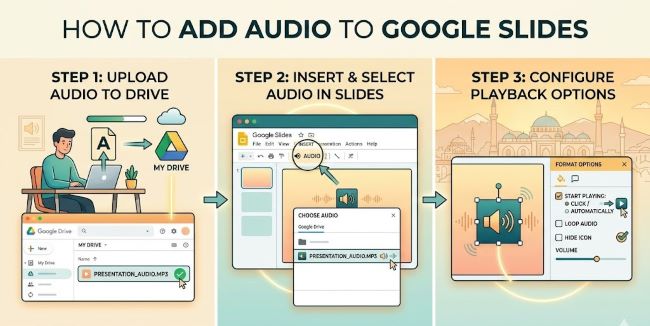
Learn how to add audio to Google Slides step by step. This guide covers uploading audio files via Google Drive and embedding them so they play during your presentation.
Adding audio to Google Slides is one of those features that sounds simple but trips people up because it is not as direct as dropping in an image or a video. Google Slides does not let you upload an audio file straight from your computer. Instead, it pulls audio from Google Drive. Once you understand that, the whole process clicks into place quickly. This guide walks you through exactly how to add audio to Google Slides from start to finish.
Step 1: Upload Your Audio File to Google Drive
Before you can add audio to a slide, the file needs to live in Google Drive.
- Go to drive.google.com and sign in with your Google account.
- Click New > File upload.
- Select your audio file from your computer. Google Slides supports .mp3 and .wav formats. MP3 is the most reliable choice.
- Wait for the upload to complete.
If you are using audio you recorded yourself, exported from a tool like GarageBand or Audacity, or downloaded from a royalty-free music site, make sure the file is in one of those two formats before uploading.
Step 2: Add the Audio File to Your Google Slide
- Open your presentation in Google Slides.
- Go to the slide where you want the audio to play.
- In the top menu, click Insert > Audio.
- A dialog box opens showing your Google Drive files. Navigate to the audio file you just uploaded, or search for it by name.
- Click the file to select it and then click Select.
Google Slides adds an audio icon (a small speaker symbol) to your slide. You can drag it anywhere on the slide. It will be visible during editing but you can position it somewhere unobtrusive if you do not want it to stand out visually.
Step 3: Adjust Audio Playback Settings
Once the audio is on your slide, you can control how it behaves during the presentation.
- Click the audio icon on the slide to select it.
- In the right-hand panel, the Format options sidebar will open. If it does not appear automatically, go to Format > Format options.
- Under Audio playback, you will see these options:
- Start playing: Choose On click (audio plays when you click the icon) or Automatically (audio starts as soon as the slide appears)
- Stop on slide change: Check this if you want the audio to stop when you move to the next slide
- Loop audio: Check this to repeat the audio continuously while the slide is visible
- Hide icon when presenting: Check this to make the speaker icon invisible during the presentation while the audio still plays
Choose the settings that match how you want the audio to behave in your presentation.
Tips for Using Audio in Google Slides
- Make sure your audio file is shared correctly. If the presentation is shared with other people, they need access to the audio file too. In Google Drive, right-click the audio file and set sharing to “Anyone with the link can view.” Otherwise, others who open your presentation may not hear the audio.
- Test before presenting. Click the speaker icon in editing mode to confirm the audio plays. Then run through the presentation in Present mode to check that playback triggers correctly.
- Keep file sizes reasonable. Large audio files can slow down your presentation, especially on slower connections. Aim for files under 50MB where possible.
- Use royalty-free music sources. If you need background music, sites like Free Music Archive, ccMixter, and YouTube Audio Library offer tracks you can use without copyright issues.
The Short Answer
To add audio to Google Slides, upload your MP3 or WAV file to Google Drive first, then go to Insert > Audio in Google Slides and select the file. Adjust playback settings in the Format options panel to control when and how it plays. Make sure the audio file is shared with anyone who needs to view the presentation, or they will not hear it.
Get those two things right and your audio will work every time.