How to Add Fonts to Figma
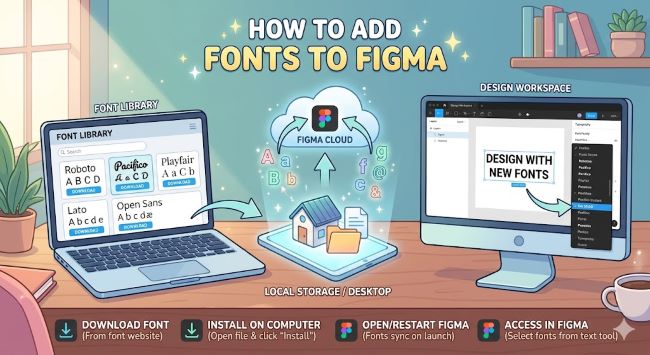
Learn how to add fonts to Figma on desktop and browser, including how to use local fonts, Google Fonts, and the Figma Font Installer for seamless design work.
Figma is where a lot of design work happens today, and fonts are central to almost every project. But if you have ever opened a file and seen a font replaced with something generic, or tried to use a custom typeface and could not find it anywhere, you already know the frustration. Adding fonts to Figma is not complicated, but it works differently depending on whether you are using the browser version or the desktop app. This guide covers both, so you can get your fonts working and get back to designing.
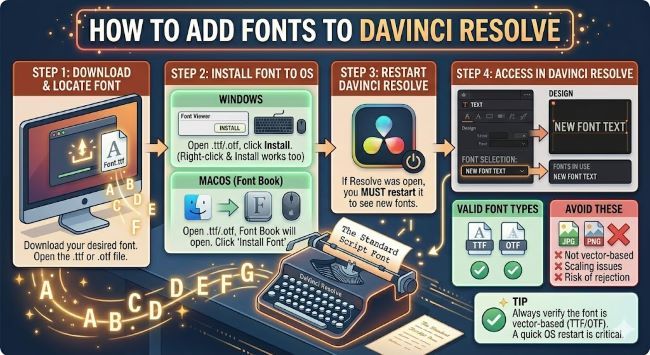
How to Add Fonts to DaVinci Resolve
Learn how to add fonts to DaVinci Resolve on Windows and Mac. This step-by-step guide covers installing system fonts so they appear in Resolve’s text tools.
How Figma Handles Fonts
Figma does not have a standalone font library you manage inside the app. Instead, it pulls fonts from two places:
- Google Fonts, which are available by default in every Figma file without any setup.
- Local fonts installed on your computer, which Figma can access through the desktop app or a browser plugin.
Understanding this distinction saves a lot of confusion. If you are looking for a font and cannot find it, the first question is whether it is a Google Font or a local font, and which version of Figma you are using.
Using Google Fonts in Figma
If the font you need is in Google Fonts, you do not need to do anything. Figma loads the entire Google Fonts library automatically. Just open the font picker in any text layer and start typing the font name. It will appear in the list.
This works in both the browser and desktop versions, with or without an internet connection caveat: you do need to be online for Google Fonts to load.
How to Add Local Fonts to Figma in the Desktop App
The Figma desktop app can access fonts installed on your computer without any extra setup. Here is the process from start to finish:
- Install the font on your computer. On Windows, right-click the .ttf or .otf file and select Install. On Mac, double-click the font file and click Install Font.
- Close Figma completely if it is already open.
- Reopen the Figma desktop app.
- Open a file and click on a text layer.
- Open the font picker and search for your font by name.
It should appear in the list. If it does not, restart your computer and try again. Figma reads your system fonts on launch, so fonts installed while it is running will not show up until you restart the app.
How to Add Local Fonts to Figma in the Browser
The browser version of Figma cannot access your local fonts by default. To use local fonts in Figma on the web, you need to install the Figma Font Installer (also called the Figma Font Helper).
Here is how:
- Go to figma.com and open any file in the browser.
- Click on a text layer and open the font picker.
- You will see a prompt at the bottom of the font list that says something like “To use local fonts, install the Figma Font Helper.”
- Click the link and download the installer for your operating system.
- Run the installer and follow the setup steps.
- Refresh your Figma browser tab.
Once the Font Helper is running in the background, Figma in the browser can access all the fonts installed on your machine, the same way the desktop app does.
How to Add Custom or Purchased Fonts to Figma
If you bought a font or downloaded one from a site like DaFont, MyFonts, or Creative Market, the process is the same as adding any local font:
- Download the font files. They usually come in a .zip folder.
- Unzip the folder and locate the .ttf or .otf files.
- Install them on your computer using the steps above.
- Restart Figma.
- Search for the font in the font picker.
One thing to keep in mind: if you share a Figma file with a teammate who does not have the same font installed, they will see a “missing fonts” warning. Figma will substitute the font with a default, and the layout may shift. To avoid this, make sure anyone working on the file has the font installed, or use a Google Font instead if collaboration is a priority.
Dealing with Missing Fonts in Figma
If you open a file and see a missing fonts warning, Figma gives you a few options:
- Update the font by pointing Figma to a font you have installed that matches or replaces the missing one.
- Ignore the warning if you are just reviewing the file and do not need to edit text.
- Ask the file owner which font was used and install it yourself.
To manage missing fonts, go to the menu and select Text > Fonts to see a full list of fonts used in the file and their status.
Quick Tips for Working with Fonts in Figma
- Use Google Fonts for shared files so everyone on the team sees the same thing without any setup.
- If you use a local font in a shared project, document which font it is so teammates know what to install.
- Figma supports variable fonts. If you are using one, look for the variable font options in the text panel for weight and width controls.
- Keep your font library tidy on your computer. Too many installed fonts can slow down the font picker and make it harder to find what you need.
The Bottom Line
Adding fonts to Figma is a two-step process: install the font on your computer, then make sure Figma can see it. The desktop app handles this automatically. The browser version needs the Figma Font Helper. Google Fonts work everywhere without any setup at all.
Once that is sorted, the font picker has everything you need. The workflow gets quick, and you spend more time designing and less time troubleshooting.