How to Add a YouTube Video to Canva
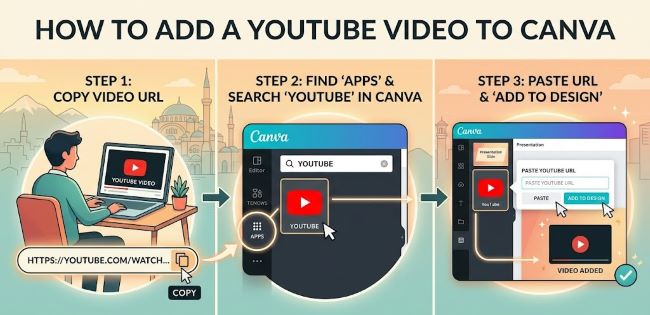
Learn how to add a YouTube video to Canva using the YouTube app integration, making it easier to create polished visuals that can help your YouTube videos stand out and leave a stronger impression on viewers.
If you are building a presentation in Canva and want to include a YouTube video that plays directly in your slides, you are in the right place. Adding a YouTube video to Canva is straightforward once you know where the option lives. It is not in the most obvious spot, but once you find it, the whole process takes under a minute.
This guide walks you through the exact steps on desktop and covers what to expect when you present.
What You Need Before You Start
Before adding a YouTube video to Canva, make sure:
- You are using Canva on desktop (browser or desktop app). The YouTube integration is not available on the Canva mobile app.
- You have the YouTube URL of the video you want to embed. Copy it from the browser address bar or from the Share option on YouTube.
- You are working on a design that supports embedded content, such as a presentation or a website design in Canva. Static designs like social media posts do not support playable video embeds.
How to Add a YouTube Video to Canva
- Open your Canva presentation or website design.
- Click on the page or slide where you want the video to appear.
- In the left sidebar, click Apps. This opens Canva’s app integrations panel.
- Search for YouTube in the search bar at the top of the Apps panel.
- Click the YouTube app from the results. If it is your first time using it, Canva may ask you to connect your Google account. Follow the prompts to authorize it.
- Once connected, a search bar appears inside the YouTube panel. You can either:
- Search for a video by typing a keyword
- Paste the YouTube URL directly into the search bar to find a specific video
- Click on the video you want to use. Canva adds it to your slide as an embedded video element.
- Resize and reposition the video on the slide by dragging the corners and moving it where you need it.
How the YouTube Video Behaves in Canva
Once embedded, the video does not autoplay in the editor. It shows as a static thumbnail with a play button overlay.
When you present using Canva’s Present mode, clicking the video plays it directly in the presentation without leaving the slide. This works in Canva’s built-in presenter view and when you share the presentation as a live Canva link.
If you export the presentation as a PDF or PowerPoint file, the YouTube video will not be playable in the exported file. It will appear as a static image or may not appear at all, depending on the export format. For the video to work, the presentation needs to be shared and viewed as a Canva link or presented through Canva directly.
Alternative: Embed a Video by URL
If the YouTube app does not show up or you prefer a quicker method:
- Go to Apps > Embed in the left sidebar.
- Paste the YouTube video URL into the URL field.
- Click Add to page.
Canva embeds the video the same way as the YouTube app method. This approach also works with Vimeo and other video platforms that support embedding.
Tips for Using YouTube Videos in Canva Presentations
- Check that the video is publicly available. Private or unlisted YouTube videos may not embed correctly in Canva.
- Test the video before presenting. Click into Present mode and play the video through once to confirm it loads and plays as expected.
- Use a stable internet connection. YouTube videos in Canva stream in real time, so a slow connection can cause buffering during a live presentation.
- Consider the aspect ratio. YouTube videos are 16:9 by default. If your Canva design uses a different ratio, resize the video element to avoid stretched or cropped playback.
The Short Answer
To add a YouTube video to Canva, go to Apps in the left sidebar, search for YouTube, connect your account, then search or paste the video URL to add it to your slide. The video plays directly in Canva’s Present mode and when shared as a Canva link. For the video to stay playable, keep the presentation in Canva rather than exporting it to PDF or PowerPoint.