How to Reset Your Xfinity Router: Restart, Reboot, and Factory Reset Guide
Learn how to reset your Xfinity router using the button, the Xfinity app, or the admin panel at 192.168.1.1. Covers restarts, factory resets, and recovering your Xfinity WiFi password.
Whether your Xfinity internet has slowed to a crawl, you are locked out of your network, or you are trying to start fresh with a clean configuration, knowing how to reset your Xfinity router gets you back online with minimal hassle. The process is straightforward, but there is an important distinction between a restart (which fixes most issues without erasing anything) and a factory reset (which wipes all your custom settings). This guide covers both, along with how to access your router settings and what to do about your Xfinity WiFi password after a reset.
Restart vs. Factory Reset: Which One Do You Actually Need?
Before touching anything on your router, it helps to know which type of reset you need. Most people use the word “reset” when they actually mean “restart,” and the two do very different things.
Restart (soft reset): Cycles the power on your router and modem. Clears temporary memory, re-establishes the connection to Xfinity’s network, and resolves most common issues like slow speeds, dropping connections, and devices not connecting. Your WiFi network name, password, and settings stay exactly the same.
Factory reset (hard reset): Erases all custom configurations and returns the device to its out-of-the-box state. Your custom WiFi network name and password are wiped. The router reverts to its default settings, and you need to set everything up again. Use this when troubleshooting major issues, preparing to return the equipment, or if you have forgotten your admin password.
In most cases, a restart is the right first step. Try that before a factory reset.
How to Restart Your Xfinity Router (No Settings Lost)
Option 1: Restart Using the Xfinity App
The Xfinity app is the easiest way to restart your gateway without touching the hardware.
- Download and open the Xfinity app on your phone.
- Sign in with your Xfinity account credentials.
- Tap Internet at the bottom of the screen.
- Select your gateway device from the list.
- Tap Restart this device.
- Confirm when prompted.
The gateway restarts remotely. The process takes two to five minutes. Your WiFi will go down briefly and come back up automatically.
Option 2: Unplug and Restart Manually
- Locate your Xfinity gateway (the combined modem and router unit).
- Unplug the power cable from the back of the device.
- Wait 60 seconds.
- Plug the power cable back in.
- Wait two to five minutes for the gateway to fully reconnect to Xfinity’s network.
The lights on the front of the gateway will cycle through colors during startup. A solid white or green light (depending on your model) indicates the gateway is back online.
Option 3: Use the Xfinity My Account Website
- Go to customer.xfinity.com and sign in.
- Navigate to Internet or My Devices.
- Select your gateway and look for the restart or troubleshoot option.
- Follow the on-screen steps.
How to Factory Reset Your Xfinity Router
Use this when a restart has not resolved your issue or when you need to wipe the device completely.
Method 1: Reset Button on the Device
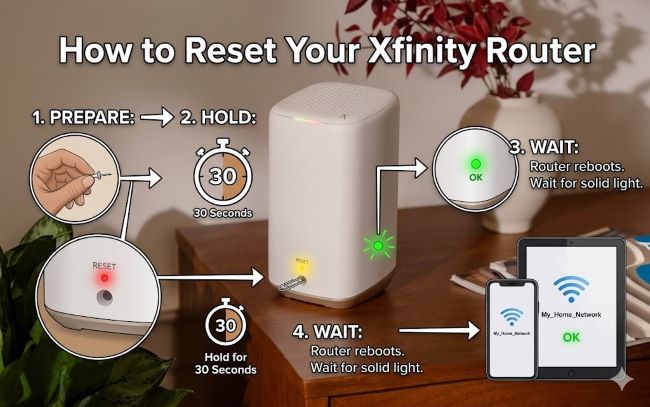
Every Xfinity gateway has a physical reset button. On most models it is a small recessed button labeled Reset on the back or bottom of the device. You need a paperclip, SIM ejector tool, or similar thin object to press it.
- Make sure the gateway is powered on.
- Locate the Reset button on the back or bottom of the device.
- Press and hold the Reset button using a paperclip for 30 seconds.
- The gateway lights will flash or change color to indicate the reset is starting.
- Release the button and wait.
- The gateway reboots and restores factory default settings. This takes three to five minutes.
After the factory reset completes, your custom WiFi network name and password are gone. The device reverts to its default SSID and password printed on the label on the back or bottom of the gateway.
Method 2: Factory Reset via Admin Panel at 192.168.1.1
If you can still connect to the router (either by WiFi or Ethernet cable) and you know the admin credentials, you can factory reset through the web interface.
- Connect your computer to the Xfinity gateway via WiFi or an Ethernet cable.
- Open a web browser and type 192.168.1.1 into the address bar. Press Enter. (Note: Some Xfinity gateways use 10.0.0.1 as the admin address. If 192.168.1.1 does not load, try 10.0.0.1.)
- The Xfinity gateway login page loads. Enter your admin username and password.
- The default username is typically admin.
- The default password is printed on the label on the back of the gateway, or may be password on older models.
- Navigate to Troubleshooting or Advanced Settings.
- Find Restore Factory Settings or Reset and click it.
- Confirm the reset.
The gateway resets and reboots. Reconnect using the default credentials on the device label after it comes back up.
Finding Your Xfinity WiFi Password
After a factory reset, your custom WiFi password is gone and the gateway reverts to its default network credentials. Here is where to find them.
On the device label: Look at the back or bottom of your Xfinity gateway. There is a sticker with the default WiFi network name (SSID) and the default WiFi password. Connect to the default network using those credentials.
Through the Xfinity app: If you set up a custom WiFi password before the reset and want to find it in your Xfinity account:
- Open the Xfinity app.
- Go to Internet > WiFi.
- Tap your network name.
- Select Show WiFi Password.
Through the admin panel: After reconnecting to the gateway using default credentials, log in to 192.168.1.1 and navigate to the wireless settings to see or change the current WiFi password.
Setting Up Your Xfinity Gateway After a Factory Reset
After a factory reset, the gateway uses its default settings. You can leave it this way or customize it again through the admin panel.
To access admin settings:
- Connect to the default WiFi network using the credentials on the device label.
- Open a browser and go to 192.168.1.1 (or 10.0.0.1).
- Log in with the default admin credentials.
- Change your WiFi name and password to something custom.
- Update the admin password to something secure.
You can also use the Xfinity app to walk through setup after a reset if you prefer a guided experience.
Common Issues and Quick Fixes After Resetting
Gateway lights stay orange or red after reset: The device is still searching for the network or there is a service outage. Wait five to ten minutes and check again. If it persists, call Xfinity support at 1-800-934-6489.
Cannot connect after factory reset: Make sure you are connecting to the default WiFi network name shown on the device label. The password on the label is case-sensitive.
192.168.1.1 not loading: Make sure you are connected to the gateway via WiFi or Ethernet (not mobile data). Try 10.0.0.1 as an alternative. If neither loads, restart the gateway first.
Forgot admin password after reset: A factory reset restores the default admin password printed on the device label. Use that to log in.
The Short Answer
To restart your Xfinity router without losing settings, unplug it for 60 seconds or use the Xfinity app. To factory reset, hold the Reset button on the back of the device for 30 seconds, or access the admin panel at 192.168.1.1 and use the restore factory settings option. After a factory reset, the default WiFi name and Xfinity WiFi password are printed on the device label. Access admin settings through 192.168.1.1 to set up a custom network name and password after the reset completes.