How to Embed Fonts in PDF
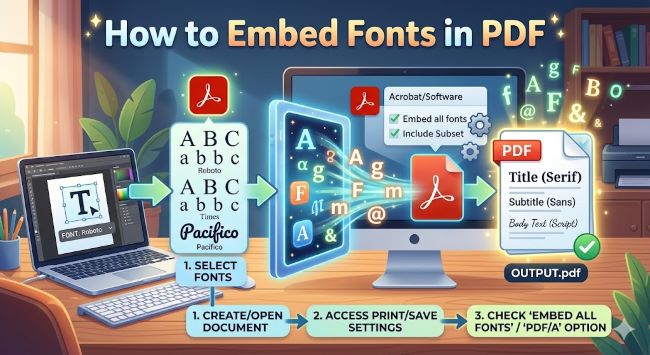
Learn how to embed fonts in PDF so your document looks the same on every device. Step-by-step instructions for Adobe Acrobat, Word, and other common tools.
You send a PDF to a client, a printer, or a colleague, and it comes back looking nothing like what you designed. The fonts are wrong, the spacing is off, and the whole thing looks like it was formatted in a hurry. This happens when fonts are not embedded in the PDF. Learning how to embed fonts in a PDF is one of the simplest ways to make sure your document looks exactly the way you intended, no matter who opens it or what software they use.
This guide covers how to do it from the most common tools people use every day.
How to Add Fonts to Google Slides
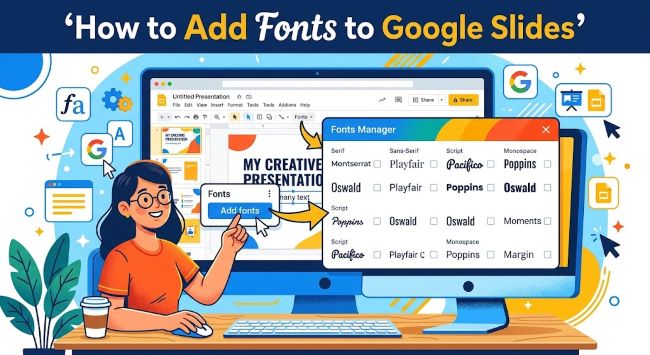
Here is exactly how to add fonts to Google Slides using Google Fonts, plus tips for keeping your slides consistent across devices.
What Does Embedding Fonts in a PDF Actually Mean?
When you embed fonts in a PDF, you are storing the font data inside the file itself. The reader does not need the font installed on their device because the PDF carries everything it needs to display the text correctly.
Without embedded fonts, PDF viewers substitute missing fonts with whatever is available on that machine. The result is unpredictable and often looks bad, especially with custom or branded typefaces.
Embedding fonts adds a small amount to your file size, but the tradeoff is almost always worth it.
How to Embed Fonts in a PDF Using Adobe Acrobat
Adobe Acrobat Pro gives you the most control over font embedding. Here is how to check and fix font embedding in an existing PDF:
- Open the PDF in Adobe Acrobat Pro.
- Go to File > Properties.
- Click the Fonts tab. This shows every font used in the document and whether it is embedded.
- If any fonts show as “not embedded,” you need to go back to the source file and re-export with embedding turned on, or use the preflight tool.
To use the preflight tool to embed fonts:
- Go to Tools > Print Production > Preflight.
- In the Preflight window, search for “embed fonts.”
- Select the Embed fonts fixup and click the wrench icon to run it.
- Save the updated PDF.
This is the most reliable method for fixing embedding issues in existing PDFs.
How to Embed Fonts When Exporting a PDF from Microsoft Word
Word makes this straightforward on Windows:
- Go to File > Save As and choose PDF as the file format.
- Before saving, click More options (or Options depending on your version).
- In the dialog box, check the box that says ISO 19005-1 compliant (PDF/A) or look for font embedding settings under the output options.
- Click OK and save.
PDF/A is an archival format that requires full font embedding by definition. If you select it, your fonts will always be embedded.
On Mac, go to File > Print > PDF > Save as PDF. Mac’s built-in PDF engine embeds fonts by default in most cases, but the result can vary depending on the font license.
How to Embed Fonts in a PDF from Adobe InDesign
InDesign is the standard tool for print and publication work, and it handles font embedding well:
- Go to File > Export and choose Adobe PDF as the format.
- In the Export PDF dialog, go to the Advanced tab.
- Under Fonts, set the Subset fonts when percent of characters used is less than field. A value of 100% embeds the full font. A lower value embeds only the characters used, which reduces file size.
- Click Export.
For print work, always choose the PDF/X-1a or PDF/X-4 preset. These presets require full font embedding and are what most professional printers expect.
How to Check If Fonts Are Embedded in a PDF
You do not always need Acrobat Pro to check. Here is a quick method using the free Adobe Acrobat Reader:
- Open the PDF in Adobe Acrobat Reader.
- Go to File > Properties.
- Click the Fonts tab.
Each font listed will show one of the following:
- Embedded means the font is fully embedded.
- Embedded Subset means only the characters used in the document are embedded. This is fine for most purposes.
- Nothing listed next to the font name means it is not embedded at all.
If you see unembedded fonts in a document that needs to look consistent everywhere, go back to the source and re-export.
Common Reasons Font Embedding Fails
- Font license restrictions. Some fonts have licensing terms that prohibit embedding. If Acrobat cannot embed a font, it will tell you. In that case, switch to a font that allows embedding or outline the text before exporting.
- Exporting from the wrong application. Some tools do not embed fonts by default. Always check the export settings rather than assuming the default is correct.
- Using a system font on Mac. Certain system fonts on macOS have restricted embedding permissions. If this happens, the fix is usually to switch to an open-license font like one from Google Fonts.
Quick Checklist Before Sharing a PDF
- Check the Fonts tab in File > Properties to confirm embedding.
- Use PDF/A or PDF/X presets when consistent display or print accuracy matters.
- If a font cannot be embedded, outline the text in your design application before exporting.
- Test the PDF on a device that does not have your fonts installed to confirm it renders correctly.
Embedding fonts is a small step that makes a real difference. Once you build it into your export workflow, you stop worrying about how your files look on the other end. Get it right once, and every PDF you send will look exactly the way you designed it.