How to Add Fonts to Procreate
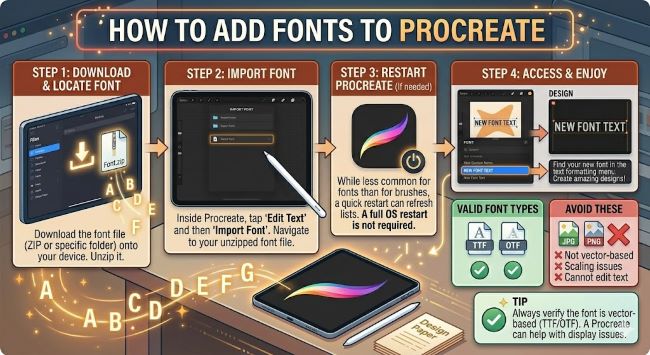
Learn how to add fonts to Procreate on your iPad in a few simple steps. This guide covers installing fonts via Safari, AnyFont, and your Files app so they appear in Procreate instantly.
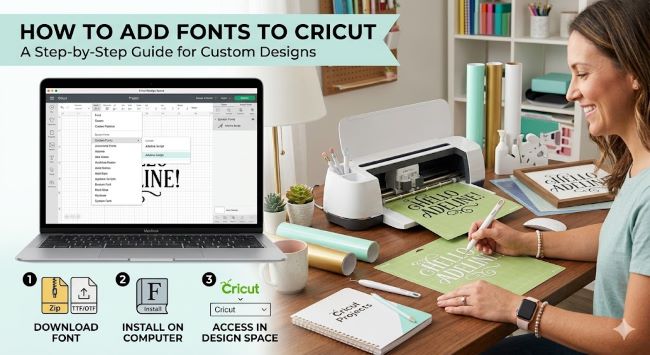
How to Add Fonts to Cricut
Learn how to add fonts to Cricut Design Space step by step. Covers installing system fonts, Google Fonts, and accessing them in your Cricut.
Procreate has a solid built-in font library, but at some point you find a typeface that is perfect for a project and it is nowhere in the app. If you have been searching for how to add fonts to Procreate, the good news is that it is not complicated. The process just works differently than on a desktop, because everything runs through iOS rather than a traditional operating system. Once you do it once, it becomes second nature.
This guide covers every method that works, so you can pick the one that fits your workflow.
How Procreate Handles Fonts
Procreate pulls fonts directly from the fonts installed on your iPad. It does not have an internal font manager or its own upload system. Whatever fonts iOS has access to, Procreate can use.
This means adding fonts to Procreate is really about installing fonts on your iPad first. There are a few ways to do that depending on where your font is coming from.
Method 1: Install Fonts Directly from Safari
If you are downloading a font from a website like Google Fonts, DaFont, or Font Squirrel, you can install it straight from Safari on your iPad. Here is the process:
- Open Safari and go to your font download source.
- Download the font file. It will save to your Downloads folder in the Files app. Font files end in .ttf or .otf.
- Open the Files app and find the downloaded font file. If it came in a .zip folder, tap it to unzip it first, then locate the .ttf or .otf file inside.
- Tap the font file. iOS will show a prompt asking if you want to install the font.
- Tap Install on the prompt that appears.
- Go to Settings > General > VPN and Device Management. You will see the font listed as a profile.
- Tap the font profile and tap Install again to confirm.
- Open Procreate, add a text layer, and your new font will appear in the font list.
This method works well for individual font files and requires no additional apps.
Method 2: Use AnyFont for Easier Font Management
AnyFont is a free app from the App Store that simplifies the font installation process, especially if you are installing multiple fonts or working with font families that include several weights.
- Download AnyFont from the App Store.
- Download your font file to your iPad. It will land in your Files app.
- Open the Files app, find the font file, and tap the share icon.
- Choose Open in AnyFont from the share options.
- Inside AnyFont, tap the font and follow the prompts to install it.
- Confirm the installation through Settings > General > VPN and Device Management, just as in Method 1.
- Open Procreate and find the font in your text tool.
AnyFont is particularly useful for installing an entire font family at once, such as all the weights and styles of a typeface in one go. It also gives you a preview of each font before you install, which saves time if you are working through a large batch.
Method 3: Install Fonts Through Creative Cloud
If you have an Adobe Creative Cloud subscription, you have access to Adobe Fonts, which includes thousands of professional typefaces. Adobe Fonts can be installed directly to your iPad through the Creative Cloud mobile app.
- Download the Adobe Creative Cloud app from the App Store and sign in to your account.
- Go to the Fonts section in the app.
- Browse or search for the font you want.
- Toggle the font on to install it to your device.
- Open Procreate and the font will be available in your text tool.
This method is the most seamless if you already use the Adobe ecosystem, since there is no manual file handling involved.
Where to Find Fonts That Work Well in Procreate
For illustration and lettering work in Procreate, some font styles hold up better than others. Here are reliable sources worth bookmarking:
- Designbeep Fonts : Free, clean, and a wide range of styles from serif to handwriting.
- DaFont (dafont.com): A large library with strong handwritten and decorative categories that suit illustration work.
- Creative Market: Paid fonts, often created by independent designers, with a lot of options built specifically for creative and branding projects.
- Font Squirrel (fontsquirrel.com): Free for commercial use, well curated, and reliable quality.
If you create lettering or brush script work in Procreate, look at the handwriting and calligraphy categories. They tend to complement hand-drawn art better than rigid geometric or display fonts.
Troubleshooting: Font Not Showing Up in Procreate
If you installed a font but cannot find it in Procreate, try these steps:
- Close and reopen Procreate. The app reads the font list when it opens. If a font was installed while Procreate was running, it will not appear until you restart the app.
- Check Settings > General > VPN and Device Management. If the font profile is not listed there, the installation did not complete. Go back and finish the install steps.
- Restart your iPad. A full restart refreshes the font cache and often resolves fonts that installed correctly but are not showing up.
- Check the font file format. Procreate supports .ttf and .otf files. Some older or unusual font formats may not be compatible.
The Bottom Line
Adding fonts to Procreate means installing them on your iPad first, and then Procreate picks them up automatically. Download the font, install it through the Files app or AnyFont, confirm the profile in Settings, and it will be ready to use. The whole process takes under two minutes once you have done it a couple of times, and your Procreate font library grows exactly as fast as your taste does.