How to Allocate More RAM to Minecraft
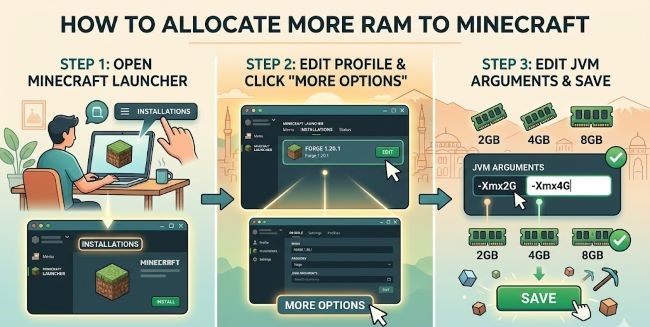
Learn how to allocate more RAM to Minecraft through the official launcher and third-party launchers like CurseForge and ATLauncher. Fix lag and improve performance in minutes.
If Minecraft is running slow, stuttering, or crashing, one of the most effective fixes is allocating more RAM to the game. By default, the Minecraft launcher gives the game a limited amount of memory, which is fine for vanilla play but often not enough once you add mods, shaders, or resource packs. Allocating more RAM to Minecraft takes a couple of minutes and can make a noticeable difference in how the game runs.
This guide covers how to do it through the official Minecraft launcher and the most popular third-party launchers.
Before You Start: How Much RAM Should You Allocate?
A few things to keep in mind before changing the settings:
- Do not allocate all your RAM. Your operating system and other apps need memory to run. Leave at least 2GB to 4GB free for the system.
- Vanilla Minecraft runs well on 2GB to 4GB.
- Modded Minecraft (especially heavy modpacks) often needs 4GB to 8GB or more.
- Allocating too much RAM can cause performance issues, not fewer. Java does not always handle very large memory allocations efficiently. More is not always better.
Check how much total RAM your computer has under System Settings or Task Manager before deciding on a number.
How to Allocate More RAM in the Official Minecraft Launcher
- Open the Minecraft Launcher.
- Click on Installations at the top of the launcher.
- Find the installation you want to change (Java Edition, a specific version, or a modded profile) and click the three dots next to it.
- Select Edit.
- Click More Options to expand the advanced settings.
- Find the JVM Arguments field. It will contain a line of text that includes something like -Xmx2G.
- Change the number in -Xmx2G to the amount of RAM you want to allocate. For example:
- -Xmx4G allocates 4GB
- -Xmx6G allocates 6GB
- -Xmx8G allocates 8GB
- Click Save.
The -Xmx value sets the maximum RAM Minecraft can use. Do not change the -Xms value (the minimum) unless you know what you are doing.
How to Allocate More RAM in CurseForge
- Open CurseForge and go to Settings (the gear icon).
- Click Minecraft under the Game Specific section.
- Find the Java Settings section.
- Use the Allocated Memory slider to set how much RAM you want to give Minecraft.
- Close settings. The change applies automatically to all modpacks launched through CurseForge.
How to Allocate More RAM in ATLauncher
- Open ATLauncher and click Settings in the right-hand panel.
- Go to the Java/Minecraft tab.
- Find the Maximum Memory/RAM field.
- Change the value to the amount you want to allocate (in megabytes, so 4096 = 4GB, 8192 = 8GB).
- Click Save.
How to Allocate More RAM in MultiMC or Prism Launcher
- Open MultiMC or Prism Launcher.
- Click on the instance you want to change, then click Edit on the right.
- Go to the Settings tab and then Java.
- Check the box to override the global settings.
- Change the Maximum memory allocation value to your chosen amount.
- Close the settings. The change applies to that instance only.
Signs That Your RAM Allocation Is Working
After making the change, launch Minecraft and check for:
- Smoother gameplay with fewer frame drops
- Faster world loading and chunk generation
- Fewer crashes, especially in modded play
If you still experience issues after increasing RAM, the problem may be elsewhere. Check that Java is up to date, and make sure your mods and game version are compatible with each other.
The Short Answer
To allocate more RAM to Minecraft, open your launcher’s settings, find the Java or memory options, and increase the maximum RAM value. In the official launcher, edit the JVM Arguments and change -Xmx2G to your preferred amount. In CurseForge, use the memory slider in Java Settings. Do not allocate more than 8GB unless you are running very heavy modpacks, and always leave at least 2GB to 4GB free for your system.