How to Add Fonts to Cricut
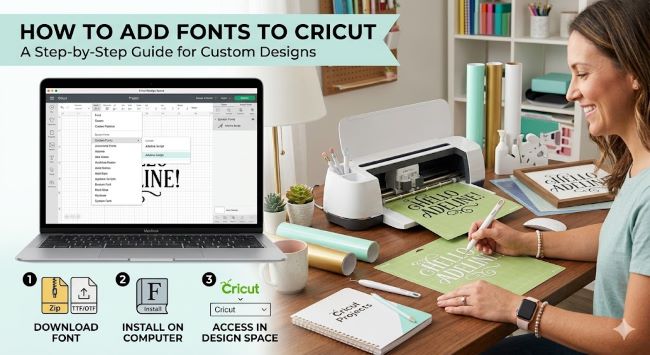
If you have ever found a beautiful font online and wondered how to use it in your Cricut projects, you are in the right place. Adding fonts to Cricut is straightforward once you understand how Design Space works with your computer or device. This guide walks you through every method, so you can go from finding a font to cutting with it in just a few minutes.
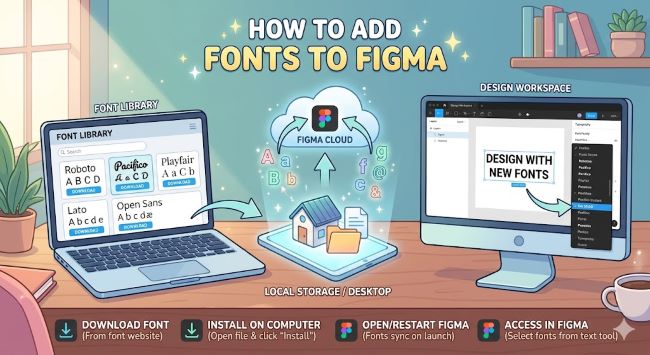
How to Add Fonts to Figma
Learn how to add fonts to Figma on desktop and browser, including how to use local fonts, Google Fonts, and the Figma Font Installer for seamless design work.
How Cricut Design Space Handles Fonts
Before diving into the steps, it helps to know one thing: Cricut Design Space does not have its own font library that you install fonts into. Instead, it pulls fonts from two places:
- Cricut fonts built into Design Space (many require a Cricut Access subscription)
- System fonts installed on your computer, phone, or tablet
So when you want to add a new font to Cricut, what you are really doing is installing that font on your device. Design Space picks it up from there.
How to Add Fonts to Cricut on a Windows PC
- Find and download the font you want. Sites like Google Fonts, DaFont, and Font Squirrel offer free options. The file will usually download as a .zip folder.
- Unzip the folder. Right-click it and select Extract All.
- Open the extracted folder and find the font file. It will end in .ttf (TrueType Font) or .otf (OpenType Font).
- Right-click the font file and select Install or Install for all users.
- Close Cricut Design Space completely if it is open.
- Reopen Design Space, start a new project, and click the Text tool.
- Open the font dropdown and look for your new font under the System filter.
The font should be there. If you do not see it, restart your computer and try again.
How to Add Fonts to Cricut on a Mac
- Download the font file from your chosen source.
- Unzip the downloaded file by double-clicking it.
- Double-click the .ttf or .otf font file. A preview window will open.
- Click Install Font in the bottom right corner of the preview.
- The font installs to your Mac’s Font Book automatically.
- Quit and reopen Cricut Design Space.
- Select the Text tool, open the font menu, and filter by System to find your new font.
How to Add Fonts to Cricut on an iPhone or iPad
Adding fonts to an iPhone or iPad takes a few more steps because iOS does not let you install fonts the same way a desktop does.
You need a font installer app. AnyFont is a popular free option. Here is the process:
- Download AnyFont from the App Store.
- Download your font file. Tap the downloaded file and choose Open in AnyFont.
- Inside AnyFont, tap the font and follow the prompts to install it through your device settings.
- Go to Settings > General > VPN and Device Management and tap the font profile to install it.
- Open Cricut Design Space, tap the Text tool, and your font will appear under System fonts.
Where to Find Good Fonts for Cricut Projects
Not every font works well with a Cricut. Scripts that are too thin can tear during cutting. Very intricate display fonts may not weld properly. Here are reliable places to find fonts that hold up:
- Designbeep (free fonts): Free, clean, and well-tested across projects.
- DaFont (dafont.com): Huge variety, filter by category and license type.
- Font Squirrel (fontsquirrel.com): Free for commercial use, good quality control.
- Creative Market: Paid fonts, often made with crafting in mind.
When in doubt, choose fonts with thicker strokes and clear letterforms. They cut cleaner and weed faster.
Tips for Using Custom Fonts in Design Space
- Always weld script fonts in Design Space before cutting. This connects the letters so they cut as one piece instead of individual characters.
- Use the Slice or Attach tools to position your text correctly relative to other design elements.
- If a font looks right on screen but cuts oddly, check the letter spacing. Overlapping letters in a script font need welding to work.
- Test new fonts on a scrap piece of material before committing to your good vinyl or cardstock.
Quick Recap
Adding fonts to Cricut comes down to installing them on your device first. Design Space does the rest. Whether you are on Windows, Mac, or iOS, the process takes less than five minutes once you have the font file ready.
Find a font, install it, restart Design Space, and you are good to go. From there, the only limit is the project itself.