How to Screenshot on Lenovo ThinkPad
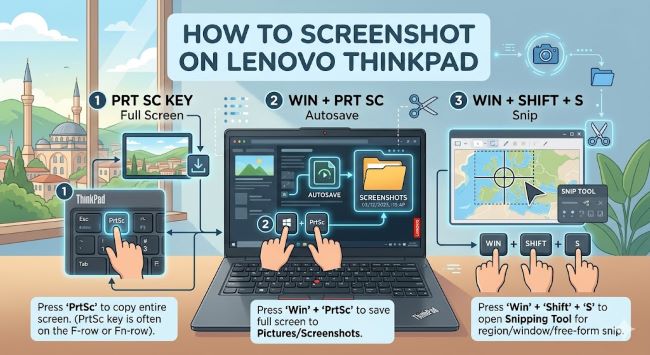
Learn how to screenshot on a Lenovo ThinkPad using keyboard shortcuts, Snipping Tool, and the PrtSc key. Quick step-by-step guide for every method on Windows 10 and 11.
Taking a screenshot on a Lenovo ThinkPad is something most people figure out eventually, but there are actually several ways to do it depending on what you need to capture and where you want the image to go. Since ThinkPads run Windows, the methods are the same as any other Windows laptop, but ThinkPads have a few keyboard quirks worth knowing about. This guide covers every screenshot method so you can pick the one that works best for your situation.
Method 1: PrtSc Key (Full Screen to Clipboard)
The PrtSc key on most ThinkPad keyboards is located in the top row, often shared with another function. On some ThinkPad models it appears as PrtSc on its own, and on others you may need to press Fn + PrtSc to activate it.
- PrtSc (or Fn + PrtSc): Copies a screenshot of your entire screen to the clipboard. Nothing saves automatically. Open Paint, Word, or an email and press Ctrl + V to paste and save it.
- Windows key + PrtSc: Takes a full-screen screenshot and saves it automatically to Pictures > Screenshots. The screen dims briefly to confirm the capture.
- Alt + PrtSc: Captures only the active window and copies it to the clipboard.
If pressing PrtSc alone does nothing, try Fn + PrtSc. ThinkPad keyboards sometimes require the Fn key to activate secondary key functions depending on the model and BIOS settings.
Method 2: Snipping Tool (Best for Selecting a Specific Area)
The Snipping Tool is built into Windows and gives you full control over what you capture. It is the best option when you need to grab a specific part of the screen rather than the whole thing.
Press Windows key + Shift + S to open the snipping toolbar. Your screen dims and four capture options appear at the top:
- Rectangular Snip: Drag to select any rectangular area
- Freeform Snip: Draw any shape around the area you want
- Window Snip: Click a window to capture it on its own
- Full-screen Snip: Captures the entire screen
After you capture, the screenshot copies to your clipboard and a notification appears in the bottom right corner. Click the notification to open it in the Snipping Tool editor where you can annotate, crop, and save the image.
To open the full Snipping Tool app with a delay timer (useful for capturing menus or tooltips), search for Snipping Tool in the Start menu and open it from there.
Method 3: Windows Key + PrtSc (Auto-Save)
This is the easiest method if you just want a quick full-screen screenshot saved automatically without any extra steps.
Press Windows key + PrtSc together. The screen flashes to confirm the capture. The screenshot saves automatically to:
C:\Users[YourName]\Pictures\Screenshots
No pasting or saving required. Just go to that folder to find your files.
Method 4: Xbox Game Bar (Good for Capturing Apps)
If you are in an app or game and need a quick screenshot, press Windows key + G to open the Xbox Game Bar overlay, then click the camera icon or press Windows key + Alt + PrtSc.
Screenshots taken this way save automatically to Videos > Captures.
Where Do Screenshots Go on a Lenovo ThinkPad?
| Method | Where It Saves |
|---|---|
| PrtSc alone | Clipboard only (paste to save) |
| Windows + PrtSc | Pictures > Screenshots |
| Alt + PrtSc | Clipboard only |
| Snipping Tool (Win + Shift + S) | Clipboard (save from editor) |
| Xbox Game Bar | Videos > Captures |
The Short Answer
To screenshot on a Lenovo ThinkPad, press Windows key + PrtSc for a full-screen shot that saves automatically, or press Windows key + Shift + S to open the Snipping Tool and select a specific area. If PrtSc alone does not work, try Fn + PrtSc. Both methods work on every ThinkPad running Windows 10 or 11.