How Do I Know If My Phone Is Linked to Another Device?
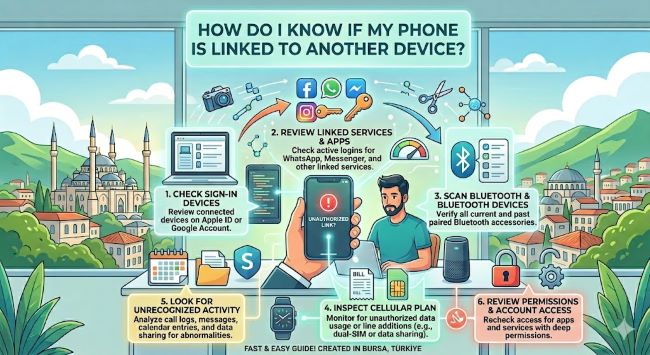
Wondering how to know if your phone is linked to another device? This guide covers the signs to look for and how to check linked devices on iPhone and Android.
If you have been noticing strange behavior on your phone, battery draining faster than usual, data being used when you are not actively browsing, or apps behaving oddly, it is natural to wonder whether your phone is connected to or monitored by another device. Knowing how to check if your phone is linked to another device is a practical security step that more people should take regularly. This guide walks you through exactly how to check, what to look for, and what to do if something looks wrong.
What Does “Linked to Another Device” Actually Mean?
Your phone can be connected to another device in several legitimate ways. Family sharing, cloud account syncing, Bluetooth pairing, and apps like WhatsApp Web or iMessage on a Mac all create device links that are intentional and normal.
The concern arises when a device link exists that you did not set up yourself. That could mean someone has access to your account, your messages are being forwarded to another device, or monitoring software has been installed on your phone.
Both situations are worth knowing about.
Signs Your Phone May Be Linked to Another Device
Before diving into settings, look for these common indicators:
- Battery draining faster than normal. Background processes from monitoring apps or syncing activity use power continuously.
- Higher data usage than expected. Data being sent from your phone in the background can show up in your monthly usage stats.
- Phone feels warm when idle. Persistent background activity keeps the processor and radio working, which generates heat.
- Unfamiliar apps in your app list. Some monitoring tools install as apps with generic or disguised names.
- Messages marked as read that you have not opened. This can indicate someone else is reading your messages on a linked device.
- Account login notifications from unfamiliar locations. Most platforms send alerts when a new device signs in.
None of these signs alone confirms a problem, but several together are worth investigating.
How to Check Linked Devices on iPhone
Apple ID and iCloud devices:
- Go to Settings and tap your name at the top.
- Scroll down to see a list of all devices signed in to your Apple ID.
- Tap any device to see details. If you do not recognize a device, tap Remove from Account.
iMessage linked devices:
- Go to Settings > Messages > Send & Receive.
- Check which phone numbers and email addresses are active. If you see addresses you do not recognize, remove them.
Find My linked devices:
- Open the Find My app.
- Check the Devices tab to see everything connected to your Apple ID.
WhatsApp linked devices on iPhone:
- Open WhatsApp and go to Settings > Linked Devices.
- Any active sessions on other devices appear here. Tap any session and select Log Out to remove it.
How to Check Linked Devices on Android
Google account devices:
- Go to Settings > Google > Manage your Google Account.
- Tap the Security tab and scroll to Your devices.
- Tap Manage all devices to see every device signed in to your Google account.
- Tap any device and select Sign out to remove access.
Samsung account (if applicable):
- Go to Settings > Samsung Account.
- Tap Devices to see linked Samsung devices.
WhatsApp linked devices on Android:
- Open WhatsApp, tap the three dots in the top right, and select Linked Devices.
- Review active sessions and log out of any you do not recognize.
Check for unfamiliar apps:
- Go to Settings > Apps and scroll through the full list.
- Look for apps you did not install. If something looks unfamiliar, search the name online before removing it to understand what it is.
How to Check Your Bluetooth and Wi-Fi Connections
Bluetooth pairing is another way devices can be linked.
- Go to Settings > Bluetooth and review your paired devices list.
- Remove any device you do not recognize by tapping it and selecting Forget or Unpair.
For Wi-Fi, check your router’s connected devices list through your router’s admin panel (usually accessed at 192.168.1.1 or 192.168.0.1 in a browser). This shows every device currently using your network.
What to Do If You Find an Unauthorized Link
If you find a device or session you do not recognize:
- Remove it immediately from the relevant account or app settings
- Change your account password right away
- Enable two-factor authentication if it is not already on
- Check whether any unfamiliar apps are installed and remove them
- Consider running a security scan using a trusted mobile security app
For serious concerns about monitoring software that may be hidden on the device, a factory reset removes everything and starts fresh. Back up your data first, but be aware that restoring from a backup could restore the problem too. Set up the device as new if you suspect deep-level compromise.
The Short Answer
To check if your phone is linked to another device, review the devices signed in to your Apple ID or Google account, check linked device lists in apps like WhatsApp, review your Bluetooth paired devices, and look for unfamiliar apps. If you find something you did not set up, remove it, change your password, and enable two-factor authentication. Most legitimate links are easy to find and remove in a few minutes.