How to Subtract in Excel
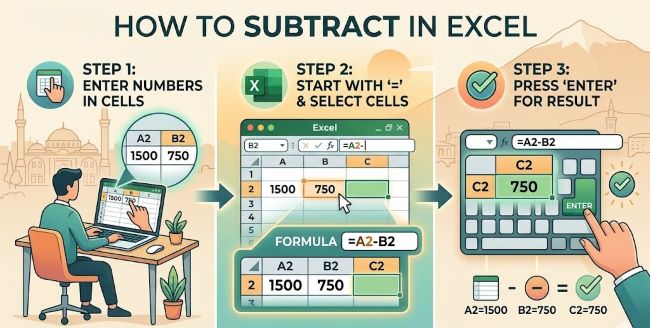
Learn how to subtract in Excel using simple formulas, cell references, and the SUM function. This guide covers every method with clear examples you can use right away.
Subtraction in Excel is one of those things that looks like it should have its own dedicated function, but it does not. Excel has no SUBTRACT function. Instead, you subtract using a formula with the minus sign, and it works across single numbers, cell references, and entire columns. Once you see how it works, the logic is simple and consistent across every subtraction task you will encounter.
This guide covers every method for subtracting in Excel with clear, practical examples.
Method 1: Basic Subtraction Formula
The simplest way to subtract in Excel is to write a formula directly in a cell.
- Click on an empty cell where you want the result to appear.
- Type an equals sign: =
- Enter the numbers or cell references you want to subtract, separated by a minus sign.
- Press Enter.
Examples:
- =10-3 returns 7
- =A1-B1 subtracts the value in B1 from the value in A1
- =A1-B1-C1 subtracts both B1 and C1 from A1
Every formula in Excel starts with an equals sign. Without it, Excel treats what you type as text rather than a calculation.
Method 2: Subtract Using Cell References
Using cell references instead of typing numbers directly is the better approach for most real work. It means your formula updates automatically if the underlying data changes.
Say you have:
- A1 = 500 (total budget)
- B1 = 120 (amount spent)
In cell C1, type: =A1-B1
Excel returns 380. If you update A1 or B1, C1 recalculates instantly without you touching the formula.
This is the foundation of most budget trackers, expense sheets, and financial models built in Excel.
Method 3: Subtract a Number from an Entire Column
If you need to subtract the same number from a whole column of values, you can use a formula with an absolute reference.
Say column A has a list of prices and you want to subtract a discount in cell D1 from each one.
In cell B1, type: =A1-$D$1
The dollar signs lock the reference to D1 so it does not shift when you copy the formula down. Click B1, then drag the fill handle (the small square in the bottom right corner of the cell) down to apply the formula to the rest of the column.
Every cell in column B now shows the price minus the discount from D1.
Method 4: Use SUM to Subtract Multiple Values at Once
If you need to subtract several numbers from one value, you can use the SUM function to keep the formula clean.
Instead of writing =A1-B1-C1-D1-E1, you can write:
=A1-SUM(B1:E1)
This subtracts the total of B1 through E1 from A1. It is more readable and easier to maintain when you are working with long ranges.
Method 5: Subtract Dates and Times in Excel
Excel stores dates and times as numbers, which means you can subtract them directly.
- =B1-A1 where both cells contain dates returns the number of days between them.
- Format the result cell as a number (not a date) to see the day count rather than another date.
For times, the same logic applies. Subtracting a start time from an end time gives you the duration. Format the result as h:mm to display it as hours and minutes.
Common Mistakes When Subtracting in Excel
- Forgetting the equals sign. Without it, Excel treats the formula as text.
- Using the wrong cell reference. Double-check that your formula points to the right cells before pressing Enter.
- Not locking references with dollar signs. If you plan to copy a formula, decide which references should stay fixed and add $ accordingly.
- Getting a date instead of a number. If your subtraction result shows as a date, change the cell format to General or Number.
The Short Answer
To subtract in Excel, start with an equals sign and use the minus operator: =A1-B1. There is no SUBTRACT function. Use cell references to keep formulas dynamic, dollar signs to lock references when copying formulas, and SUM to handle multiple subtractions cleanly. Those four tools cover nearly every subtraction task you will run into.