How to Unsync Google Photos
Learn how to unsync Google Photos on Android and iPhone, stop Google Photos backup, remove synced photos, and manage what gets uploaded to your Google account.
Google Photos is incredibly convenient right up until it is not. Maybe it is eating through your Google storage, uploading photos you did not intend to share, or you simply want more control over what lives on your device versus what goes to the cloud. Whatever the reason, knowing how to unsync Google Photos is more nuanced than just flipping a single switch. There are a few different things “unsyncing” can mean, and each one has a different process. This guide covers all of them clearly so you end up with exactly the setup you want.
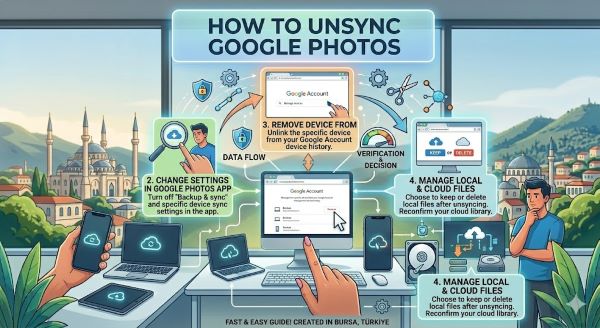
What “Unsyncing” Google Photos Actually Means
Before diving into the steps, it helps to know what you are actually changing, because the word “unsync” covers a few different intentions.
Stopping new backups: Google Photos no longer uploads new photos from your device to the cloud. Your existing photos in Google Photos stay there.
Removing photos from the app: You stop Google Photos from displaying certain photos, either by excluding specific folders or by disconnecting the app entirely.
Deleting photos from Google Photos: You remove photos already stored in the cloud. This is separate from backup settings.
Unlinking your account: You sign out of Google Photos entirely, which stops all sync and removes your photos from the app on that device.
Most people searching for how to unsync Google Photos want to stop new backups or stop the app from accessing their photos. The steps below cover each scenario.
How to Stop Google Photos from Backing Up on Android
This turns off the automatic upload feature so no new photos go to Google Photos without your permission.
- Open the Google Photos app on your Android phone.
- Tap your profile picture in the top right corner.
- Tap Photos settings.
- Tap Backup.
- Toggle Backup off.
Once backup is off, the app stops uploading new photos. Photos already backed up to Google Photos remain in the cloud. Your device photos are not deleted.
You can also pause backup temporarily instead of turning it off entirely:
- Follow the same steps to reach the Backup settings.
- Tap Backup is on and look for the option to pause for 1 week, 1 month, or indefinitely.
Pausing is useful if you are managing storage around a specific period without fully disconnecting.
How to Stop Google Photos from Backing Up on iPhone
How to unsync Google Photos from iPhone follows the same basic process, but there are a couple of iPhone-specific steps worth noting.
- Open the Google Photos app on your iPhone.
- Tap your profile picture in the top right corner.
- Tap Photos settings.
- Tap Backup.
- Toggle Backup off.
On iPhone, Google Photos also needs camera access to back up photos. If you want to prevent any future backup access, you can revoke this permission entirely:
- Go to Settings on your iPhone.
- Scroll down and tap Google Photos.
- Tap Photos and change the access to None.
With access removed, Google Photos cannot see or upload any photos from your iPhone’s camera roll even if backup gets turned back on later.
If you use iCloud Photos alongside Google Photos, turning off Google Photos backup does not affect iCloud. The two services operate independently.
How to Stop Google Photos from Backing Up Specific Folders
If you do not want to turn off backup entirely but you want to exclude certain folders or albums from being uploaded, Google Photos lets you control which device folders sync.
- Open Google Photos and tap your profile picture.
- Tap Photos settings > Backup > Back up device folders.
- You will see a list of folders on your device (screenshots, downloads, WhatsApp images, etc.).
- Toggle off any folder you do not want to back up.
The main camera roll is usually listed as your device name or “Camera.” Toggling that off while leaving other folders active gives you selective control without turning off backup entirely.
How to Unsync Google Photos by Removing Your Account
If you want to fully disconnect Google Photos from your account on a specific device, signing out achieves this.
On Android:
- Open Google Photos.
- Tap your profile picture.
- Tap the email address at the top.
- Tap Manage accounts on this device.
- Tap the Google account you want to remove.
- Tap Remove account.
Removing your Google account from the device removes it from all Google apps, not just Photos. The photos in your Google account are not deleted. They remain accessible when you sign in on another device or through photos.google.com.
On iPhone:
- Open Google Photos.
- Tap your profile picture.
- Tap Sign out or switch to a different account.
This removes the account from the app without deleting anything from the cloud.
What Happens to Your Photos When You Unsync Google Photos
This is the question most people want answered before they make changes.
Your device photos are not deleted when you turn off backup or sign out. They stay on your phone exactly as they are.
Your Google Photos library is not deleted when you stop backup. Everything already uploaded stays in your Google account and remains accessible at photos.google.com.
If you want to delete photos from Google Photos, that is a separate action you need to take manually. Go to photos.google.com, select the photos you want to remove, and delete them from there. Deleting from Google Photos does not delete from your device, and vice versa, unless your device was set to show library photos within the app.
How to Delete Photos from Google Photos Without Affecting Your Device
- Go to photos.google.com in a browser (or open the Google Photos app).
- Select the photos you want to remove.
- Click the delete icon (trash can).
- Empty the trash within Google Photos (photos sit in trash for 60 days before permanent deletion).
Before doing this, make sure backup is turned off first. If backup is still on, your device photos will re-upload and re-appear in Google Photos.
Managing Storage After Unsyncing
If your reason for unsyncing was to free up Google storage space, turning off backup prevents new uploads but does not reclaim space from existing uploads. To free up storage:
- Go to myaccount.google.com/storage to see what is using space.
- Delete unwanted photos from photos.google.com.
- Empty the Google Photos trash to permanently free the storage.
Google’s free tier gives you 15GB of storage shared across Gmail, Drive, and Photos. If you are over this limit, you can also download your photos using Google Takeout at takeout.google.com before deleting them from the cloud.
Summary: Which Steps Match Your Goal
| Goal | What to Do |
|---|---|
| Stop new photos from uploading | Turn off Backup in Photos settings |
| Stop Google Photos accessing iPhone photos | Revoke camera permission in iPhone Settings |
| Exclude specific folders from backup | Manage back up device folders in Settings |
| Remove Google Photos from your device | Sign out or remove Google account |
| Delete photos from the cloud | Delete from photos.google.com and empty trash |
| Free up Google storage | Delete from cloud and empty trash |
The Short Answer
To unsync Google Photos, open the app, tap your profile picture, go to Photos settings, select Backup, and toggle it off. This stops new uploads without deleting anything already backed up. On iPhone, you can also revoke camera access in Settings to prevent any future sync. To remove photos already in the cloud, you need to delete them manually from photos.google.com. Turning off backup does not affect your device photos, and deleting from the cloud does not delete from your phone.