How to Add Fonts to Google Docs
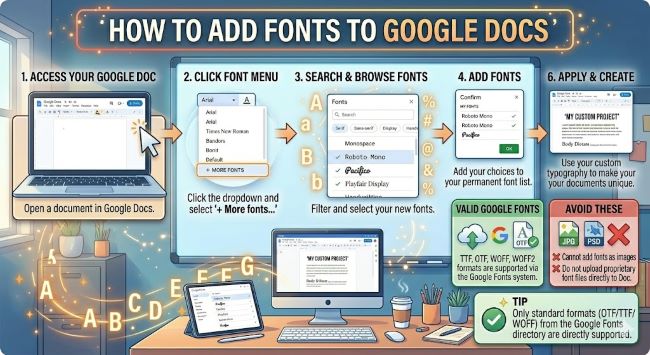
Learn how to add fonts to Google Docs using the built-in Google Fonts library. This step-by-step guide shows you how to find, add, and manage fonts in any Google Doc.
Google Docs comes loaded with a reasonable selection of fonts, but if you have spent any time working on a document that needs a specific look, you have probably hit the limit of what shows up by default. The default font list is not all that Google Docs has to offer. There are hundreds more available, and adding fonts to Google Docs takes about 30 seconds once you know where to look.
This guide shows you exactly how to do it, what your options are, and a few things worth knowing about how Google Docs handles fonts.

How to Add Fonts to Cricut
Learn how to add fonts to Cricut Design Space step by step. Covers installing system fonts, Google Fonts, and accessing them in your Cricut.
How Google Docs Fonts Work
Google Docs connects to Google Fonts, a free library of over 1,000 typefaces. The fonts are not installed on your computer. They load from the web and are tied to your Google account, so any font you add in one document becomes available across all your Google Docs on any device.
The catch is that you need an internet connection for the fonts to load. If you are working offline, Google Docs falls back to the fonts your browser has available.
How to Add Fonts to Google Docs
- Open any document in Google Docs.
- Click the font name dropdown in the toolbar. By default it usually shows “Arial” or whichever font is currently active.
- Scroll to the top of the font list and click More fonts. This opens the Google Fonts browser.
- Browse or search for the font you want. You can filter by category using the tabs at the top: Serif, Sans Serif, Display, Handwriting, and Monospace.
- You can also sort fonts by Popularity, Alphabetical, Date added, or Number of styles using the Sort dropdown on the right.
- Click a font name to add it. It moves to the My fonts panel on the right side of the window.
- Click OK when you have finished selecting fonts.
The fonts you added now appear in the main font dropdown in your toolbar, ready to use in any document.
How to Search for a Specific Font in Google Docs
If you already know the name of the font you want, the search bar at the top of the More Fonts window is the fastest route. Type the name and it will appear immediately if it exists in the Google Fonts library.
If you are not sure of the exact name, the category filters help narrow things down. The Handwriting category is good for anything script-like or informal. Display fonts work well for headings and titles. Serif and Sans Serif cover most body text needs.
The Popularity sort is worth using if you want fonts that are well-tested and widely used. Popular fonts tend to be popular because they are clean, versatile, and readable across different contexts.
Managing Your Font List in Google Docs
Over time, your font list can get crowded if you add a lot of typefaces. To clean it up:
- Open the font dropdown and click More fonts again.
- In the My fonts panel on the right, click the X next to any font you want to remove.
- Click OK to save the changes.
Removing a font from your list does not delete anything permanently. You can always add it back the same way you added it originally.
Can You Add Non-Google Fonts to Google Docs?
Not directly. Google Docs only pulls from the Google Fonts library, so there is no way to upload a custom .ttf or .otf file the way you can on a desktop application.
If you need a specific font that is not in Google Fonts, you have a few workarounds:
- Create text as an image. Design the text in Canva, Adobe Express, or another tool using your custom font, export it as a PNG, and insert it into your Google Doc as an image. It will not be editable as live text, but it will display correctly.
- Find a close alternative in Google Fonts. The library is large enough that you can usually find something similar. Tools like Fontjoy or Google’s own font pairing suggestions can help you identify near-matches.
- Use the Extensis Fonts add-on. This free Google Docs add-on expands your font access and provides a better browsing experience than the default More Fonts window. Install it through Extensions > Add-ons > Get add-ons and search for Extensis Fonts.
A Few Font Tips for Google Docs
- Stick to two fonts per document at most: one for headings and one for body text. More than that tends to look unpolished.
- Use Styles to apply fonts consistently. Instead of manually changing the font on each heading, set your Heading 1, Heading 2, and Normal Text styles under Format > Paragraph styles. This keeps your document consistent and saves time.
- Check how your fonts look when exported. If you plan to download the document as a PDF or Word file, open the exported version to confirm the fonts render as expected. Google Fonts generally export cleanly to PDF.
- Sans serif fonts read better on screen. For documents that will be read digitally, fonts like Inter, Lato, or Open Sans are easier on the eyes than traditional serif fonts at body text sizes.
The Short Answer
Adding fonts to Google Docs means browsing the Google Fonts library through the More Fonts option in the font dropdown, selecting what you need, and clicking OK. Your chosen fonts then appear in every Google Doc tied to your account.
It takes under a minute, works across all your devices, and gives you access to hundreds of quality typefaces without leaving the document. Set your fonts, apply them through Paragraph styles, and your formatting stays consistent from the first line to the last.