ERR_SSL_VERSION_OR_CIPHER_MISMATCH: Complete Troubleshooting Guide
You try to access a secure website. Instead of content, your browser displays an error message: err_ssl_version_or_cipher_mismatch. The page won’t load. Your connection fails. No clear explanation of what went wrong or how to fix it.
This error frustrates users and website owners alike. It appears cryptic and technical. But understanding what err_ssl_version_or_cipher_mismatch means and why it happens puts you in control. Most of the time, the problem is fixable without waiting for technical support.
This guide explains SSL and TLS protocols, why version and cipher mismatches happen, and concrete steps to resolve the error on your device or at a server level.
What SSL and TLS Actually Are
Understanding Encryption Protocols
SSL stands for Secure Sockets Layer. TLS stands for Transport Layer Security. These are protocols that encrypt data between your browser and a website’s server.
When you see a padlock icon in your browser, you’re using SSL or TLS. Your connection is encrypted. Hackers can’t see your passwords, credit card numbers, or personal data.
SSL is the older protocol. TLS is the newer, more secure version. Modern browsers and servers use TLS exclusively.
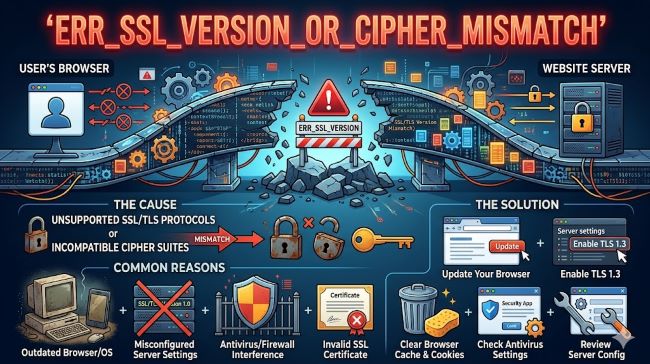
The client and server don’t support a common ssl protocol version or cipher suite is what this error tells you. Your browser and the server can’t agree on how to encrypt their connection.
Versions and Cipher Suites
SSL and TLS come in versions. TLS 1.0, 1.1, 1.2, and 1.3 are the common ones. Each version is more secure than the one before.
A cipher suite is a set of encryption rules. It specifies which algorithms handle encryption, authentication, and data integrity. Different cipher suites use different algorithms.
A mismatch occurs when your browser supports only certain versions and cipher suites, while the server supports others. They can’t find common ground.
For example, your browser might support only TLS 1.2 and 1.3. The server might support only TLS 1.0 and 1.1. They have no compatible version, so the connection fails.
Common Causes of SSL Version and Cipher Mismatches
Outdated Browser
Old browsers support outdated TLS versions. Modern servers disable old versions for security. Your browser and the server can’t agree.
Browser developers regularly update their TLS support. Using outdated software means missing newer protocols.
Updating your browser often fixes this error. New versions support the latest TLS standards.
Outdated Server Software
Servers running old web server software sometimes support only old TLS versions. Modern clients support only newer versions.
Website administrators need to update their server software to fix this on their end.
If you’re accessing a private server or company intranet, they might be using outdated software.
Firewall or Proxy Interference
Corporate firewalls and proxies sit between your browser and the website. They inspect connections for security threats.
Sometimes these security tools use outdated TLS versions. They intercept your connection and try to use old protocols.
The server rejects the old protocol, causing the mismatch error.
Antivirus Software
Some antivirus programs inspect HTTPS traffic. They intercept your connection and replace the server’s certificate.
If the antivirus uses outdated TLS versions, the mismatch occurs.
Updating antivirus software usually fixes this. Some antivirus programs have settings to disable HTTPS inspection.
Server Configuration Errors
Website administrators might misconfigure their servers. They enable only specific TLS versions without testing compatibility.
If they disable TLS 1.2 without enabling TLS 1.3, older browsers can’t connect.
The server side needs proper configuration to support common TLS versions.
Understanding TLS Error Messages
Decoding Err SSL Protocol Error Messages
Err ssl protocol error is a broader category that includes version and cipher mismatches.
When you see this error, the browser couldn’t establish a secure connection. The exact cause varies.
err_ssl_version_or_cipher_mismatch is more specific. It tells you the exact problem: incompatible versions or cipher suites.
Other SSL Error Variants
err_ssl_key_usage_incompatible means the website’s certificate has a key that can’t be used for this connection. It’s related but different.
tls error is generic language for any TLS-related problem.
Understanding which specific error you see helps identify the exact problem.
Fixing the Error on Your Device
Updating Your Browser
Most err_ssl_version_or_cipher_mismatch errors on your device resolve with a browser update.
Open your browser’s settings or preferences.
Look for About or Help menu.
Your browser checks for updates automatically and prompts you to restart.
Restart the browser completely. Don’t just close and reopen. A full restart applies the update.
Try accessing the website again. The updated browser supports current TLS standards.
Updating Your Operating System
Your OS contributes to TLS support. Outdated Windows, macOS, or Linux versions lack current TLS protocols.
Check for OS updates through your system settings.
Install all available updates.
Restart your computer.
Try accessing the website again.
Clearing Browser Cache and Cookies
Sometimes cached connection data causes issues.
Clear your browser cache. Go to Settings > Privacy > Clear browsing data.
Select Cookies and other site data and Cached images and files.
Leave other options unchecked unless you want to clear them.
Click Clear data.
Close your browser completely and restart it.
Try the website again.
Disabling Browser Extensions
Some browser extensions interfere with SSL/TLS connections.
Temporarily disable all extensions. Go to your extensions page and toggle them off.
Try accessing the website again.
If the error disappears, an extension is the problem. Re-enable them one at a time to find the culprit.
Adjusting Antivirus Settings
If you use antivirus with HTTPS inspection, disable it for testing.
Open your antivirus settings.
Look for HTTPS scanning, SSL inspection, or similar options.
Disable it temporarily.
Try accessing the website again.
If the error disappears, your antivirus was interfering. You can keep it disabled or configure it to skip specific sites.
Network-Level Troubleshooting
Checking Your VPN
VPNs route your connection through different servers. Some VPNs use outdated TLS versions.
Disable your VPN and try accessing the website normally.
If the error disappears, your VPN is the problem.
Switch to a different VPN service with better TLS support.
Contact your VPN provider about updating their TLS protocols.
Testing on Different Networks
Network infrastructure affects SSL connections. Your company network, school network, or public WiFi might use proxies.
Try accessing the website on a different network. Use your phone’s mobile data instead of WiFi.
If the error disappears on the other network, your primary network is interfering.
Talk to your network administrator about updating their proxy servers.
Checking Your Firewall
Personal firewalls on your computer sometimes interfere.
Temporarily disable your firewall to test.
Try accessing the website.
If it works with the firewall disabled, your firewall is blocking modern TLS connections.
Update your firewall software or reconfigure it to allow current TLS protocols.
Server-Side Solutions
For Website Administrators
If you manage a website and users report this error, your server configuration needs attention.
Check your web server software version. Update to the latest stable version.
Verify your TLS configuration. Ensure you support at least TLS 1.2 and preferably TLS 1.3.
Test your site with SSL Labs. Visit ssllabs.com and enter your domain. It reports your TLS version support and cipher suite compatibility.
Disable old TLS versions. TLS 1.0 and 1.1 are deprecated and insecure. Remove them from your server configuration.
Updating Server Software
Apache, Nginx, IIS, and other web servers need updates.
Check your current version.
Download the latest stable version.
Backup your current configuration.
Update the software.
Restart your web server.
Test connections from various browsers and devices.
Testing TLS Configuration
Use online tools to test your server.
Visit testssl.sh or other TLS testing websites.
Enter your domain.
The tool reports your TLS version support, cipher suites, and potential issues.
Address any warnings or errors reported.
Updating Certificates
SSL/TLS certificates expire. Expired certificates cause connection errors.
Check your certificate expiration date.
If expired, request a new certificate from your certificate authority.
Install the new certificate on your server.
Verify the installation.
Configuring Cipher Suites
Different cipher suites work with different TLS versions.
Configure your server to support modern cipher suites.
Disable weak or deprecated cipher suites.
Test that modern clients can connect.
Special Case: idrac default login Errors
Understanding iDRAC and SSL Issues
iDRAC is Dell’s remote management tool. It has its own web interface with SSL/TLS requirements.
Older iDRAC versions support only old TLS protocols.
Modern browsers reject these old protocols, causing err_ssl_version_or_cipher_mismatch errors.
Fixing iDRAC SSL Issues
Update your iDRAC firmware to the latest version. Dell releases firmware updates that add TLS 1.2 support.
Configure iDRAC to disable SSLv3 and TLS 1.0. Use only TLS 1.2 or higher.
Access iDRAC through Internet Explorer if you need a workaround. Older IE versions support older protocols.
For production systems, updating to current Dell hardware with modern iDRAC versions is the long-term solution.
Using Online SSL Checkers
What These Tools Tell You
SSL checker websites test your connection to any HTTPS site.
They report which TLS versions are supported.
They list which cipher suites work.
They identify any misconfigurations or weak settings.
How to Use SSL Labs
Visit ssllabs.com.
Enter the domain you’re testing.
Click Submit.
Wait for the scan to complete.
Review the report. It grades your SSL/TLS configuration.
Look for any F ratings or warnings.
Use the detailed information to fix issues.
Browser-Specific Solutions
Chrome and Chromium-Based Browsers
Chrome regularly updates its TLS support.
Outdated Chrome versions might not support current protocols.
Update Chrome to the latest version.
Restart Chrome completely.
Try the website again.
Firefox
Firefox also updates TLS support regularly.
Check for Firefox updates.
Restart Firefox after updating.
Test the problematic website.
Safari (macOS and iOS)
Safari inherits TLS support from the operating system.
Update macOS or iOS to the latest version.
Safari will automatically use the new TLS protocols.
Preventing Future SSL/TLS Errors
Best Practices
Keep your browser updated. Regular updates add security improvements and protocol support.
Update your operating system. OS updates include TLS library updates.
Keep antivirus and security software current. Modern versions support current TLS standards.
Use reputable VPNs. Less reputable VPNs sometimes use outdated security protocols.
Avoid public WiFi for sensitive transactions. Public networks sometimes use outdated proxies.
Websites should update their servers regularly. Website administrators need to maintain TLS compliance.
Key Takeaways
- err_ssl_version_or_cipher_mismatch means your browser and the server can’t agree on an encryption protocol version or cipher suite.
- The client and server don’t support a common ssl protocol version or cipher suite is what this error is telling you.
- Tls error is a broader category that includes version and cipher mismatches along with other SSL/TLS problems.
- err_ssl_key_usage_incompatible is related but different. It means the website’s certificate has a key that can’t be used for this connection.
- err ssl protocol error is generic language for any SSL/TLS connection failure.
- Updating your browser to the latest version fixes most client-side err_ssl_version_or_cipher_mismatch errors.
- Updating your operating system adds current TLS protocol support.
- Clearing your browser cache and cookies sometimes resolves connection issues.
- Disabling browser extensions or antivirus HTTPS inspection can fix interference-related errors.
- VPNs with outdated TLS support cause these errors. Disable the VPN to test.
- Network proxies on corporate networks sometimes use outdated protocols. Network administrators need to update them.
- Website administrators need to update their server software and configure modern TLS versions and cipher suites.
- Use SSL Labs to test server TLS configuration and identify issues.
- idrac default login errors result from outdated Dell iDRAC firmware. Update the firmware to resolve them.
- Keep your browser, OS, antivirus, and VPN updated to prevent SSL/TLS errors.
- Test your website or connection from various devices and networks to isolate the problem.
For deeper understanding of web security and encryption, explore resources on photoshop alternatives 33 best photo editors in 2025 that explain how security tools protect your information. Learning about logo design trends for 2025 the future of branding helps you understand why visual standards matter. Additionally, understanding the art and science of font pairing a comprehensive guide provides context on why consistent design standards need updates.