“No DP Signal From Your Device”: What It Means and How to Fix It
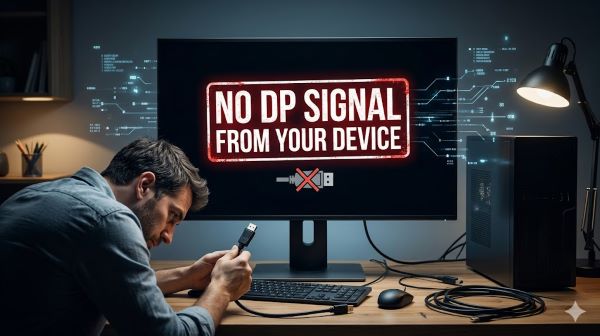
The monitor is on, the computer is running, and the screen reads “No DP signal from your device” before going dark or showing a blank input screen. That message is frustrating precisely because everything looks connected and nothing looks wrong. Understanding what “no dp signal from your device” actually means makes the fix straightforward in most cases, because the message is telling you something specific: your monitor is set to use the DisplayPort input, and it is not receiving a valid signal through that connection. The problem lives somewhere in the chain between your GPU, the cable, and the monitor’s input configuration. This guide covers every point in that chain and how to check each one.
What “No DP Signal From Your Device” Actually Means
DisplayPort (DP) is a digital video interface, like HDMI but with different capabilities and a different connector shape. When your monitor displays “no DP signal from your device” or “displayport no signal,” it means the monitor is actively looking for a signal on its DisplayPort input and not finding one.
This is different from a monitor that is off or has no power. The monitor is awake and waiting. The signal is simply not arriving.
Common reasons the signal does not arrive:
- The cable is loose, damaged, or not properly latched
- The computer’s GPU is outputting through a different port (HDMI or another DP port) while the cable is in a different one
- The monitor’s input source is set to DisplayPort but the cable is plugged into the HDMI port
- The GPU driver crashed or has not initialized the output
- The DisplayPort cable does not support the resolution or refresh rate the GPU is trying to send
- The monitor’s firmware has a known issue with handshake timing
The Dell P2719H and similar Dell monitors are particularly associated with this error message because Dell uses this exact wording in their monitor firmware, which is why “no dp signal from your device Dell” is one of the most searched variations of this error. The fix process is the same regardless of brand.
Start with the Cable
The cable is the most common cause and the fastest thing to check. DisplayPort cables have a latch mechanism that HDMI cables do not. The connector clicks in and locks when fully seated. If it is not fully clicked into both the monitor and the GPU, the connection looks complete visually but the signal does not pass.
Check the cable at both ends:
- Unplug the DisplayPort cable from the monitor and from the GPU.
- Look at the connector for any bent pins or physical damage.
- Plug both ends back in firmly until you hear or feel the latch click.
- Check that the cable is going into the DisplayPort port on the GPU, not into the HDMI port. The ports look similar in a dim case.
Try a different cable: DisplayPort cables are rated for different bandwidth levels (DP 1.2, DP 1.4, DP 2.0). A cheap or old cable rated for DP 1.2 may not reliably carry the signal for a high-resolution or high-refresh-rate setup. If you have another DisplayPort cable available, swap it. If the second cable works, the first cable is the problem.
What “no dp cable” means on some monitors: Some monitors display “no dp cable” as a variant of the no signal message. This specific wording means the monitor cannot detect any device connected through DisplayPort at all, which usually points to a disconnected or failed cable rather than a handshake issue.
Check the Input Source on the Monitor
Monitors with multiple inputs (DisplayPort, HDMI, VGA) have an input selector. If the monitor is set to DisplayPort input but your computer is connected via HDMI, or vice versa, the monitor looks for a signal on the wrong port.
To check the input source: Press the physical input button on the monitor (usually on the side or bottom bezel, sometimes labeled with an arrow or the word Input). This cycles through available inputs or opens the input selection menu. Select the input that matches your cable.
On Dell monitors including the Dell P2719H, the input source selection is in the monitor’s OSD (on-screen display) menu, accessible through the buttons on the bottom right of the monitor. Navigate to Input Source and confirm it matches the port your cable is in.
If the monitor says “no dp signal from your device” and you are connected via DisplayPort, the input is likely set correctly. But if you recently switched cables or moved the monitor, double-checking takes ten seconds and rules out this cause.
Verify Which Port on the GPU the Cable Is Plugged Into
GPUs have multiple output ports, and not all of them behave identically. Most dedicated graphics cards have:
- 1 to 3 DisplayPort outputs
- 1 HDMI output
- Sometimes a USB-C output that carries DisplayPort signal
If your cable is in the HDMI port on the GPU but the monitor expects a DP signal, the monitor displays “no dp signal from your device.” The reverse is also true.
Additionally, if you have a CPU with integrated graphics and a dedicated GPU, the motherboard may have its own video outputs. If the cable is plugged into the motherboard’s HDMI or DisplayPort port rather than the GPU’s ports, the signal behavior depends on whether integrated graphics are enabled. On many systems, installing a dedicated GPU automatically disables the motherboard video outputs. The monitor gets no signal because the port it is plugged into is inactive.
Check: Is the cable going into a port on the GPU (the card seated in the PCIe slot, usually with ports toward the bottom of the rear of the case) or into a port on the motherboard (ports toward the middle or top of the rear of the case)? The cable should go to the GPU.
Restart the GPU Driver
Windows GPU drivers can crash or enter a bad state, particularly after sleep/wake cycles or after a game crash. When the driver is not running correctly, the GPU stops sending a valid signal to the monitor.
Quick driver restart (Windows): Press Windows key + Ctrl + Shift + B simultaneously. The screen goes black for one to three seconds, the driver restarts, and the display returns. This is the fastest fix for a driver crash causing no signal on an active system.
If the screen is completely blank and you cannot see anything, this keyboard shortcut still works because it is processed at the system level before the display output is needed. Try it even on a blank screen.
Full driver reinstall: If the display comes back but the no signal error returns frequently, the GPU driver may be corrupted.
- Download the latest driver from NVIDIA, AMD, or Intel’s support page before starting (on a different device or browser if needed).
- Boot into Safe Mode (hold Shift while clicking Restart, then Troubleshoot > Advanced Options > Startup Settings > Restart > choose Safe Mode with Networking).
- In Safe Mode, use Display Driver Uninstaller (DDU, a free third-party tool) to fully remove the current GPU driver.
- Restart normally.
- Install the fresh driver you downloaded.
DDU removes driver remnants that a standard uninstall leaves behind and that can cause ongoing display issues.
Fix the DisplayPort Handshake Problem
DisplayPort uses a handshake protocol called DPCD (DisplayPort Configuration Data) to negotiate the connection between GPU and monitor. Sometimes this handshake fails, particularly when:
- The monitor or GPU came out of sleep
- The cable was hot-plugged (connected while both devices were powered on)
- A firmware quirk on the monitor causes timing issues
Force a fresh handshake:
- Turn off the monitor using its power button.
- Unplug the DisplayPort cable from the monitor end.
- Wait 30 seconds.
- Plug the DisplayPort cable back into the monitor.
- Turn the monitor back on.
This forces the monitor to restart the handshake process from scratch rather than trying to restore a previous failed session.
Cold boot the system: Shut the computer down completely (not restart, full shutdown). Unplug it from power for 30 seconds. Power back on. This clears the GPU’s stored connection state and forces a fresh negotiation on boot.
Check Display Settings in Windows
If the monitor worked before and has stopped working after a display settings change, Windows may be sending a signal the monitor cannot handle.
Access display settings without a working monitor: If the primary display is dark, connect a second monitor via HDMI temporarily, or boot into Safe Mode (which uses basic display drivers and a low resolution the monitor can accept).
In display settings, check:
- Resolution: Make sure the resolution matches what the monitor supports. The Dell P2719H supports 1920×1080 at 60Hz. Sending a higher resolution than the monitor supports via DisplayPort can cause a no signal condition.
- Refresh rate: An incompatible refresh rate produces the same result. Set it to 60Hz initially, then test higher values if the monitor supports them.
- Multiple display mode: If Windows has extended the desktop to a display that no longer exists, it can cause the active monitor to receive no signal. In display settings, click Detect, then confirm your monitor is set as the main display.
Update Monitor Firmware (Dell-Specific Fix)
Dell periodically releases firmware updates for its monitors, including the Dell P2719H, that address known handshake and signal detection issues. This is one fix specific to Dell monitors and a handful of other brands that support user-installable firmware updates.
Check Dell’s support site (dell.com/support) by entering your monitor’s model number. If a firmware update is listed under Drivers and Downloads for the monitor, download and install it following Dell’s instructions. This requires a USB connection between the monitor and the computer during the update process.
Firmware updates have resolved the “no dp signal from your device Dell” error for a meaningful number of users who found that cable swaps and driver reinstalls made no difference. If you are on a Dell monitor and nothing else has worked, this is worth checking before concluding the monitor is faulty.
Check the DisplayPort Cable Specification
Not all DisplayPort cables carry all signals. A cable rated for DP 1.2 has a maximum bandwidth of 21.6 Gbps. A 4K 144Hz display requires DP 1.4, which supports up to 32.4 Gbps. Sending a signal that exceeds the cable’s rated bandwidth causes signal loss, which the monitor reports as no DP signal.
Check the cable’s packaging or labeling for its DP version rating. If the cable is unlabeled or very old, assume it is DP 1.2 and replace it with a certified DP 1.4 cable for any setup running above 1080p at high refresh rates or 4K at any refresh rate.
Understanding how hardware communication protocols like DisplayPort work parallels how well-designed application interfaces manage complex data handshakes. The systematic process of isolating the cable, then the port, then the driver, then the settings mirrors the kind of structured diagnostic approach used in professional project tracking. For users building or maintaining multi-monitor setups, tools that help organize and track hardware configurations across workstations support the same clarity that good signal troubleshooting requires.
If Nothing Works: Hardware Failure
If every software and configuration fix has failed, the remaining causes are hardware failures:
- Faulty DisplayPort port on the GPU: Test by connecting the monitor via HDMI. If HDMI works and DP does not on the same cable from a known-good port, the DP port on the GPU may be damaged.
- Faulty DisplayPort port on the monitor: Test the monitor with a different computer. If it shows no DP signal on every computer with a known-good cable, the monitor’s DP input hardware is the likely failure point.
- Failed GPU: A GPU with a hardware fault may fail to initialize its display outputs correctly. Run diagnostics or test a different GPU in the system.
For a monitor still under warranty, contact the manufacturer. Dell’s warranty support for the P2719H and similar monitors covers port-level hardware failures. For out-of-warranty monitors with a damaged DP port, HDMI becomes the practical daily-use alternative while the monitor continues to function.
Key Takeaways
- “No DP signal from your device” means the monitor is set to DisplayPort input and not receiving a valid signal through that connection. It is a communication failure somewhere between the GPU, the cable, and the monitor.
- Start with the cable: unplug and re-latch both ends, check for damage, and try a different DisplayPort cable. The latch mechanism on DP connectors fails to seat more often than most people expect.
- Verify the monitor’s input source is set to DisplayPort and the cable is in the DisplayPort port on the GPU, not the motherboard’s video outputs.
- Press Windows + Ctrl + Shift + B to restart the GPU driver without rebooting. This fixes many instances of displayport no signal caused by driver crashes after sleep or game sessions.
- Force a fresh DisplayPort handshake by powering the monitor off, unplugging the DP cable, waiting 30 seconds, reconnecting, and powering back on.
- Dell P2719H and similar Dell monitors have user-installable firmware updates on Dell’s support site that resolve known handshake timing issues causing the “no dp signal from your device Dell” error.
- Match the DisplayPort cable version to your setup’s bandwidth requirements. DP 1.4 cable is required for 4K or high-refresh-rate 1440p setups.
- If the monitor works via HDMI but not DisplayPort after all fixes, the DP port on the GPU or monitor is likely physically damaged. Use HDMI as the working alternative while pursuing warranty or repair options.