Why Is One AirPod Louder Than the Other: Diagnosis and Solutions
You put your AirPods in and immediately notice it. One side is significantly louder than the other. Music sounds lopsided. Podcasts become hard to follow. The immersion is gone.
Why is one airpod louder than the other is a question thousands of AirPod users ask every week. It’s frustrating because your AirPods were working fine moments ago. Nothing changed on your end. Yet now one earbud dominates.
The good news: this is usually fixable. The causes range from simple settings to hardware issues. Most of the time, you can restore balanced audio without replacing your AirPods. This guide walks through every possible cause and proven solution to get your AirPods sounding right again.
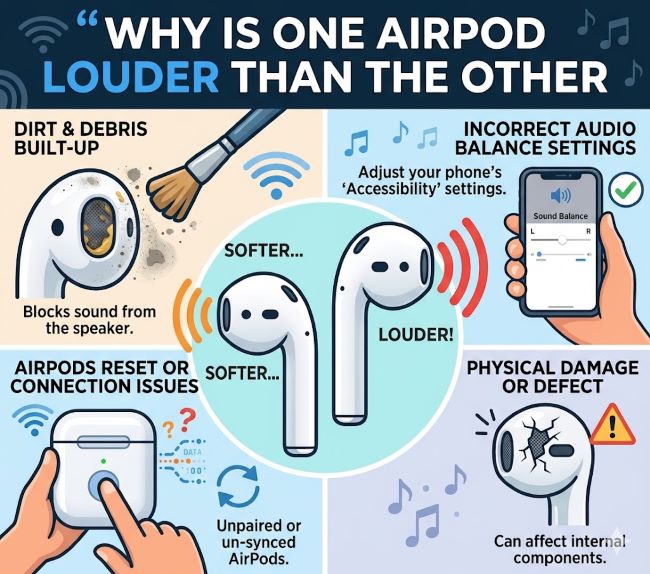
Common Causes of Unbalanced AirPod Volume
Why One Side Gets Louder
Debris in the speaker grille is the most common cause. Earwax, lint, and dust accumulate in the speaker openings. Even tiny particles block sound and cause volume imbalance.
Moisture inside the earbud damages the speaker. If your AirPods got wet or sweaty, water inside reduces output on one side.
Bluetooth connection issues cause one earbud to receive weaker signal. If one AirPod keeps losing connection momentarily, it sounds quieter.
Volume balance settings in your device’s accessibility menu might be adjusted. iOS has a left-right volume balance slider that can be accidentally moved.
One speaker is failing. If your AirPods are old, one speaker might be degrading.
Audio source problems send imbalanced audio. The app or website you’re using might have mono or unbalanced audio.
Software bugs cause temporary imbalance. Updates sometimes introduce issues that affect one AirPod more than the other.
Improper fit causes perceived volume difference. If one AirPod isn’t sealed in your ear properly, it sounds quieter even if the volume is equal.
Checking Your Device’s Volume Balance Settings
Finding the Balance Control on iPhone or iPad
Open Settings on your iPhone or iPad.
Go to Accessibility.
Scroll down and tap Audio/Visual.
Look for Balance. There’s a slider between left and right.
If the slider is pushed toward left or right, that earbud sounds louder. The slider should be in the center for balanced audio.
Move the slider to the exact center.
Play audio and check if the volume is now balanced.
This setting is the easiest culprit and the quickest fix. Many users accidentally adjust this slider without realizing it.
Finding Balance Control on Mac
Click the Apple menu and select System Settings.
Click Accessibility in the sidebar.
Select Audio and Visual.
Look for the Balance slider.
Move it to the center if it’s not there already.
Test your AirPods with music or a video.
The same balance slider exists on Mac. It’s just in a slightly different location than on iPhone.
Finding Balance Control on Android Devices
Android doesn’t have a universal balance slider, but some phones do in their audio settings.
Open Settings.
Look for Sound or Audio settings.
Search for Balance or Volume balance.
If your device has this setting, center the slider.
Not all Android phones include a balance slider, but if yours does, check it.
Resetting Your AirPods
Why Resetting Helps
Reset AirPods clears temporary connection issues and software glitches. It’s the second easiest fix after checking balance settings.
A reset disconnects your AirPods from all devices and clears their memory. This eliminates connection problems that cause one bud to sound quieter.
How to Reset Your AirPods
Place both AirPods in the charging case.
Keep the case closed for 30 seconds.
Open the case.
Press and hold the setup button on the back of the case for about 15 seconds.
The LED light will flash amber, then white. When it flashes white, your AirPods are reset.
Close the case.
Open your device’s Bluetooth settings and reconnect your AirPods.
This is a complete reset. Your AirPods will no longer be connected to any device.
Resetting Different AirPod Models
AirPods Pro reset: Same process. Hold the setup button for 15 seconds until the light flashes white.
AirPods Max reset: Press and hold the Digital Crown and noise control button simultaneously for 15 seconds until the LED flashes.
AirPods 4 reset: Hold the reset button on the back of the case for 15 seconds.
Different models have slightly different buttons, but the concept is identical.
Cleaning Your AirPods
Removing Debris From Speaker Grilles
Debris blocks sound and causes volume imbalance. Cleaning helps significantly.
Use a dry lint-free cloth. Gently wipe the speaker grille on both AirPods.
For stubborn debris, use a soft-bristled toothbrush. Gently brush the speaker area in circular motions.
If lint is embedded, use a toothpick carefully. Don’t push it into the speaker. Just remove visible debris.
For earwax buildup, use a slightly damp cotton swab. Don’t saturate it. Just barely damp.
Let your AirPods dry completely before putting them back in your ears or charging case.
Never use rubbing alcohol or harsh chemicals. They damage the coating and electronics.
Cleaning the Charging Contacts
Dirty charging contacts on the case or AirPods prevent proper charging and can cause connection issues.
Use a dry cloth to wipe the gold charging contacts on both AirPods.
Wipe the charging pins inside the case.
If contacts are dirty or corroded, gently rub them with a barely damp cloth.
Let everything dry completely before charging.
Clean charging contacts improve connection stability, which can reduce volume imbalance from connection dropout.
Checking Your AirPod Battery Levels
Why Battery Affects Performance
A low battery in one AirPod can cause it to sound quieter. As the battery drains, the speaker struggles to produce full volume.
Open the case near your iPhone or iPad.
Check the battery percentage shown on your screen or in the battery widget.
If one AirPod shows significantly lower battery than the other, that’s likely your culprit.
Charge your AirPods fully. Place them in the case and wait until both show full battery.
Test again after they’re fully charged.
Why One AirPod Might Drain Faster
One earbud might have a failing battery. Batteries degrade over time. If one AirPod is much older or used more, its battery might be failing.
One AirPod might have a power consumption issue. Software bugs or hardware problems cause one earbud to use battery faster.
If one AirPod consistently drains faster, consider replacement. Apple offers single AirPod replacements if your warranty covers them.
Reconnecting Your AirPods Properly
How to Fix Why won’t my airpods connect Issues
Connection issues cause audio problems including volume imbalance.
Forget your AirPods from your device. Go to Settings > Bluetooth, find your AirPods, and select Forget This Device.
Open the AirPods case near your device.
Hold down the setup button until the LED flashes white.
Your device shows a setup screen. Follow the prompts to reconnect.
This fresh connection often resolves audio imbalance from weak connection.
Testing Connection Stability
Once reconnected, test your connection in different locations.
If the volume imbalance happens in certain locations but not others, your WiFi or Bluetooth interference is the problem.
Move away from WiFi routers, microwaves, and other Bluetooth devices.
Re-establish your connection in a cleaner RF environment.
If the imbalance persists everywhere, the problem is with your AirPods, not your environment.
Addressing Hardware Issues
When One AirPod Stops Working Completely
Left airpod not working or right side not responding indicates a hardware failure.
If one AirPod produces no sound at all, it’s likely a speaker failure or connection issue.
First, try all troubleshooting steps above. Sometimes even complete failures resolve with a reset and reconnection.
If nothing works, your AirPod likely has failed hardware.
One AirPod Not Charging
One airpod not charging suggests a battery failure or charging contact issue.
Clean the charging contacts as described above.
Try charging your AirPods in the case for 30 minutes. Sometimes slow charging looks like no charging.
Check the battery percentage. If it stays at the same level after 30 minutes of charging, the battery is failing.
If one AirPod won’t charge, that earbud is effectively useless. Apple can replace a single AirPod through their repair program.
Airpods case not charging
If your case won’t charge, your AirPods can’t charge either.
Clean the USB-C or Lightning port on your case. Debris blocks charging.
Try a different charging cable. Your cable might be damaged.
If the case still won’t charge, it has a hardware failure. The battery inside the case is likely failing.
A non-charging case means you can’t charge your AirPods. Replacement is necessary.
Advanced Troubleshooting Steps
Updating Your AirPods Firmware
Outdated firmware sometimes causes audio problems including volume imbalance.
Connect your AirPods to your iPhone or iPad.
Go to Settings > General > About.
Look for your AirPods in the list.
If an update is available, the screen shows the current and latest firmware version.
Updates install automatically when your AirPods are connected, nearby, and charging.
Keep your AirPods charged to allow firmware updates.
Creating a New Connection on Different Devices
Sometimes one device has a bad saved connection to your AirPods.
Forget your AirPods from one device.
Connect them to a different iPhone, iPad, or Mac.
Test audio on the new device.
If the imbalance is gone on the other device, the problem is with your original device’s connection, not your AirPods.
Reconnect to your original device and test again.
Fresh connections often fix software-related issues.
Sound Quality Issues Beyond Volume Balance
Addressing Why are my airpods so quiet Overall
If both AirPods are too quiet rather than imbalanced, different fixes apply.
Check your device’s volume slider. Swipe up from the bottom and adjust the volume. Sometimes the slider is accidentally turned down.
Check your app’s volume. Many apps have independent volume controls. Spotify, YouTube, and others let you adjust volume separately.
Check for audio ducking. Some apps reduce volume when they detect specific triggers.
Make sure Bluetooth audio is selected as your output. Check that you’re not accidentally playing through your speaker.
Fixing Audio From Apps
Airpods connected but no sound sometimes means the audio is going to the wrong output.
Swipe down from the top right to open Control Center.
Look for the audio player.
Tap it to see available audio outputs.
Select your AirPods from the list.
This forces the audio to your AirPods instead of your speaker.
If the audio still doesn’t play, the app itself might have issues. Try a different app to confirm your AirPods work.
Identifying Manufacturing Defects
When Should You Consider Replacement
Only one airpod working after extensive troubleshooting indicates a defect.
If you’ve tried all troubleshooting steps and one AirPod still produces no sound or significantly less volume, it’s probably defective.
If your AirPods are new or recent, they might be covered under warranty.
Contact Apple Support with a description of your issue. They’ll help determine if your AirPods are defective.
Apple offers free replacement for defective AirPods within warranty periods.
Preventative Maintenance
Protecting Your AirPods
Keep them clean. Regular cleaning prevents debris from accumulating.
Dry them after workouts. Sweat and moisture damage electronics.
Store them in the case when not in use. The case protects them and charges them.
Update firmware regularly. Keep your AirPods current with the latest software.
Avoid dropping them. Physical damage causes speaker failures.
Don’t expose them to extreme temperatures. Heat and cold damage batteries and electronics.
Keep them away from moisture. Water is the enemy of electronics.
Key Takeaways
- Why is one airpod louder than the other usually results from debris in the speaker, balance settings being adjusted, or Bluetooth connection issues.
- Check your device’s volume balance slider in Accessibility settings. This simple setting fix resolves most volume imbalance issues.
- Reset AirPods by holding the setup button on the case for 15 seconds. A reset clears connection issues and software glitches.
- Clean the speaker grilles on both AirPods using a dry lint-free cloth. Debris is the most common physical cause of volume imbalance.
- Why won’t my airpods connect causes temporary connection dropout that sounds like one bud is quieter. Reconnect your AirPods properly to fix this.
- One airpod not working or not producing sound indicates hardware failure. If troubleshooting doesn’t help, replacement is necessary.
- One airpod not charging suggests a battery failure or dirty charging contacts. Clean the contacts first. If it still won’t charge, the battery is failing.
- Left airpod not working or right side not responding requires testing on different devices to isolate the problem.
- Left airpod replacement or right side replacement is possible through Apple if your AirPods are under warranty or defective.
- Airpods not charging overall might mean your case has failed. Charge your AirPods individually with a different case if possible.
- How to turn on airpods depends on your model. AirPods turn on automatically when removed from the case. If they won’t turn on, they might be dead or defective.
- How to reconnect airpods involves forgetting them from your device, then reconnecting through Bluetooth settings.
- How to reset airpods 4 follows the same process as other models: hold the setup button for 15 seconds until the light flashes white.
- Test your troubleshooting in different environments. RF interference from routers and other devices sometimes causes connection issues.
- If one AirPod shows much lower battery than the other, that earbud has a failing battery. Replacement is the solution.
- Keep your AirPods clean and dry. Preventative maintenance prevents many issues.
For deeper understanding of audio technology and wireless communication, explore resources on audio quality optimization that explain how sound is transmitted and reproduced. Learning about Bluetooth technology helps you understand wireless connectivity and why interference causes problems. Additionally, understanding consumer electronics care provides context on why maintenance matters for protecting your devices.