How Do You Open a Program When There Are No Icons on the Desktop: Complete Guide
You sit down at your computer. Your desktop stares back at you. Blank. Empty. Every icon you used daily has vanished. The desktop icons missing situation leaves you stranded. You don’t remember how to launch applications without clicking them.
This happens more often than you think. How do you open a program when there are no icons on the desktop is a real question that confuses users every single day. Whether your icons disappeared after an update, a crash, or an accidental setting change, the panic is the same.
The good news: your programs are still there. You haven’t lost anything. You just need to know alternative ways to access them. This guide shows you multiple methods to launch applications when desktop icons missing leaves you without obvious shortcuts.
Why Desktop Icons Disappear
Understanding What Causes Icon Loss
Windows 10 desktop icons missing happens for several reasons. Sometimes Windows updates change settings automatically. Other times, an accidental click hides them. Occasionally, malware or system crashes corrupt the display.
A simple setting change can hide all desktop icons at once. You or someone else might have accidentally disabled them. This is the most common cause and the easiest to fix.
Icon files themselves can corrupt. If the shortcuts become damaged, Windows hides them rather than displaying broken icons.
Display driver issues sometimes cause icons to disappear. When graphics drivers fail to update properly, elements of the interface vanish.
User account permissions might restrict icon visibility. If you’re using a limited account, you might not see all desktop icons.
Malware occasionally hides desktop icons as part of its infection. This is less common but worth considering if icons vanished suddenly.
Understanding the cause helps you choose the right fix. Let’s start with the most common scenario: a simple setting change.
The Quickest Fix: Showing Hidden Icons
Restoring Your Desktop Icons in Seconds
Right-click on an empty area of your desktop. This opens a context menu.
Look for View option in the menu. Click it.
Find Show desktop icons or Display desktop items depending on your Windows version.
If this option has a checkmark, it’s already enabled. If not, click it to enable it.
All your desktop icons reappear instantly.
This single fix resolves about 80 percent of missing desktop icon issues. If your icons come back, you’re done.
When Icons Are Still Missing After Showing Them
If you enable the option and icons don’t appear, the problem goes deeper.
Try right-clicking your desktop again. This time select Refresh or press F5. This refreshes the desktop display.
Wait 10 seconds. Sometimes Windows needs a moment to redraw.
If icons still don’t appear, you likely have a more serious issue. Continue to the next troubleshooting steps.
Restoring Default Desktop Icons
Getting System Icons Back
Why did my desktop icons disappear might be because they were accidentally deleted. You can restore them.
Right-click your desktop and select Personalize.
In the left menu, click Themes.
Scroll down and click Related settings, then Desktop icon settings.
Check the boxes next to the icons you want on your desktop:
- Computer (This PC)
- User’s Files
- Network
- Recycle Bin
- Control Panel
Click Apply and OK.
Your chosen system icons reappear on your desktop.
These are the standard Windows icons that usually appear by default. Restoring them gives you access to essential system functions.
Creating New Shortcuts for Missing Programs
If your application shortcuts disappeared, you can create new ones.
Right-click on an empty desktop area.
Select New, then Shortcut.
Windows asks for the program location. Click Browse to find your program.
Navigate to your program folder. Most programs install to Program Files or Program Files (x86).
Select your program’s executable file (usually has a .exe extension).
Click Next and give your shortcut a name.
Click Finish.
Your new shortcut appears on the desktop. Double-click it to launch the program.
Using the Start Menu to Launch Programs
The Most Reliable Method
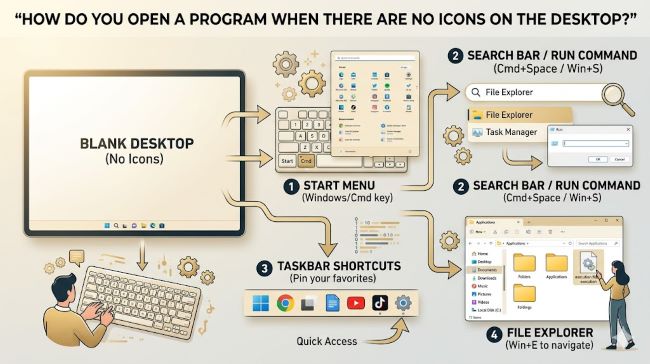
Your Start Menu has every installed program. Even with desktop icons missing, the Start Menu works.
Click the Windows logo (Start button) in the bottom left of your taskbar.
Type the program name you want to launch. Windows searches as you type.
The program appears in the search results. Click it to launch.
This method works regardless of desktop settings. Your programs are always accessible through the Start Menu.
Pinning Frequently Used Apps to the Start Menu
If you don’t like scrolling through programs, pin your favorites to the Start Menu for quick access.
Right-click on a program in your Start Menu.
Select Pin to Start.
The program now appears as a tile on your Start Menu. You can move it around by dragging.
This creates easy access without needing desktop icons.
The Run Command: A Keyboard Shortcut Method
Opening Programs Instantly
Press Windows Key + R. The Run dialog box opens.
Type the program name or executable filename. For example, type “notepad” to open Notepad.
Press Enter.
The program launches immediately.
This works for any program on your system. If you know the executable name, you can launch it instantly without searching.
Common Programs and Their Run Commands
Notepad: type “notepad”
Calculator: type “calc”
Paint: type “mspaint”
Command Prompt: type “cmd”
Control Panel: type “control panel”
Device Manager: type “devmgmt.msc”
System Information: type “msinfo32”
Task Manager: type “taskmgr”
These commands launch programs directly without opening the Start Menu.
Command Prompt and PowerShell Methods
Advanced Program Launching
Open Command Prompt. Right-click the Start button and select Windows PowerShell (Admin) or search for Command Prompt.
Type the full path to your program. For example: “C:\Program Files\Program Name\program.exe”
Press Enter.
The program launches.
This method requires knowing your program’s installation path. Most programs install to Program Files.
Finding a Program’s Installation Path
Open File Explorer. Press Windows Key + E.
Navigate to C: Drive, then Program Files.
Look through the folders for your program. Each folder contains a program’s files.
Right-click your program’s main file (usually has the program name and .exe extension).
Select Properties and click the Location tab. This shows the full path.
Copy this path and use it in the Run dialog or Command Prompt.
File Explorer Navigation Method
Browsing to Your Program Directly
Open File Explorer by pressing Windows Key + E.
Navigate to This PC, then Program Files or Program Files (x86).
Scroll through the folders to find your program.
Double-click the program’s main executable file to launch it.
This is slower than other methods but works if you can see the folder structure.
Troubleshooting Persistent Icon Problems
When Icons Still Won’t Show
Restart your computer completely. Many display issues resolve after a restart.
Update your graphics drivers. Outdated drivers cause display problems. Visit your graphics card manufacturer’s website and download the latest drivers.
Run Windows Update. Missing updates sometimes cause settings to reset or icons to hide. Check for updates in Settings > Update & Security.
Use System Restore. If icons disappeared after an update, System Restore can revert the change. Press Windows Key + R, type “rstrui.exe”, and follow the prompts.
Running a Disk Check
Corrupted files sometimes cause icon problems.
Press Windows Key + X and select Windows PowerShell (Admin).
Type: chkdsk /F
Press Enter. Windows schedules a disk check for your next restart.
Restart your computer. Windows runs the disk check and repairs corrupted files.
After restart, check if your desktop icons reappear.
Checking Your Display Settings
Making Sure Nothing’s Hidden
Right-click your desktop and select Display settings.
Look at your screen resolution. If it’s set very low, icons might appear off-screen or too small to see.
Set resolution to your recommended setting, usually the highest option.
Click Apply. Your display adjusts.
Check if icons reappear on your desktop.
Misaligned resolution settings sometimes hide desktop elements. Correcting this often fixes the problem.
Using a Portable App Launcher
Alternative Way to Access Programs
If you can’t restore your desktop icons and don’t like using the Start Menu, try a portable app launcher.
Download Launchy or Alfred (for Mac). These are free programs that act as shortcuts to your applications.
Install and configure the launcher.
Use a keyboard shortcut to open the launcher.
Type your program name and press Enter to launch.
Launchers provide quick access similar to desktop icons without needing icons visible on your desktop.
Preventing Icons from Disappearing Again
Protecting Your Desktop Setup
Don’t accidentally right-click and hide icons. Check your View settings regularly.
Backup your shortcuts. If you create custom shortcuts, save them in a backup folder too.
Keep your Windows updated. Updates sometimes change settings. Knowing about them helps you anticipate changes.
Use a reliable antivirus. Malware occasionally hides desktop icons. Regular antivirus scans prevent this.
Be cautious with system optimization tools. Some tools claim to “clean” your system and accidentally delete shortcuts.
Recovery Options for Severe Icon Loss
When Standard Fixes Don’t Work
How to get icons back on desktop when nothing works might require restoring from backup.
If you have a system image backup, restore it to recover your desktop configuration.
Use Windows’ built-in restore point. Search for System Restore and create a restore point from when your icons were visible.
Contact Microsoft support if desktop icons remain missing after trying all troubleshooting steps. They can remote in and diagnose the issue.
Consider a Fresh Windows Installation
If nothing restores your icons, a fresh Windows installation resets your desktop to default.
Back up all your important files to an external drive first.
Create a Windows 10 installation USB from another computer using Microsoft’s Media Creation Tool.
Boot from the USB and reinstall Windows.
Your desktop resets to default with all standard icons restored.
This is extreme but works when everything else fails.
Key Takeaways
- How do you open a program when there are no icons on the desktop is solved by using the Start Menu, Run command, or File Explorer.
- Desktop icons missing usually results from a simple setting that hides them. Right-click your desktop, select View, and enable Show desktop icons.
- Windows 10 desktop icons missing often resolves by right-clicking your desktop and selecting Refresh to redraw the display.
- Why did my desktop icons disappear can happen after updates, crashes, or accidental setting changes. Most causes are easily reversible.
- How to get icons back on desktop involves restoring default system icons through Personalize settings or creating new shortcuts manually.
- How to restore desktop icons by using System Restore if icons disappeared after a Windows update.
- The Start Menu provides access to all your programs even when desktop icons are missing.
- The Run command (Windows Key + R) launches programs instantly without needing desktop shortcuts.
- File Explorer lets you navigate to Program Files and launch applications directly from their installation folders.
- Updating graphics drivers sometimes fixes display issues that cause icons to disappear.
- Regular backups of your shortcuts prevent losing them completely.
For deeper understanding of how operating systems manage files and shortcuts, explore resources on desktop customization that explain system organization. Learning about file management systems helps you navigate your computer more effectively. Additionally, understanding system maintenance provides context on why regular backups and updates matter.