How to Add Fonts to GoodNotes
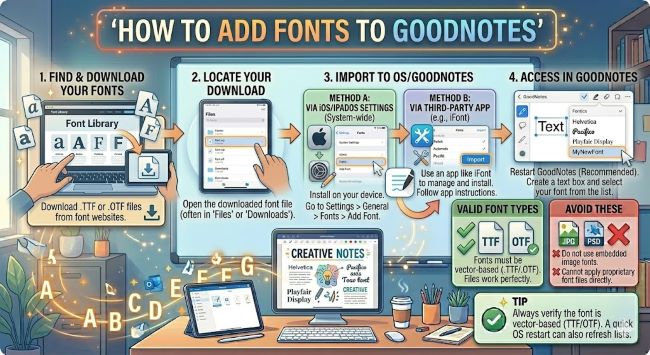
Learn how to add fonts to GoodNotes on iPad and iPhone. This step-by-step guide covers installing custom fonts through iOS so they appear in GoodNotes instantly.
GoodNotes is one of the most popular note-taking apps for iPad, and a big part of why people love it is how personal you can make your notes look. If you have been using the same default fonts and want something fresher, you can add custom fonts to GoodNotes without much effort. The process works through iOS rather than inside GoodNotes itself, which is where most people get confused. Once you understand how it works, the whole thing takes under five minutes.
This guide walks you through every method that works, from the simplest to the most flexible.
How GoodNotes Handles Fonts
GoodNotes does not have its own internal font manager. Like most iOS apps, it reads fonts directly from the ones installed on your iPad or iPhone through the operating system. Whatever fonts iOS has access to, GoodNotes can use in its text tool.
This means adding fonts to GoodNotes is really about installing fonts on your iOS device first. Once they are installed at the system level, GoodNotes picks them up automatically the next time you open the app.
Method 1: Install Fonts Directly from Safari
This is the most straightforward method if you are downloading a font from a website like Google Fonts, DaFont, or Font Squirrel.
- Open Safari on your iPad or iPhone and go to your font download source.
- Download the font file. It will save to your Downloads folder in the Files app. Font files end in .ttf or .otf. If the font comes in a .zip folder, tap it to unzip it first, then find the font file inside.
- Tap the font file. iOS recognizes it and shows a prompt asking if you want to install it.
- Tap Install on the prompt.
- Go to Settings > General > VPN and Device Management. The font will appear there as a profile.
- Tap the font profile and tap Install again to confirm.
- Open GoodNotes, tap the text tool, and open the font picker. Your new font will be listed there.
Method 2: Use AnyFont for Easier Installation
AnyFont is a free app from the App Store that makes the font installation process smoother, especially when you are installing multiple fonts or an entire font family with several weights and styles.
- Download AnyFont from the App Store.
- Download your font file to your iPad. It will land in the Files app.
- Open the Files app, find the font file, and tap the share icon (the box with an arrow pointing up).
- Choose Open in AnyFont from the share options.
- Inside AnyFont, tap the font name. A preview and install button appear.
- Follow the prompts to install it through your device settings.
- Confirm the installation at Settings > General > VPN and Device Management by tapping the font profile and selecting Install.
- Open GoodNotes and your font will be available in the text tool font picker.
AnyFont is particularly useful when you want to install an entire font family at once. It handles multiple font files in one session rather than requiring you to install each weight separately.
Method 3: Install Fonts Through Adobe Creative Cloud
If you have an Adobe Creative Cloud subscription, you have access to Adobe Fonts, which includes thousands of professional typefaces. These can be installed directly to your iPad through the Creative Cloud mobile app.
- Download the Adobe Creative Cloud app from the App Store and sign in with your Adobe account.
- Tap the Fonts section in the app.
- Browse or search for the font you want to use in GoodNotes.
- Toggle the font on to activate it. It installs to your device in the background.
- Open GoodNotes and the font will appear in the font picker inside the text tool.
This method requires no manual file handling and keeps your font library organized within your Creative Cloud account.
Where to Find Good Fonts for GoodNotes
The kind of font you choose depends on what you use GoodNotes for. Here are reliable sources worth bookmarking:
- Google Fonts (fonts.google.com): Free, extensive, and well-tested. Good for clean study notes, planners, and journals.
- DaFont (dafont.com): A large library with strong handwriting and decorative categories that suit the aesthetic many GoodNotes users are going for. Check the license if you plan to use fonts for anything commercial.
- Creative Market: Paid fonts from independent designers, often made with digital planners and journals in mind. Higher quality control than free sources.
- Font Squirrel (fontsquirrel.com): Free for commercial use and well curated. Fewer options than DaFont but more consistent quality.
For GoodNotes specifically, handwriting-style fonts and clean sans serifs tend to work well. Script fonts can be beautiful for headings or cover pages but can be harder to read at small sizes in dense notes.
Troubleshooting: Font Not Showing in GoodNotes
If you installed a font but cannot find it in GoodNotes, try these steps:
- Close and reopen GoodNotes. The app needs to restart to recognize newly installed fonts. Swipe up from the bottom of the screen to close it fully, then reopen.
- Check Settings > General > VPN and Device Management. If the font profile is not listed there, the installation did not complete. Go back through the installation steps and make sure you confirmed the profile install in Settings.
- Restart your iPad. A full restart refreshes the iOS font cache and usually resolves fonts that installed correctly but are not appearing in apps.
- Check the font file format. GoodNotes supports .ttf and .otf files. Some unusual or older font formats may not be compatible with iOS.
The Short Answer
Adding fonts to GoodNotes means installing them on your iPad through iOS first. Use the Files app and Safari for individual fonts, AnyFont for installing font families or batches, or Adobe Creative Cloud if you have a subscription. Once installed and confirmed in Settings, the fonts appear in GoodNotes automatically.
Download the font, install the profile, restart GoodNotes, and it will be there waiting in the font picker. From that point, your notes look exactly the way you want them to.