How to Import Fonts into Canva
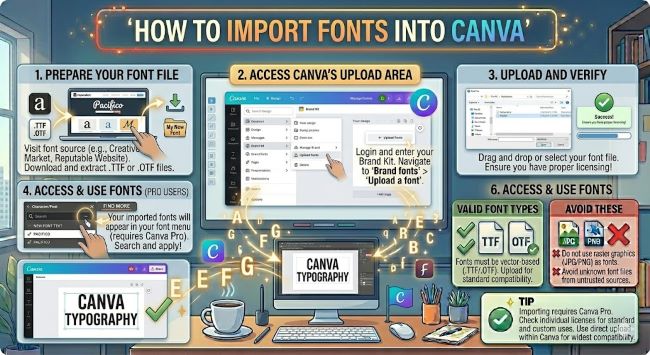
Learn how to import fonts into Canva using the Brand Kit feature. This step-by-step guide covers uploading custom fonts, plan requirements, and getting the most from Canva’s font tools.
Canva has one of the largest built-in font libraries of any design tool, but sometimes you need a specific typeface that is not in the list. Maybe it is your brand font, a purchased script font, or something you downloaded from a type foundry. Whatever the reason, importing fonts into Canva is possible, and this guide walks you through exactly how to do it, what plan you need, and what to watch out for before you upload.
What You Need Before You Import Fonts into Canva
Font uploading in Canva is available on Canva Pro, Canva for Teams, Canva for Education, and Canva for Nonprofits. It is not available on the free plan.
If you are on a free account and need a specific font, your options are to upgrade, find a close match in Canva’s existing library, or create text in another tool and import it as an image.
You will also need the font file itself in .ttf (TrueType Font) or .otf (OpenType Font) format. Canva does not accept .woff or .woff2 files, which are web font formats. If your font came in one of those formats, you will need to convert it first using a tool like CloudConvert or FontSquirrel’s web font generator.
How to Import Fonts into Canva on Desktop
- Log in to Canva and go to your Brand Kit. You can find it in the left sidebar of your Canva homepage under Brand, or by going to canva.com/brand-kit.
- Scroll down to the Brand Fonts section of the Brand Kit page.
- Click Upload a font.
- A file picker opens. Navigate to your .ttf or .otf font file and select it.
- Canva uploads the font and adds it to your Brand Kit.
- Open any design and click on a text element. In the font picker, scroll to the top of the list and look for the Uploaded Fonts section. Your imported font will appear there.
If you are importing a font family with multiple weights (Regular, Bold, Italic, Light, etc.), upload each weight as a separate file. Canva treats each uploaded file individually, so uploading the full family gives you access to all the weights inside your designs.
How to Import Fonts into Canva on Mobile
The mobile app has more limited font upload functionality compared to the desktop version. As of now, font uploading through the Brand Kit is primarily a desktop feature. If you need to use a custom font in a design, the most reliable approach is to upload the font on desktop first, then access your designs and Brand Kit through the mobile app where the uploaded font will be available.
To use an uploaded font on mobile:
- Open the Canva app on your iPhone or Android device.
- Open a design you have already created or start a new one.
- Tap a text element and open the font picker.
- Scroll to the top of the font list and look for Uploaded Fonts or Brand Fonts.
- Your previously uploaded font will be listed there.
Where to Find Fonts to Import into Canva
If you have a specific font in mind but need to download it first, here are the most reliable sources:
- Google Fonts (fonts.google.com): Over 1,000 free fonts available as .ttf files. Fully open source and safe for commercial use in your designs.
- DaFont (dafont.com): Large library of free fonts across every style. Always check the individual font license before using in commercial work.
- Font Squirrel (fontsquirrel.com): Curated and free for commercial use. Downloads in .ttf or .otf format that Canva accepts directly.
- Creative Market: Paid fonts from independent designers. Often includes extended commercial licenses that cover Canva designs sold to clients.
- MyFonts: Professional typefaces with clear licensing. Good for brand fonts where you need documented commercial rights.
One thing to pay attention to before uploading any font to Canva: check that your font license permits use in a cloud-based design tool. Some font licenses restrict where the font can be installed or used. If the license says “desktop use only,” it may not cover uploading to a platform like Canva. Google Fonts and Font Squirrel fonts are generally safe. Purchased fonts from reputable foundries usually specify whether cloud use is permitted.
How to Use Imported Fonts Across Your Canva Designs
Once a font is uploaded to your Brand Kit, it is available in every design associated with your Canva account. Here is how to get the most out of it:
- Set it as a Brand Font. In the Brand Kit, you can assign uploaded fonts to specific roles: heading font, subheading font, and body font. Once set, Canva suggests these fonts when you create new designs based on your brand.
- Share it with your team. If you are on Canva for Teams, uploaded fonts in the Brand Kit are accessible to all team members. This keeps everyone working with the same typefaces without individual uploads.
- Apply it consistently. Use the font picker’s Uploaded Fonts section rather than scrolling through the full list each time. It keeps your workflow faster and reduces the chance of accidentally using a different font.
Troubleshooting: Font Not Showing After Upload
If you uploaded a font but cannot find it in the font picker, try these steps:
- Refresh the page. Canva sometimes needs a refresh to display newly uploaded fonts in the picker.
- Check the file format. Canva only accepts .ttf and .otf files. If you uploaded a .woff file by mistake, convert it and re-upload.
- Confirm the upload completed. Go back to Brand Kit and check that the font appears in the Brand Fonts section. If it is not there, the upload may not have finished.
- Check your plan. Font uploading is a paid feature. If you recently downgraded your plan, previously uploaded fonts may no longer be accessible.
The Short Answer
To import fonts into Canva, go to your Brand Kit, scroll to the Brand Fonts section, and click Upload a font. Choose your .ttf or .otf file and Canva adds it to your account. The font then appears under Uploaded Fonts in the font picker across all your designs. This feature requires a Canva Pro account or higher.
Upload your font once and it is available every time you design in Canva, across every project in your account.