How to Fix Phone Microphone Problems at Home
Your phone rings, you answer, and the person on the other end says the same thing every time: “I can’t hear you.” Before you panic about repair costs, know this. Most microphone problems come from software glitches, blocked ports, or bad settings, not dead hardware. Learning how to fix phone microphone issues yourself saves money and usually takes less than twenty minutes.
This guide walks through every fix, starting with the fastest ones. Work down the list in order and stop when your mic works again.
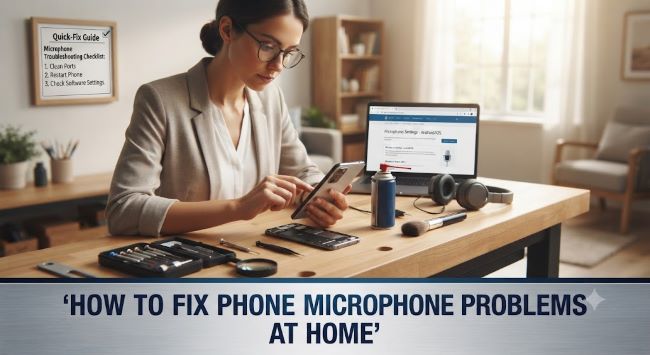
First, Confirm the Microphone Is Actually the Problem
People often blame the mic when the real issue sits somewhere else. Run these quick checks before anything else:
- Record a voice memo. Open your voice recorder app, speak for ten seconds, and play it back. If your voice sounds clear, the mic works and the problem lives in a specific app or the network.
- Test during a call with speakerphone on and off. Some phones use different microphones for each mode.
- Try a video recording. Video capture often uses a second mic near the camera.
If your voice memo sounds muffled, quiet, or silent, you have a genuine mic problem, and the rest of this how to fix phone microphone checklist applies. Keep reading.
Restart Before You Do Anything Else
It sounds too simple, but a restart clears stuck audio processes that hog the microphone. Apps sometimes fail to release the mic after you close them, which leaves it locked for every other app. Hold the power button, restart, and test again with a voice memo. This one step solves a surprising share of cases, and it should always come first when you want to know how to fix phone microphone trouble quickly.
Clean the Microphone Port
Your phone’s primary mic hides inside a tiny hole, usually on the bottom edge next to the charging port. That hole collects lint, dust, and pocket debris every single day. A blocked port muffles your voice long before it kills the sound completely.
Here is the safe way to clean it:
- Power the phone off.
- Shine a flashlight at the mic hole and look for visible debris.
- Brush the opening gently with a clean, dry, soft toothbrush.
- Use a short burst of compressed air held a few inches away.
- Never insert pins, needles, or toothpicks. They puncture the mic membrane.
Many people searching for how to fix phone microphone problems find that a sixty-second cleaning does the whole job. If your phone lives in a case, check that the case does not cover the mic hole either. Cheap cases misalign more often than you would think.
Check App Permissions
If the mic works in voice memos but fails in WhatsApp, Zoom, or Instagram, permissions are the culprit. The app simply is not allowed to use the microphone.
On Android: Settings > Privacy > Permission manager > Microphone, then set the affected app to “Allow only while using the app.”
On iPhone: Settings > Privacy & Security > Microphone, then toggle on the app that fails. Permission checks are the most overlooked step in any how to fix phone microphone guide.
While you are in there, revoke mic access for apps that do not need it. Fewer apps competing for the microphone means fewer conflicts.
Disconnect Bluetooth Devices
This one trips up almost everyone. If your phone still thinks it is connected to earbuds, a car stereo, or a smartwatch, it routes your voice to that device’s mic instead of its own. You end up talking into a phone that is listening somewhere else entirely.
Turn Bluetooth off completely, then test a call. If the mic suddenly works, open your Bluetooth settings and tell the phone to forget devices you no longer use. Anyone figuring out how to fix phone microphone dropouts that come and go randomly should suspect Bluetooth first, because the connection can grab audio without any visible warning.
Update Software and Apps
Audio bugs ship in phone updates more often than manufacturers admit, and the fixes ship in the next patch. Half of knowing how to fix phone microphone glitches is simply staying updated. Go to Settings and install any pending system update. Then update the specific apps where your mic fails. A known iOS bug once silenced mics during calls for thousands of users, and Apple patched it within weeks. Running old software means living with solved problems.
Turn Off Noise Suppression
Some Android phones include aggressive noise cancellation that filters out your voice along with the background hum. Look in Settings under Sounds or Call settings for an option named “noise suppression” or “noise reduction” and switch it off. Test a call afterward. If your voice comes through louder and clearer, leave it off.
Boot Into Safe Mode to Find a Bad App
A third-party app can seize the microphone and refuse to share. Safe mode loads your phone with only the original system apps, which tells you instantly whether a downloaded app causes the problem.
On most Android phones, hold the power button, then press and hold “Power off” on the screen until the safe mode prompt appears. Test the mic. If it works in safe mode, restart normally and delete recently installed apps one at a time, testing after each removal. Voice changers, call recorders, and audio effect apps are the usual suspects.
Reset All Settings
When nothing above works, reset your settings. This clears corrupted audio configurations without deleting photos or apps. On iPhone: Settings > General > Transfer or Reset iPhone > Reset > Reset All Settings. On Android, look for “Reset all settings” under System. You will need to re-enter Wi-Fi passwords afterward, so keep them handy.
When the Hardware Is Really Broken
If you dropped the phone, got it wet, or hear crackling in every recording after all these steps, the mic itself likely failed. At that point, how to fix phone microphone hardware becomes a repair-shop question. Expect to pay 40 to 90 dollars at an independent shop for most models. Check your warranty first, because manufacturers replace defective mics free within the coverage window. In the meantime, wired earbuds with a built-in mic work as a solid temporary fix.
Key Takeaways
- Record a voice memo first to confirm the microphone is truly the problem and not the network or one specific app.
- Restart the phone before trying anything else, since stuck apps often lock the mic.
- Clean the mic hole with a dry soft brush and compressed air, never with pins or needles.
- Check app permissions when the mic works in some apps but not others.
- Turn off Bluetooth to stop the phone from routing audio to a device that is not near your mouth.
- Install pending system and app updates, because audio bugs get patched constantly.
- Disable noise suppression if your voice sounds filtered or faint during calls.
- Use safe mode to catch third-party apps that hijack the microphone.
- Reset all settings as the last software step before assuming hardware failure.
- Head to a repair shop only after every software fix fails, and check your warranty before paying.