How to Ungroup in Illustrator
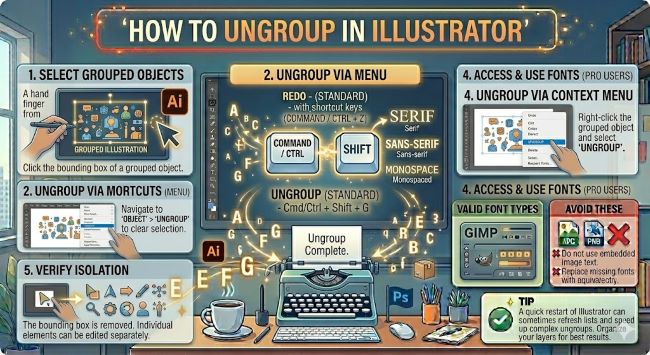
Learn how to ungroup in Illustrator using keyboard shortcuts and the Object menu. This guide covers ungrouping objects, nested groups, and when to use ungroup vs. other methods.
Working with grouped objects in Illustrator is part of almost every design workflow. Groups keep elements organized and let you move or transform multiple objects at once. But there comes a point in most projects where you need to break a group apart to edit individual elements. Knowing how to ungroup in Illustrator is one of those foundational skills that saves you from frustration and keeps your workflow moving smoothly.
This guide covers every way to ungroup in Illustrator, what to watch out for with nested groups, and a few situations where ungrouping is not actually the right tool for the job.
The Fastest Way to Ungroup in Illustrator
The quickest method is a keyboard shortcut that most Illustrator users memorize early on.
On Windows: Select the group and press Ctrl + Shift + G
On Mac: Select the group and press Cmd + Shift + G
That is it. Illustrator breaks the group apart and each object becomes individually selectable. The objects stay in the same position on the canvas. Nothing moves.
You can also ungroup through the menu. Select the group, go to Object > Ungroup. The result is identical to using the keyboard shortcut.
How to Select a Group Before Ungrouping
Before you can ungroup anything, you need to select the group as a whole. Use the Selection tool (the black arrow, shortcut V) and click anywhere on the grouped object. Illustrator selects the entire group and shows a bounding box around all the elements inside it.
If you click with the Direct Selection tool (the white arrow, shortcut A), you select individual anchor points or paths within the group without selecting the group itself. That tool bypasses the group entirely, which is useful for editing a single element without ungrouping, but it will not let you ungroup.
Once the group is selected with the Selection tool, apply the ungroup shortcut or menu command.
How to Ungroup Nested Groups in Illustrator
Nested groups are groups within groups. This happens frequently when you import vector files, download icon sets, or work with complex artwork built in layers. When you ungroup a nested group, Illustrator only breaks apart the outermost group. The inner groups remain grouped.
For example, if you have a group containing three sub-groups, one ungroup command separates those three sub-groups from each other. But each sub-group stays intact. You would need to select each sub-group individually and ungroup again to break them down further.
To fully ungroup everything in a deeply nested structure:
- Select the entire group with the Selection tool.
- Press Ctrl + Shift + G (Windows) or Cmd + Shift + G (Mac) repeatedly until no more groups remain.
- Alternatively, go to Edit > Select All after the first ungroup to select all remaining objects, then ungroup again. Repeat until everything is fully separated.
There is no single-click “ungroup all” command that breaks every nested level at once, so working through nested groups manually is sometimes necessary on complex imported files.
When You Should Not Ungroup in Illustrator
Ungrouping is not always the right approach, and knowing the alternatives saves you from creating more work for yourself.
If you just need to edit one element inside a group, double-click the group to enter isolation mode. In isolation mode, you can select and edit individual objects inside the group without breaking the group apart. Double-click outside the group or press Escape to exit isolation mode when you are done. The group stays intact.
If you need to move one element out of a group, enter isolation mode, select the element, cut it (Ctrl + X or Cmd + X), press Escape to exit the group, then paste it in place (Ctrl + Shift + V or Cmd + Shift + V). This moves the element out of the group without ungrouping everything.
If you are working with a clipping mask, the masked object and its contents look like a group but behave differently. Ungrouping will not release a clipping mask. To release it, go to Object > Clipping Mask > Release. Then you can ungroup or work with the objects individually.
How to Regroup Objects in Illustrator
If you ungrouped objects and want to put them back together, select all the objects you want to group, then press Ctrl + G (Windows) or Cmd + G (Mac). Or go to Object > Group.
This creates a new group from your selection. The objects do not need to have been part of the same group before. You can group any combination of selected objects into a new group at any time.
Quick Reference: Group and Ungroup Shortcuts in Illustrator
| Action | Windows | Mac |
|---|---|---|
| Group | Ctrl + G | Cmd + G |
| Ungroup | Ctrl + Shift + G | Cmd + Shift + G |
| Enter isolation mode | Double-click group | Double-click group |
| Exit isolation mode | Escape | Escape |
| Select all objects | Ctrl + A | Cmd + A |
The Short Answer
To ungroup in Illustrator, select the group with the Selection tool and press Ctrl + Shift + G on Windows or Cmd + Shift + G on Mac. For nested groups, repeat the shortcut until all levels are separated. If you only need to edit one element inside a group, double-click to enter isolation mode instead of ungrouping. That keeps your structure intact and saves you from regrouping everything afterward.
Learn the shortcut, and ungrouping becomes one of the fastest actions in your Illustrator workflow.