How to Sync Roku Remote Without Pairing Button: Complete Guide
Your Roku remote stopped responding. You picked it up expecting it to work, but nothing happens when you press buttons. The TV doesn’t react. You look for the pairing button, but your remote doesn’t have one or you can’t find it. Now you’re wondering if the remote is broken or if there’s another way to make it work again.
The good news is that you don’t always need a physical pairing button to sync a Roku remote. There are multiple methods to reconnect your remote to your Roku TV, and some of them are easier than you’d think. Whether you have a standard Roku remote, a TCL Roku TV remote, or even an older model without obvious pairing buttons, solutions exist to get things working again.
Understanding Your Roku Remote
Roku remotes come in different types. The older infrared (IR) remotes use line-of-sight signals like traditional TV remotes. They don’t pair with your TV at all. They just send signals into the air, and any Roku device in range picks them up. These remotes never need pairing.
The newer remotes use wireless technology, typically through a 2.4 GHz connection. These remotes do need to pair with your specific Roku device. Once paired, they communicate directly with your Roku TV or streaming device rather than broadcasting to anything in range. These are the ones that might get disconnected and need re-pairing.
A TCL Roku TV remote falls into the wireless category. These remotes pair with your specific TV during setup. If you get a new remote or the connection drops, you’ll need to pair it again.
The Remote Doesn’t Have a Pairing Button
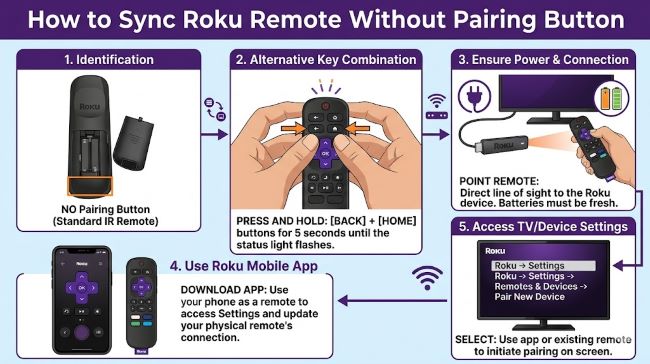
Not all Roku remotes have a dedicated pairing button on the back. Some models don’t need one because they pair differently. If your Roku remote is missing the pairing button, don’t panic. There are still ways to sync Roku remote without pairing button.
First, check if your remote has any buttons or holds on the battery compartment. Some Roku remotes require you to hold multiple buttons at once. Open the battery cover and look for small text that describes button combinations. You might need to hold the home button and back button together for several seconds. This sometimes triggers pairing mode even without a dedicated button.
If holding button combinations doesn’t work, the remote might auto-pair. Wireless Roku remotes often attempt to pair with the nearest Roku device when powered on with fresh batteries. Remove the batteries, wait 10 seconds, reinsert them, and point the remote at your TV. Sometimes it pairs automatically without any other action needed.
Standard Pairing Button Method
If your remote does have a pairing button, the process is straightforward. Look for a small button on the back of the remote, usually near the battery compartment. The button is often recessed so you can’t press it by accident. You’ll need a paperclip, pin, or similar small tool to press it.
Hold the pairing button for about 3-5 seconds until you see a light on the remote start flashing. That flash indicates the remote is in pairing mode. Keep the remote pointed at your Roku TV or device. The pairing should complete in seconds. The light will stop flashing once the pairing succeeds.
If nothing happens after pressing the button, your batteries might be dead. Replace them with fresh ones and try again. Dead batteries are the most common reason pairing fails.
How to Sync Roku Remote Without Pairing Button Through TV Settings
You don’t always need the remote to pair the remote. That sounds backwards, but it works. You can use your TV’s physical buttons or a smartphone app to navigate to pairing settings.
Most Roku TVs have physical buttons on the back or side of the TV itself. Look for small buttons labeled with arrow symbols or home symbols. Using these buttons, navigate to Settings on your Roku TV. From there, go to Remotes and Devices or Bluetooth devices. Look for a pairing option. Your TV will enter pairing mode for about 30 seconds. During this window, press any button on your wireless remote. The TV will detect it and complete the pairing.
This method works even if your remote doesn’t have a pairing button. You’re using the TV’s pairing mode to make the connection happen.
Using the Roku App as an Alternative
If your TV buttons are broken or hard to reach, the Roku mobile app works as a backup remote. Download the Roku app on your smartphone, connect it to the same WiFi network as your Roku TV, and the app will detect your device. Use the app to navigate to pairing settings the same way you would with physical buttons.
Once you’re in the pairing settings through the app, follow the same process. Put the TV in pairing mode and press a button on your physical remote within the 30-second window. The pairing will complete.
This approach is useful if you have a malfunctioning remote but can still navigate your TV through the app or physical buttons.
Roku Remote Not Working After Pairing
Sometimes you pair the remote successfully, but it stops responding shortly after. The connection drops. This is frustrating because you know the remote and TV are capable of working together.
Check your batteries first. Weak batteries cause inconsistent remote behavior. The remote might pair when batteries are just barely functional, but then lose connection quickly. Replace them with fresh ones.
If batteries aren’t the issue, the remote might be too far from the TV or something is blocking the signal. Roku wireless remotes work best within 20-30 feet of the device and need a clear line of sight or at least no major obstructions. Move closer to the TV and try again. Remove any obstacles between the remote and TV.
Some devices like microwave ovens and WiFi routers emit signals on the same 2.4 GHz frequency that Roku remotes use. This causes interference. If you recently moved your router or placed another device near your TV, that might be the problem. Move the interfering device away from your TV and remote.
How to Reset Roku Remote Completely
When pairing doesn’t work and everything else fails, reset the remote. This clears any previous pairing information and prepares it for a fresh start.
Locate the reset button. On most Roku remotes, this is a recessed button on the back, near or above the batteries. Some people confuse the reset button with the pairing button, but they’re different. Reset buttons are often even smaller and harder to find.
Hold the reset button for about 10-15 seconds. You might not see any visible change on the remote itself, but it’s resetting behind the scenes. After 15 seconds, release the button and let the remote sit for a few seconds.
Now try pairing again using whichever method applies to your remote. A fresh reset often solves pairing problems that seemed unsolvable before.
TCL Roku TV Remote Specific Issues
TCL Roku TV remotes are standard Roku wireless remotes optimized for TCL TVs. They pair the same way as any other Roku remote. If your TCL Roku TV remote is not working, the pairing process is identical to what we’ve covered.
One TCL-specific note: some TCL TV models have a power button on the TV itself but no other controls. To pair your remote on these models, you must use either the physical buttons on the remote (hold buttons simultaneously) or access pairing through the Roku mobile app. There’s no other way.
If you bought a TCL Roku TV remote as a replacement, it comes already configured to work with your TV model in most cases. If it didn’t auto-pair when you inserted batteries, follow the standard pairing steps.
How to Reset Roku TV Completely
When your Roku TV itself is acting up and the remote pairing problems persist, resetting the entire TV sometimes helps. This is different from resetting just the remote.
Go to Settings on your Roku TV. Navigate to Advanced System Settings or System. Look for a Factory Reset option. Select it and confirm. The TV will reset to factory defaults. This clears all apps, settings, and paired devices.
Your remote won’t be paired after a factory reset. You’ll need to pair it again following the standard pairing process. But now both the TV and remote start fresh, which solves many chronic problems.
Be aware that a factory reset removes all your apps and login information. You’ll need to set up your apps again after the reset.
Roku Remote Replacement Options
If your remote is physically broken, old, or just refusing to pair no matter what you try, replacement is sometimes the best option. Roku offers official replacement remotes for most TV models. They range from basic IR remotes to advanced wireless models with voice control.
When you buy a replacement Roku remote, check the model number of your TV first. Remotes aren’t always universal across Roku devices. Some remotes work with multiple models, but others are specific.
A new Roku remote replacement should pair automatically when you insert fresh batteries and point it at your TV. If it doesn’t, the pairing steps we covered still apply.
Amazon Fire TV Stick Remote Not Working
You might have an Amazon Fire TV device instead of a Roku TV. If your Amazon Fire TV stick remote is not working, the troubleshooting is similar but not identical.
Fire TV remotes also have pairing buttons, usually on the back. The pairing process is comparable to Roku. But some Fire TV remotes use different button combinations or pairing sequences.
Check your Fire TV device’s documentation for the specific pairing steps. The general principle is the same: get the device into pairing mode and then activate the remote’s pairing mode.
Summary of All Pairing Methods
Different Roku remotes require different approaches. Here’s what to try in order:
Check if the remote has a physical pairing button and try the button combination (home plus back) if no dedicated button exists. Hold the pairing button for 3-5 seconds if you find one. Use TV physical buttons to access pairing settings if the remote fails. Try the Roku mobile app to navigate to pairing settings instead. Completely reset the remote using the reset button and start pairing fresh. Factory reset the entire Roku TV if nothing else works. Consider a replacement remote if the existing one is broken or extremely old.
Key Takeaways
- Older infrared Roku remotes don’t pair at all. They broadcast signals that any Roku device picks up. Only wireless remotes need pairing.
- Not all Roku remotes have a dedicated pairing button. You can achieve pairing by holding multiple buttons simultaneously or using the TV’s pairing settings accessed through physical buttons or the Roku app.
- If your Roku remote is not working after pairing, check batteries first. Weak batteries cause connection drops even after successful pairing.
- Wireless Roku remotes work best within 20-30 feet of the TV with clear line of sight. Interference from WiFi routers and microwave ovens on the same 2.4 GHz frequency can break the connection.
- You don’t need a functioning remote to pair a new one. Use your TV’s physical buttons or the Roku mobile app to access pairing mode, then activate the remote during that window.
- How to reset Roku remote completely: hold the small reset button on the back for 10-15 seconds. This clears all previous pairing data and allows a fresh start.
- TCL Roku TV remote pairing follows standard Roku procedures. If your TCL Roku TV remote is not working, use the same pairing steps as any other Roku remote model.
- Factory reset your Roku TV if pairing problems persist. This clears both TV and remote settings. You’ll need to re-pair the remote and set up apps again, but it solves chronic problems.
Related Resources
Setting up entertainment devices can be tricky. If you’re interested in understanding more about how to configure different tech devices, check out best design tools for visual guides and tutorials. Looking to learn more about technology fundamentals and troubleshooting? Master the art of type covers technical documentation writing. For those interested in hardware and networking concepts, 15-vue-js-frameworks explores how devices communicate through different protocols and frameworks.