Understanding RTC Connecting Discord: Fixes for Voice Connection Issues
Discord won’t connect your voice channel. You click the button, and the app sits there with “RTC connecting” stuck on your screen. Minutes pass. Nothing happens. Your friends are already in the channel, talking away, and you’re stuck watching that spinning indicator. This happens more often than you’d think, and it’s one of the most frustrating Discord issues out there.
The problem isn’t usually on Discord’s end. RTC connecting Discord problems come from your setup, your network, or how your system talks to Discord’s servers. Understanding what’s happening behind the scenes helps you fix it without waiting for support or messing with complicated settings.
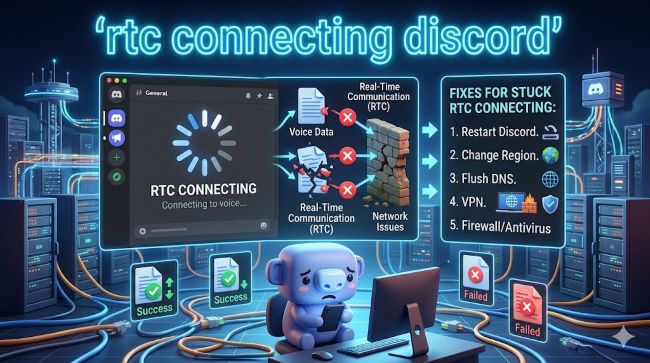
What RTC Actually Means
RTC stands for Real Time Communication. When Discord shows “RTC connecting,” it means the app is trying to establish a real-time communication channel for voice or video. This is different from regular chat messages. Your text goes through normal internet packets. Voice and video need a dedicated connection path that can handle continuous streams of audio or video data without delay.
Discord uses RTC protocols to create this connection. The process happens in milliseconds when everything works right. But when something blocks or delays that handshake between your computer and Discord’s servers, you get stuck in the “RTC connecting” state. Your app keeps trying to establish the connection but fails silently.
The status itself isn’t an error. It’s a work in progress. But when it stays in that state for more than a few seconds, something went wrong.
The Awaiting Endpoint Problem
One of the most common reasons for RTC connecting Discord issues is the “awaiting endpoint” error. Your Discord client connects to Discord’s servers to ask where to send your voice data. The server is supposed to respond with an endpoint, which is basically an address for where your voice packets should go.
When Discord shows awaiting endpoint Discord status, your client is waiting for that response. The server hasn’t sent the endpoint address yet. Sometimes it never does. This happens for several reasons:
Your firewall or router blocks the outgoing connection to Discord’s servers. The request leaves your computer but the response gets blocked coming back. Discord’s regional servers are experiencing issues. The server that should respond to your endpoint request is slow or down. Your internet connection is too unstable to maintain the initial handshake. Packets drop out, and the conversation with the server breaks down.
An awaiting endpoint discord situation can last seconds or go on forever depending on what’s blocking it.
Network Issues and No Route Errors
The “discord no route” message tells you that packets from your computer can’t find a path to Discord’s servers. This is a routing problem. Your computer knows it needs to send data somewhere, but the network between you and Discord is broken somehow.
This happens when:
Your ISP has network problems between you and Discord’s server locations. A router between you and Discord is misconfigured or failing. Your VPN is routing traffic through a server that blocks Discord. Your firewall rules are too strict and reject Discord’s server addresses. BGP routes (the way the internet finds paths between computers) are disrupted in your region.
The “discord no route” error usually means you need to check your network setup rather than your Discord settings. Discord itself is working fine. The path to get there is the problem.
Start with the Simple Fixes
Before diving into network troubleshooting, try the basic stuff first. These solve the problem about half the time, and they take seconds.
Restart Discord completely. Close the app fully and reopen it. Don’t just minimize it. Kill it in your task manager and start fresh. This clears any stuck connections and lets RTC reconnect properly.
Restart your router. Unplug it for 30 seconds, then plug it back in. Wait for it to fully boot up. A router restart clears temporary connection states and forces new connections to establish cleanly.
Switch between WiFi and ethernet if you can. If you’re on WiFi, connect with an ethernet cable and try Discord again. WiFi is convenient but unreliable for real-time voice. If you’re on ethernet, try WiFi to test if the connection type matters.
Close other bandwidth-heavy apps. Torrents, large downloads, and video streaming soak up bandwidth. Discord voice doesn’t need much bandwidth, but network congestion can break the RTC connection. Close unnecessary apps and try again.
These fixes are simple, but they handle most cases. If your RTC connecting Discord issue persists after trying these, move to the next level.
Firewall and Security Settings
Your firewall might be blocking Discord without telling you. Firewalls protect your computer but can be overly cautious. Discord needs to send and receive voice data through specific ports. If your firewall blocks those ports, RTC connecting fails.
Check your firewall rules. Add Discord to the allowed apps list. The exact process depends on your firewall (Windows Defender, third-party software, etc.), but the goal is the same: tell your firewall to let Discord through.
If you’re using a company network or school network, the administrators might block Discord entirely. School and work networks often restrict real-time communication apps. If you’re on a restricted network, Discord voice won’t work no matter what you do. You’d need to use a personal hotspot or different network to test.
Some routers have built-in firewalls too. Access your router’s settings (usually at 192.168.1.1 in your browser) and check if Discord is blocked there. Most home routers don’t block specific apps, but some gaming routers have aggressive filtering enabled by default.
VPNs add another layer. If you’re using a VPN, try disabling it temporarily. Some VPNs route traffic poorly or Discord blocks known VPN IP addresses. If Discord works without the VPN but not with it, the VPN is the problem.
DNS Issues and Server Locations
Discord needs to find its servers. That happens through DNS, which translates Discord’s domain name into an IP address. If DNS isn’t working right, your computer doesn’t know where to send Discord packets.
Try changing your DNS servers. Instead of your ISP’s default DNS, use public DNS from Google (8.8.8.8 and 8.8.4.4) or Cloudflare (1.1.1.1 and 1.0.0.1). Open your network settings, find DNS, and enter these addresses. This bypasses your ISP’s DNS and often solves connection issues.
Discord uses regional servers. Depending on where you live and where Discord’s nearest server is, you might be connecting to a far-away endpoint. Your ISP might have congestion on routes to that specific server location. If this is your issue, you can’t fix it yourself. Discord would need to add a closer server or your ISP would need to fix routing. But it’s worth knowing that geography matters sometimes.
Checking Discord’s Status
Before blaming your setup, check if Discord is actually having problems. Visit Discord’s status page. If their servers are down or experiencing issues, the problem isn’t on your end. Waiting is the only option. If Discord’s status looks green, the issue is definitely on your side.
Discord RTC Settings You Can Adjust
Discord has settings that affect RTC connections. Open Discord settings and go to Voice and Video. You’ll see a few options:
Input and output devices: Make sure Discord has the right microphone and speakers selected. Sometimes Discord picks the wrong device.
Automatic levels: Toggle this on and off. This setting controls whether Discord adjusts microphone levels automatically. Sometimes disabling it helps.
Echo cancellation and noise suppression: These features process your audio. If something is broken with these, turn them off temporarily. You can test if they’re causing issues.
Go back to codec: Discord has different audio codecs. Switching to a different one sometimes helps if RTC connecting Discord is stuck.
Quality of service: Enable this setting. It prioritizes Discord packets over other internet traffic on your network.
These settings rarely fix the problem, but they’re worth trying if nothing else works.
When to Check Your Connection Quality
Your internet connection speed matters less than stability. You don’t need gigabit internet for Discord voice. A basic home connection handles it fine. But if your connection drops packets or has high latency, voice quality suffers and RTC connecting might fail.
Run a speed test at speedtest.net. Look at your latency (ping). Below 100ms is good. Above that, you’ll notice delays in voice chat. Much above 200ms, and conversations feel awkward.
If you’re getting high latency or packet loss, contact your ISP or switch to ethernet. WiFi is often the culprit here. A simple ethernet cable sometimes solves everything.
Still Stuck
If you’ve tried these steps and Discord still won’t connect your voice, a few possibilities remain. Your ISP is blocking Discord entirely, which is rare but happens in some regions. You need to contact them. Your computer’s network adapter is broken or has bad drivers. Update your network adapter drivers. Your Discord account has restrictions. Log out completely and log back in. This resets your connection to Discord’s servers.
At this point, Discord support might be your next stop. They can see what’s happening on their servers and might find something specific to your account or region.
Key Takeaways
- RTC connecting Discord means your computer is trying to establish a voice or video connection and the handshake hasn’t completed yet. Simple restarts usually fix this within seconds.
- The awaiting endpoint discord error indicates that Discord’s servers haven’t sent you the destination address for your voice packets. Check your firewall and router settings first.
- Discord no route errors point to network routing problems, not Discord itself. Your ISP, router, or firewall blocks the path to Discord’s servers.
- Start with basic fixes before diving into advanced troubleshooting: restart Discord, restart your router, switch between WiFi and ethernet, and close bandwidth-heavy apps.
- Add Discord to your firewall’s whitelist. Your firewall might be blocking Discord without any notification, causing RTC connections to hang indefinitely.
- Check Discord’s status page before troubleshooting your setup. If their servers are having issues, your local fixes won’t help and waiting is the only option.
- Switch your DNS to public servers like Google’s (8.8.8.8) or Cloudflare’s (1.1.1.1) to bypass your ISP’s DNS and potentially improve server connectivity.
- Latency and packet loss matter more than raw speed. Below 100ms ping is ideal for voice chat. High latency can cause RTC connecting discord problems and poor call quality.
Related Resources
Looking to improve your online communication setup beyond just Discord? Check out best live chat apps to explore other communication tools for different scenarios. If you’re interested in building your own communication features or learning more about networking, online Python courses cover the fundamentals. For those managing teams and communications, employee management systems can streamline how your group stays connected.