“Retrieving Data. Wait a Few Seconds and Try to Cut or Copy Again”: What It Means and How to Fix It
Frustrated by the “retrieving data. wait a few seconds and try to cut or copy again” error in Excel? This guide explains exactly why it happens and gives you clear, working fixes to get back to your spreadsheet.
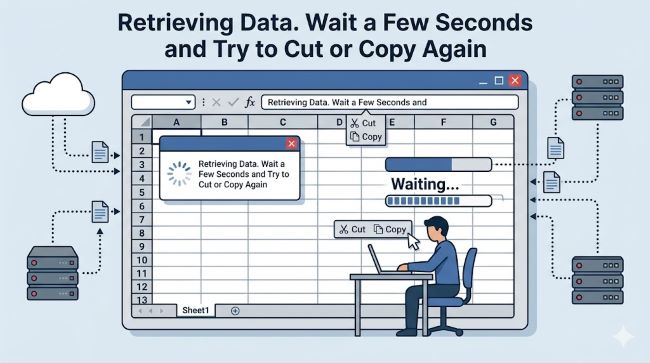
You go to copy a cell in Excel Online, switch to another window to paste, and instead of your data, you see this: “Retrieving data. Wait a few seconds and try to cut or copy again.” Your workflow stops dead. You try again. Same message. If this sounds familiar, you are not alone. This error has been frustrating Excel users for years, and while Microsoft has never issued a proper patch for it, there are reliable ways to fix it.
This guide explains what is actually happening when you see this message and walks you through every fix, from the quick one-minute solutions to the more thorough options if the problem keeps coming back.
What Does “Retrieving Data. Wait a Few Seconds” Actually Mean?
The error is not a bug in the traditional sense. It is a symptom of how Excel Online handles data.
When you copy something in a local desktop application, the copied content sits in your system clipboard and stays there until you paste or copy something else. Excel Online works differently. Instead of using your local clipboard directly, it temporarily holds copied data through your browser’s cache and syncs it with Microsoft’s cloud via OneDrive or Office 365.
When you hit copy in Excel Online, that data goes through a validation process. Excel checks the copied content against the online version of the file. If anything in that chain breaks, such as a slow network connection, a browser cache issue, or a sync delay, the validation fails. The result is the message: “Retrieving data. Wait a few seconds and try to cut or copy again.”
The frustrating part is that even if you wait, the data may have already expired from the cache. Simply waiting usually does not help because the cache token needs to refresh, which only happens when you copy again.
Why Does This Keep Happening?
There are a few consistent causes behind this error:
- Browser cache conflicts. Stale or corrupted cached data in your browser interferes with Excel Online’s data retrieval process.
- Unstable internet connection. Cloud sync depends on a reliable connection. Even brief drops can break the validation chain.
- Browser compatibility. Microsoft Edge and Internet Explorer tend to trigger this error more often than Chrome or Firefox.
- Add-ins or extensions. Certain browser extensions can interrupt how data moves between Excel Online and your clipboard.
- Formula-heavy data. The error appears more often when copying cells that contain formulas, because formula validation adds extra steps to the sync process.
- Large data sets. Working with big spreadsheets puts more load on the sync process, making failures more likely.
How to Fix “Retrieving Data. Wait a Few Seconds and Try to Cut or Copy Again”
Work through these in order. Most people find the issue resolved within the first three methods.
1. Deselect, Wait, and Copy Again
This is the simplest fix and works a good portion of the time. Click somewhere else on the spreadsheet to deselect the cells you were trying to copy. Wait around 5 to 10 seconds. Then select the cells again and copy.
The pause gives Excel Online time to finish its sync cycle. The re-copy generates a fresh cache token, which often allows the paste to go through cleanly.
2. Check and Stabilize Your Internet Connection
Since this error is fundamentally a sync issue, a shaky connection makes everything worse. Run a quick speed test or try loading another webpage to confirm your connection is working normally. If you are on Wi-Fi, moving closer to the router or switching to a wired connection can make a real difference when working with large Excel files online.
3. Clear Your Browser Cache
Cached data that is outdated or corrupted is one of the most common causes of this error. Here is how to clear it in the main browsers:
Chrome:
- Press Ctrl + Shift + Delete
- Set the time range to “All time”
- Check “Cached images and files”
- Click “Clear data”
- Restart Chrome and reopen your Excel file
Edge:
- Press Ctrl + Shift + Delete
- Select “Cached images and files”
- Click “Clear now”
- Restart Edge
Firefox:
- Press Ctrl + Shift + Delete
- Set the time range to “Everything”
- Check “Cache”
- Click “Clear now”
After clearing, sign back into Office.com and try the copy operation again.
4. Switch to a Different Browser
If you regularly see this error in Edge or Internet Explorer, try switching to Chrome or Firefox. Many users report that the error occurs far less often in Chrome. This is not a permanent fix to the underlying issue, but it is a practical workaround for daily work.
5. Disable Browser Extensions
Some extensions, particularly ad blockers, productivity tools, or clipboard managers, can interfere with how Excel Online retrieves and transfers data. Open an incognito or private browsing window (where extensions are usually disabled by default) and try the copy-paste operation there. If it works cleanly, an extension is the culprit. You can then disable them one at a time to identify which one is causing the problem.
6. Open the File in the Excel Desktop App
This is the most reliable long-term fix if you regularly copy large amounts of data or work with formula-heavy sheets. The desktop version of Excel does not depend on browser-based caching or cloud clipboard services, so the error simply does not occur there.
To do this, open your file in Excel Online, go to File, select Open in Desktop App, and work directly from there. If you do not have Excel installed, you can also download a copy of the file, work on it locally, and re-upload when finished.
7. Close and Reopen the File
A simple but sometimes overlooked fix. Close the browser tab containing the spreadsheet, reopen it, and try copying again. Since data is backed up online, nothing is lost. This resets the sync state and clears any temporary issue that was blocking the retrieval process.
What About When the Error Involves Formulas?
Some users find the error appears specifically when copying cells with formulas, even when plain values copy fine. This is because formula validation adds extra steps to the sync process. In this case, the most reliable workaround is to use the Excel desktop app for formula-heavy copy operations. Alternatively, you can paste as values only (Paste Special > Values) which bypasses formula validation entirely.
Will Microsoft Ever Fix This Permanently?
Based on reports from users across Microsoft’s own Q&A forums, this issue has persisted for years without a dedicated patch. The root cause lies in how the cloud clipboard and browser sync interact, which is an architectural challenge rather than a straightforward bug. Microsoft’s support team typically recommends the same fixes outlined above, and for persistent or organization-wide issues, they suggest raising a direct support ticket for investigation.
If you find yourself dealing with syncing issues in other cloud tools as well, it is worth reading about how syncing problems surface across different applications and what the underlying causes usually are. The pattern of network conditions, cache conflicts, and authentication issues tends to repeat across cloud-based tools.
Quick Reference: When to Use Each Fix
| Situation | Best Fix |
|---|---|
| Error just happened once | Deselect, wait, re-copy |
| Happens every session | Clear browser cache |
| Happens on Edge/IE | Switch to Chrome or Firefox |
| Copying formula cells | Use desktop app or paste as values |
| Error affects whole team | Contact Microsoft support |
| Working with large data sets | Download and work locally |
Key Takeaways
- The “retrieving data. wait a few seconds and try to cut or copy again” error happens because Excel Online uses browser cache and cloud sync for clipboard operations, not your local clipboard.
- Clearing your browser cache and switching away from Edge or Internet Explorer resolves the issue for most users.
- For formula-heavy sheets or large data, using the Excel desktop app removes the problem entirely.
- Microsoft has not released a permanent fix, so knowing these workarounds is the practical solution.
Staying on top of how your tools handle data sync can save a lot of time. Whether it is Excel Online, cloud storage, or other browser-based productivity apps, understanding what technology tools are available for your workflow helps you choose the right one for the job. And when a familiar tool throws an error like this, the fix is usually simpler than it first appears.
If the desktop app route interests you as a more stable option for intensive work, it is also worth exploring step-by-step guides for working across tools that walk you through integrations and features you might not know about yet.