How to Unpause Syncing with iCloud: Causes and Fixes
You look at your iPhone and see a message you weren’t expecting: “Syncing with iCloud paused.” Or maybe your iMessage history isn’t showing up on your Mac, or your photos stopped uploading. If you’re wondering how to unpause syncing with iCloud, the good news is that the cause is almost always one of a handful of simple things, and fixing it takes a few minutes at most. This guide explains exactly why syncing pauses, how to identify which issue you’re dealing with, and the specific steps to get everything flowing again.
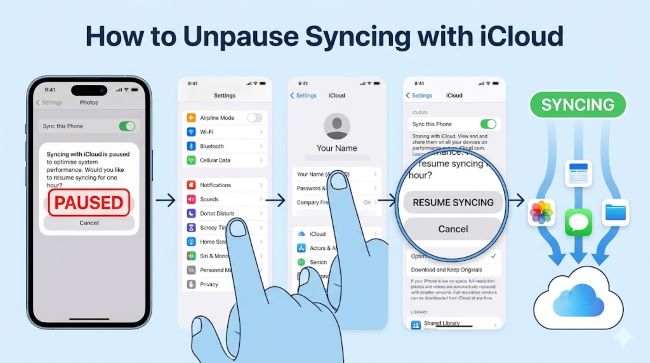
Why Is Syncing with iCloud Paused?
Before jumping into fixes, it helps to understand what’s actually happening. iCloud syncing doesn’t pause randomly. It pauses when the system detects a condition that makes syncing unreliable or impossible. Why is my syncing with iCloud paused usually comes down to one of these causes:
Low battery or Low Power Mode. When your iPhone’s battery drops below a certain threshold or Low Power Mode is active, iOS deprioritises background processes including iCloud sync. If your battery symbol is yellow, this is likely the reason. Plugging your device into a charger often resumes syncing automatically within minutes.
Poor or unstable Wi-Fi connection. iCloud relies on a stable connection to upload and download data. If your Wi-Fi signal is weak or you’re on a congested network, syncing pauses rather than running partial or corrupted transfers. Cellular connections can also trigger pausing if Low Data Mode is enabled.
Full iCloud storage. This is one of the most common causes. iCloud needs available space to sync. If your 5GB free tier (or your paid iCloud+ plan) is at capacity, syncing stops entirely. You’ll usually see a storage warning alongside the paused message.
Device overheating. In 2026, both iPhones and Macs running M-series and A-series chips manage heat carefully. When the device reaches a temperature threshold, iOS and macOS throttle background tasks including iCloud sync to protect the hardware. This typically resolves on its own once the device cools down.
Date and time misconfiguration. This is one people rarely think of. If your device’s date or time is wrong, iCloud’s servers reject the connection because the timestamp doesn’t match. iCloud authentication is time-sensitive, and a mismatch of even a few minutes can break it.
Apple ID authentication issue. Occasionally, the connection between your Apple ID and iCloud breaks silently, particularly after an iOS update, a password change, or a long period without a sign-in refresh. The system shows syncing as paused but doesn’t give a specific reason.
iCloud servers are down. Less common, but it happens. Apple’s iCloud status page at apple.com/support/systemstatus shows current server health with green, yellow, and red indicators. If iCloud shows yellow or red, wait it out.
How to Unpause Syncing with iCloud: Step-by-Step Fixes
Work through these in order. Most people find the issue resolved by step three or four.
Fix 1: Plug In and Connect to Wi-Fi
The fastest first step. Connect your device to power and make sure you’re on a stable Wi-Fi network. Low Power Mode disables itself when you charge, and a stronger connection removes the network trigger. Wait two to three minutes after connecting both and check whether syncing resumes.
To manually disable Low Power Mode:
- Go to Settings > Battery.
- Toggle off Low Power Mode.
To check Low Data Mode on Wi-Fi:
- Go to Settings > Wi-Fi.
- Tap the info icon next to your network.
- Make sure Low Data Mode is off.
Fix 2: Check and Free iCloud Storage
Go to Settings > [Your Name] > iCloud. The bar graph at the top shows how much storage you’ve used. If it’s at or near the limit:
- Delete old iCloud backups you no longer need: Settings > [Your Name] > iCloud > Manage Account Storage > Backups.
- Turn off iCloud sync for apps you don’t need backed up (photos from apps, rarely used data).
- Upgrade to iCloud+ for more storage if you consistently need more than 5GB.
Fix 3: Restart Your Device
A restart clears temporary caches and refreshes all background processes including iCloud authentication tokens.
On iPhone with Face ID:
- Press and hold the Volume Up or Down button and the Side button simultaneously.
- Drag the power-off slider.
- Wait 30 seconds, then hold the Side button to restart.
On iPhone with Home button:
- Press and hold the Side button until the slider appears.
- Drag to power off, wait 30 seconds, then restart.
After restarting, wait a minute, then go to Settings > [Your Name] > iCloud to see whether syncing has resumed.
Fix 4: Check Date and Time Settings
- Go to Settings > General > Date & Time.
- Make sure Set Automatically is toggled on.
If it was already on, toggle it off, wait five seconds, and toggle it back on. This forces the device to resync with Apple’s time servers.
Fix 5: Toggle iCloud Off and Back On for Specific Apps
If syncing is paused for one specific service (Messages, Notes, Photos) but not others, the issue is likely an authentication token for that service specifically.
- Go to Settings > [Your Name] > iCloud > Show All.
- Find the app showing the issue.
- Toggle it off, wait ten seconds, toggle it back on.
This refreshes the service’s connection to iCloud without affecting other apps.
Fix 6: Sign Out of Apple ID and Sign Back In
This is the more thorough reset for persistent issues. It refreshes the entire iCloud connection and clears any broken authentication state.
- Go to Settings > [Your Name].
- Scroll down and tap Sign Out.
- Enter your Apple ID password when prompted.
- Choose to keep a copy of your data on the device if prompted.
- Sign back in with your Apple ID and password.
Resetting your Apple device connections often resolves persistent sync issues that surface after iOS updates or account changes, and the same principle applies whether you’re resetting an accessory or refreshing an account connection.
Fix 7: Reset Network Settings
If the issue is network-related and hasn’t resolved through other steps:
- Go to Settings > General > Transfer or Reset iPhone > Reset.
- Tap Reset Network Settings.
This removes all saved Wi-Fi passwords, VPN configurations, and Bluetooth pairings. Reconnect to your Wi-Fi network after the reset and check whether syncing resumes.
Syncing with iCloud Paused in iMessage: Specific Fix
Syncing with iCloud paused iMessage is a slightly different scenario. iMessage syncing across devices requires a specific configuration on each device, not just iCloud being active.
On iPhone:
- Go to Settings > [Your Name] > iCloud > Show All.
- Make sure Messages is toggled on.
On Mac:
- Open the Messages app.
- Go to Messages > Settings > iMessage.
- Make sure Enable Messages in iCloud is checked.
- If a Sync Now button is visible, click it.
If the Sync Now button is missing, toggle Enable Messages in iCloud off, wait ten seconds, and toggle it back on. This forces a fresh sync attempt. If the issue persists, signing out and back into your Apple ID on the Mac resolves it in most cases.
Understanding what different status indicators mean in Apple’s apps is useful context when interpreting sync messages. A paused status looks alarming but is usually a protective measure, not a sign of data loss.
iCloud Photos Not Syncing: Specific Fix
iCloud Photos not syncing has its own set of causes. Photos are the largest files iCloud handles, so they’re the first to stop when storage or bandwidth is limited.
Check that iCloud Photos is enabled:
- Go to Settings > Photos.
- Make sure Sync this iPhone (previously called iCloud Photos) is toggled on.
Check upload status: At the bottom of the Photos app, look for an upload progress bar. If it shows “Paused” with a reason, that reason tells you exactly what to fix: storage, connection, or Low Power Mode.
Force a sync start: Go to Photos > Albums > Recents, scroll to the bottom, and tap Resume. If no Resume button appears, the sync is either running or waiting for conditions to improve.
Large photo libraries can take hours to complete an initial or resumed sync. As long as your device is plugged in, connected to Wi-Fi, and has available iCloud storage, the process will run in the background without further action needed.
Checking Apple’s System Status
Before spending time troubleshooting, check apple.com/support/systemstatus. If iCloud Drive, iCloud Photos, or iMessage show anything other than green, the issue is on Apple’s end. Wait for the status to clear before trying any fixes, as they won’t help while Apple’s servers are having problems.
Key Takeaways
- How to unpause syncing with iCloud: plug in your device, connect to stable Wi-Fi, and disable Low Power Mode. These three actions resolve the majority of cases.
- Why is syncing with iCloud paused: the five main causes are low battery/Low Power Mode, poor Wi-Fi, full iCloud storage, device overheating, and Apple ID authentication issues.
- Syncing with iCloud paused iMessage: check that Messages is enabled in iCloud settings on both iPhone and Mac, and use Sync Now in Messages settings on Mac.
- iCloud photos not syncing: verify Sync this iPhone is on in Settings > Photos, check storage, and look for a Resume button at the bottom of the Photos app.
- Why is my syncing with iCloud paused after an update: sign out of Apple ID and sign back in to refresh the authentication connection.
- Always check the Apple System Status page before troubleshooting. Server-side issues require waiting, not fixing.
- Date and time misconfiguration is an overlooked cause. Set Automatically should always be on.
Keeping a clear checklist of your device settings for iCloud, Apple ID, and network configuration means you can run through common fixes quickly the next time syncing pauses, without having to search for the steps from scratch.