ERR_CACHE_MISS: What It Means and How to Fix It in Google Chrome
Getting the ERR_CACHE_MISS error in Chrome? Learn what this error means, why the confirm form resubmission message appears alongside it, and the exact steps to fix it fast.
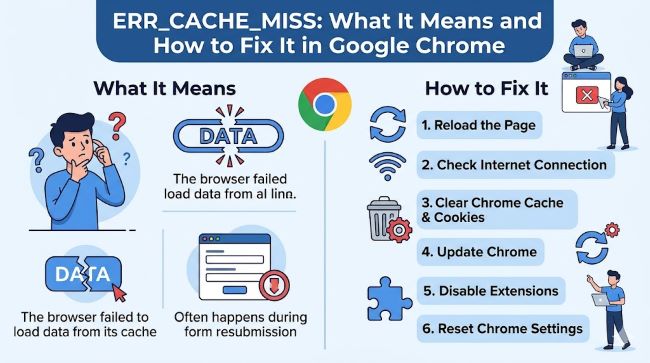
You are browsing normally, you hit the back button or refresh a page, and Chrome stops you with a stark white screen displaying one line: ERR_CACHE_MISS. Maybe it also shows “Confirm Form Resubmission” with a prompt asking if you want to reload. Your page does not load. Nothing happens. If this has happened to you, this guide explains exactly what the err_cache_miss error is, why it appears, and how to clear it up, usually in under five minutes.
What Is ERR_CACHE_MISS?
The name tells you most of what you need to know. Chrome uses a local cache, a temporary store of files from websites you visit, to speed up page loading. When you go back to a site you have already visited, Chrome grabs those saved files instead of downloading everything fresh.
A “cache miss” means Chrome went looking for that saved data and came up empty. Something broke the retrieval. The browser expected to find a cached version of the page or the data from a form you submitted, and it found nothing.
The err_cache_miss error is specific to Google Chrome. Other browsers handle the same situation differently. Firefox, for example, shows a “Document Expired” message instead. The underlying issue is the same, but Chrome surfaces it with this particular error code.
It is worth being clear about one thing: this is not a virus, not malware, and not a sign that your computer has been compromised. It is a browser-level caching issue, and it is almost always fixable from your end.
What Is the ERR_CACHE_MISS Meaning in Plain Terms?
In plain terms: Chrome tried to retrieve data it expected to have stored locally, and that data was not there or could not be validated.
This commonly happens in two situations:
- You submitted a form on a website (a login, a checkout, a search), and then tried to go back or refresh. Chrome needs to resubmit that form data to reload the page, but the cached version of that data is missing or expired.
- The page you are trying to load has cached data that has become corrupted or outdated, and Chrome cannot reconcile what it has stored with what the server is currently sending.
In both cases, Chrome cannot display the page as it should, so it shows the error rather than loading a broken or duplicated version.
Confirm Form Resubmission ERR_CACHE_MISS: What Is the Difference?
These two messages are related but slightly different in what they signal.
Confirm Form Resubmission is actually a Chrome safety feature, not a bug. When you submit a form and then refresh or navigate back, Chrome asks for your permission before resubmitting that data. This protects you from accidentally placing a duplicate order, sending a payment twice, or submitting a form multiple times.
When Chrome shows Confirm Form Resubmission ERR_CACHE_MISS together, it means Chrome is asking to resubmit form data, but also cannot find the cached version of that data. It has run into both the resubmission check and a cache retrieval failure at the same time.
For most users, simply clicking “Continue” on the Confirm Form Resubmission dialog will reload the page. If it does not, or if the error appears without a form submission involved, the fixes below will sort it out.
What Causes ERR_CACHE_MISS?
Several things can trigger this error:
- Corrupted or outdated browser cache. The most common cause. Cached files become stale or damaged, and Chrome cannot use them.
- Browser extensions. Privacy, security, or content-blocking extensions sometimes interfere with how Chrome handles cached data and network requests.
- Unstable internet connection. A brief drop in connection while a page loads can break the cache retrieval process.
- Outdated Chrome version. An older version of Chrome may have compatibility issues with newer web standards.
- Incorrect browser settings. Custom network or proxy settings can conflict with normal caching behavior.
- Website-side PHP or caching issues. If you are a developer or site owner, a misconfigured cache-control header on the server can cause this for your visitors.
How to Fix ERR_CACHE_MISS in Chrome
Work through these in order. Most users find the problem resolved by step two or three.
1. Hard Reload the Page
Before anything else, try a hard reload. This forces Chrome to bypass its cache entirely and download the page fresh from the server.
- Windows/Linux: Press Ctrl + Shift + R
- Mac: Press Cmd + Shift + R
A regular reload (F5) might still pull from cache. The hard reload skips it entirely. This fixes many temporary cache glitches in seconds.
2. Clear Your Browser Cache and Cookies
If the hard reload does not work, the cache itself needs to be cleared.
- Open Chrome and press Ctrl + Shift + Delete (Windows) or Cmd + Shift + Delete (Mac)
- Set the time range to All time
- Check Cached images and files and Cookies and other site data
- Click Clear data
- Restart Chrome and revisit the page
This removes the corrupted or outdated files and gives Chrome a clean start.
3. Disable Browser Extensions
Extensions, especially those handling privacy, ad blocking, or security, can interfere with cache operations. Test this quickly by opening Chrome in incognito mode (Ctrl + Shift + N), where extensions are usually disabled by default. If the page loads fine in incognito, an extension is the cause.
To find which one:
- Go to chrome://extensions in your address bar
- Disable all extensions by toggling them off
- Reload the page
- Re-enable extensions one at a time, reloading after each, until the error returns
The extension that brings the error back is the one causing the problem. Update it or remove it.
4. Update Google Chrome
An outdated browser can cause compatibility issues that trigger caching errors. Check for updates:
- Click the three dots in the top-right corner of Chrome
- Go to Help > About Google Chrome
- Chrome will automatically check for updates and install them if available
- Restart the browser after updating
5. Reset Your Network Settings
If the error appears to be tied to connectivity rather than the browser itself, resetting your network settings can help. On Windows, open Command Prompt as administrator and run these commands one at a time:
ipconfig /release
ipconfig /flushdns
ipconfig /renew
netsh winsock reset
On Mac, open Terminal and flush the DNS cache with:
sudo dscacheutil -flushcache; sudo killall -HUP mDNSResponderRestart your computer after running these commands, then try Chrome again.
6. Reset Chrome to Default Settings
If nothing above has worked, resetting Chrome to its default settings removes any misconfigured settings that might be causing the issue.
- Click the three dots and go to Settings
- Scroll down and click Reset settings
- Click Restore settings to their original defaults
- Click Reset settings to confirm
This disables all extensions and clears temporary data. You will need to reconfigure preferences like your homepage and search engine after the reset.
For Website Owners and Developers
If visitors to your site are reporting this error regularly, the issue may originate from your server configuration. The most common culprit is a Cache-Control header that includes no-store. This can prevent Chrome from caching POST responses correctly.
The cleanest fix is implementing the Post/Redirect/Get (PRG) pattern on your forms. After a successful form submission, redirect the user to a new page using a GET request. This ensures that refreshing the confirmation page does not trigger a resubmission attempt, and Chrome never encounters the missing cache data in the first place.
Understanding browser behavior across different versions matters here. Consistent testing across browsers is important for any site that handles form submissions. A useful starting point for developers navigating compatibility issues is reviewing top browser compatibility testing tools, which covers the landscape of options available for catching exactly these kinds of cross-browser issues before they reach your users.
Is ERR_CACHE_MISS Related to Other System Errors?
Not directly, but it sits in the same category of errors that occur when software or a browser cannot retrieve expected data because something in the chain has changed or failed. Browser caching issues, sync failures, and system-level recovery prompts often share a common thread: a mismatch between what the system expects and what it actually finds.
If you are troubleshooting multiple system errors alongside this one, it helps to take a methodical approach. Issues like unexpected prompts, recovery screens, and validation failures, such as the recent wave of BitLocker recovery prompts caused by Windows updates, follow a similar pattern where understanding the root cause makes the fix straightforward once you know where to look.
Browser sync and cloud-based caching errors can also surface in similar ways. If you are dealing with apps that pause unexpectedly or fail to retrieve stored data, understanding what triggers syncing failures across different services can sharpen your troubleshooting instincts generally.
Key Takeaways
- ERR_CACHE_MISS meaning: Chrome could not retrieve cached data it expected to find, usually because the cache is corrupted, outdated, or was never stored properly.
- Confirm Form Resubmission ERR_CACHE_MISS appears when Chrome encounters both a resubmission check and a cache miss at the same time, most often after submitting a form and then refreshing.
- The error is Chrome-specific and is not a sign of malware or a broken internet connection.
- A hard reload (Ctrl + Shift + R) fixes it in many cases. Clearing the cache and disabling extensions handles most of the rest.
- For developers, implementing the Post/Redirect/Get pattern on forms prevents the error from appearing for visitors.
- If the error persists after all fixes, resetting Chrome to its default settings is the most thorough option.
Most people see this error once, apply one of the first three fixes, and never think about it again. Now you know why it happened and how to stop it from coming back.