Microsoft BitLocker Recovery Issue: What’s Happening and How to Fix It
If your Windows PC just booted into a blue screen asking for a 48-digit key you’ve never seen before, you’re dealing with a Microsoft BitLocker recovery issue. It’s disorienting, especially if you didn’t set anything up yourself. The screen appears out of nowhere, usually after a Windows update, a hardware change, or a firmware tweak, and it demands a recovery key before it will let you into your own machine.
This guide explains what BitLocker actually is, why the BitLocker recovery screen appears, where to find your BitLocker recovery key, and what to do when things go wrong. Whether you’re a home user or managing a fleet of devices at work, this covers what you need.
What Is BitLocker?
What is BitLocker? BitLocker is a full-disk encryption feature built into Windows that encrypts the data on your drive so that it can’t be accessed without the correct credentials. It’s been part of Windows since Vista and is enabled by default on most modern Windows 10 and Windows 11 devices, especially on hardware that includes a TPM (Trusted Platform Module) chip.
When BitLocker is active, your drive is locked with an encryption key. Normally, your TPM chip handles unlocking the drive automatically during startup without you ever knowing it’s happening. The key is stored in the TPM, the startup sequence is verified, everything checks out, and Windows boots normally.
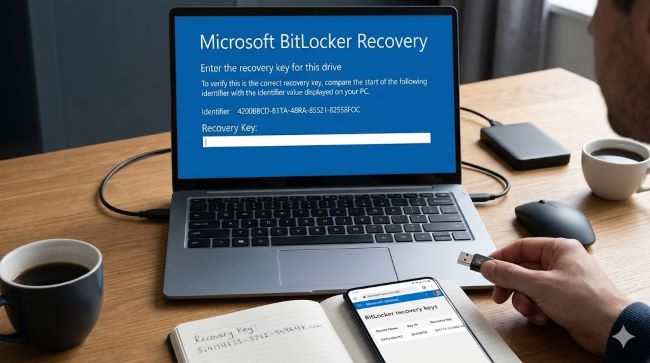
The BitLocker recovery screen appears when something in that verification process doesn’t match what BitLocker expects. At that point, BitLocker refuses to unlock the drive automatically and asks you to prove you’re the legitimate owner by entering the BitLocker recovery key, a 48-digit numerical code.
Why Does the BitLocker Recovery Screen Keep Appearing?
There are several common triggers for the BitLocker recovery prompt. Understanding which one hit you is the first step to fixing it.
Windows updates changing boot components. This is the most common trigger for home users right now. Microsoft’s April 2026 Patch Tuesday updates (KB5082063 for Windows Server 2025 and KB5083769 and KB5082052 for Windows 11) caused BitLocker recovery prompts on affected systems. This marks the fourth time in four years that a Patch Tuesday update has triggered unexpected BitLocker recovery prompts, with similar issues surfacing in August 2022, July 2024, and May 2025.
Secure Boot configuration changes. BitLocker uses Secure Boot state as part of its verification chain. If Secure Boot gets disabled, re-enabled, or its configuration changes (for example after a firmware update), BitLocker flags the change and demands the recovery key.
TPM-related changes. The TPM chip is central to how BitLocker works. Updates to firmware, changes to virtualisation settings, or switching between BIOS modes can all cause the TPM to present differently, which breaks BitLocker’s verification and triggers recovery.
Hardware changes. Replacing a motherboard, adding RAM, or even changing which drive bay your boot drive sits in can register as a hardware change significant enough to trigger recovery.
Incorrect Group Policy configuration. In enterprise environments, the April 2026 issue specifically affected devices where the Group Policy “Configure TPM platform validation profile for native UEFI firmware configurations” was set to include PCR7 in the validation profile. Microsoft describes this as an “unrecommended” configuration, but it’s common in organisations that tightened their BitLocker policies without following the recommended profile.
How to Find Your BitLocker Recovery Key
The how to find BitLocker recovery key question is what most people need answered fast when they’re staring at the recovery screen. Here’s where to look.
Microsoft account (most common for home users). Visit aka.ms/myrecoverykey and sign in with the Microsoft account linked to your device. If BitLocker was set up automatically (which it is on most modern Windows PCs), the Microsoft recovery key was saved to your account without any action on your part. This is the first place to check.
Azure Active Directory (enterprise devices). If your device is work-managed and joined to Azure AD or Entra ID, your IT administrator can retrieve the recovery key from the Entra portal or from the BitLocker recovery keys endpoint in Intune. If you’re the admin, check the Microsoft Entra admin centre under Devices > BitLocker keys.
Active Directory (on-premises enterprise). For domain-joined devices in traditional on-premises environments, the recovery key may be backed up in Active Directory. Admins can query this with: Get-ADComputer -Filter * -Properties msFVE-RecoveryPassword.
A printout or saved file. When BitLocker was first enabled on a device, Windows offers to save the recovery key to a file, print it, or save it to a USB drive. Check your files, cloud storage, and any printed records from when the device was set up.
MBAM (Microsoft BitLocker Administration and Monitoring). Enterprise environments using MBAM store recovery keys centrally. Contact your IT department if this applies to you.
If none of these locations produce the key and no backup exists anywhere, the situation is serious. If the recovery key is requested but cannot be found in any documented location, BitLocker cannot be bypassed. The only option becomes reimaging the device, which erases the encrypted data.
What to Do on the BitLocker Recovery Screen
Once you have your 48-digit recovery key, the immediate steps are straightforward:
- On the blue BitLocker recovery screen, type the 48-digit key when prompted.
- Windows will unlock the drive and boot normally.
- If prompted again immediately, that’s a sign of a deeper configuration issue, not a key problem.
If the key works but you’re worried about recurring prompts, you need to address the underlying cause before it happens again.
Fixing the April 2026 Update Issue Specifically
If you hit the BitLocker recovery screen after installing the April 2026 Windows updates, here’s what Microsoft recommends.
Before patching (preferred):
- Open Group Policy Editor (
gpedit.msc) or your Group Policy Management Console. - Navigate to: Computer Configuration > Administrative Templates > Windows Components > BitLocker Drive Encryption > Operating System Drives.
- Set “Configure TPM platform validation profile for native UEFI firmware configurations” to “Not Configured.”
- Run
gpupdate /forceto apply the change. - Run
manage-bde -protectors -disable C:thenmanage-bde -protectors -enable C:to rebind BitLocker to the current TPM state.
If you’ve already installed the update and hit recovery:
- Enter the recovery key to get into Windows.
- Apply the Group Policy fix above.
- Run the manage-bde commands to rebind.
- Alternatively, apply Microsoft’s Known Issue Rollback (KIR), which prevents the automatic switch to the 2023 Boot Manager that triggers the prompt.
The recovery key only needs to be entered once for this specific issue. Subsequent restarts will not trigger the BitLocker recovery screen, as long as the group policy configuration remains unchanged. But fix the policy regardless to avoid future issues.
The Locker Codes Question: What Are They?
A note on terminology. Some users searching for help with locker codes end up on BitLocker pages because the terms sound similar. Locker codes in gaming contexts (like NBA 2K MyTeam) are promotional codes for in-game content and have nothing to do with BitLocker. If you’re here for BitLocker, you’re in the right place. If you came looking for NBA 2K locker codes, that’s a different search entirely.
How to Avoid Future BitLocker Recovery Issues
Prevention is straightforward once you understand what triggers recovery.
Back up your recovery key right now. Visit aka.ms/myrecoverykey and confirm your key is saved to your Microsoft account. If it’s not there, you can back it up from within Windows by searching for “BitLocker” in the Start menu, opening BitLocker Drive Encryption, and selecting “Back up your recovery key.” Save it to your Microsoft account, a file, and/or print it. Having multiple copies in different places is the right approach.
Use the recommended PCR profile. If you manage devices in an enterprise, check whether your BitLocker Group Policy explicitly configures PCR7. Microsoft recommends leaving the TPM validation profile at its default rather than adding PCR7 explicitly, particularly on hardware where PCR7 binding is “Not Possible” according to msinfo32.exe.
Test patches in a staging environment. The April 2026 issue, like the similar issues before it, was discoverable before production deployment with proper patch testing. Building resilient IT infrastructure means testing cumulative updates on representative hardware before rolling them out fleet-wide.
Keep recovery keys accessible before patching. For enterprise environments, pull recovery keys from Active Directory or Intune before Patch Tuesday. Getting your recovery keys queued up before patching avoids scrambling during a production outage.
Monitor the Windows release health dashboard. Microsoft publishes known issues for each update on the Windows release health page. The April 2026 BitLocker issue was flagged within a day of the update releasing. Checking release notes before deployment would have allowed administrators to apply the Group Policy fix before any device hit the recovery screen.
Why BitLocker Matters Even When It’s Frustrating
The recovery screen is annoying. It’s especially annoying when it appears because of a Microsoft update rather than any action you took. But it’s worth understanding why BitLocker is on your device in the first place.
Without encryption, a stolen laptop is a complete data breach. Anyone with physical access can pull the drive, connect it to another machine, and read everything on it. BitLocker prevents that. The encrypted drive is useless without the key. Strong data protection at the device level is a baseline requirement for any individual or organisation that handles sensitive information, and BitLocker provides that baseline for Windows users without requiring third-party software.
The recovery issue is a friction point in an otherwise solid system. The solution isn’t to disable BitLocker. It’s to understand how it works, keep recovery keys backed up, and know what to do when the recovery screen appears.
Good security practices share a common thread: they require upfront effort and maintenance, but they protect you from much worse outcomes when things go wrong. BitLocker is exactly that kind of tool.
Key Takeaways
- The Microsoft BitLocker recovery issue most commonly appears after Windows updates, Secure Boot changes, TPM-related changes, or hardware modifications.
- The April 2026 Patch Tuesday updates triggered BitLocker recovery on devices with an unrecommended PCR7 Group Policy configuration across Windows 10, Windows 11, and Windows Server.
- To find your BitLocker recovery key, visit aka.ms/myrecoverykey and sign in with your Microsoft account. Enterprise users should check Entra ID, Active Directory, or Intune.
- The BitLocker recovery screen requires a 48-digit key. Entering it correctly unlocks the drive and allows normal boot.
- The April 2026 fix involves setting the TPM validation profile Group Policy to “Not Configured” and rebinding BitLocker using manage-bde commands.
- Back up your microsoft recovery key to multiple locations now, before you need it under pressure.
- What is BitLocker? A built-in Windows encryption feature that protects your data if your device is stolen or accessed without authorisation. It’s on by default on most modern Windows hardware.