How to Stop Sharing Location with One Person Without Them Knowing
Privacy around location sharing is something most people manage imperfectly. You shared your location with someone a while back and now you want to stop, but you don’t want to trigger a conversation about it. The good news is that knowing how to stop sharing location with one person without them knowing is straightforward on both iPhone and Android, and in most cases the other person receives no notification at all. This guide covers every method, what each one does, what the other person sees, and which approach fits your situation.
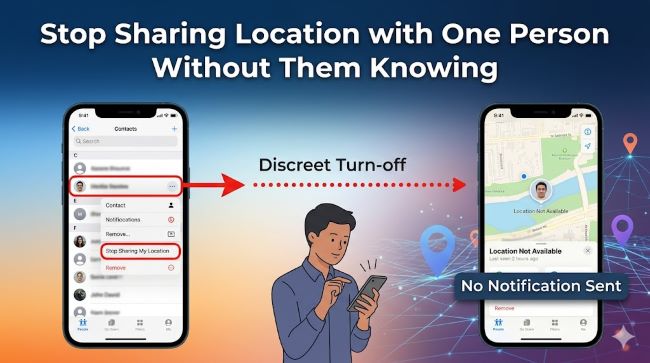
Does the Other Person Get Notified When You Stop Sharing?
This is the first question most people have, and the answer depends on how you’re sharing and which method you use to stop.
Here’s what actually happens across the main scenarios:
- Find My app (Stop Sharing with one person): No notification is sent. Your location simply disappears from their view. They won’t see an alert, but if they check Find My and look for you, they’ll notice your location is no longer available.
- iMessage location sharing (iOS 16 or earlier): No notification sent to the other person. They may eventually notice if they try to check your location.
- iMessage location sharing (iOS 17 and later): Apple changed this in iOS 17. When you tap “Stop Sharing My Location” inside an iMessage conversation, a “Location Expired” notice appears in the conversation for both of you. You see “You stopped sharing location with [name].” They see “Location Expired.” It doesn’t say you turned it off, but it signals the sharing ended.
- Disabling Location Services entirely: No notification sent to anyone.
- Turning off Share My Location in Settings: No notification sent.
- Airplane Mode: No notification sent, but your location freezes at your last known position.
The safest methods for stopping with one person silently are through the Find My app directly, or through the broader location settings.
Method 1: Stop Sharing with One Person via Find My (Best Option)
This is the cleanest approach if you want to stop sharing with a specific person while still sharing with others. No notification is sent.
On iPhone:
- Open the Find My app.
- Tap the People tab at the bottom.
- Tap the name of the person you want to stop sharing with.
- Scroll down and tap Stop Sharing My Location.
- Confirm when prompted.
That person’s view of your location simply goes blank. They won’t receive a push notification. If they open Find My and look for you, your name either disappears or shows no location data. That’s all they see.
Method 2: Stop Sharing via iMessage (With a Caveat for iOS 17+)
If you originally started sharing your location through an iMessage conversation, you can stop it the same way. On iOS 17 and later, a “Location Expired” message appears in the chat visible to both parties, so be aware of that.
Steps:
- Open the Messages app and go to the conversation.
- Tap the contact’s name or photo at the top of the screen.
- Tap Stop Sharing My Location.
On iOS 16 or earlier, no notice appears in the conversation for either person. On iOS 17 and later, both parties see the “Location Expired” indicator in the chat thread.
How to Turn Off Location on iPhone: The Broader Options
If you want to stop sharing with everyone, or if you’re not sure which app is sharing your location, these settings cover all bases.
Turn Off Share My Location Globally
How to turn off location on iPhone for all Find My sharing at once:
- Open Settings.
- Tap your name at the top (Apple ID).
- Tap Find My.
- Toggle off Share My Location.
No notifications are sent to anyone. All active location sharing stops immediately. When you turn this off, anyone who had access to your location will simply see it become unavailable. Find My can still locate your device if it’s lost, but your live position won’t be shared with contacts.
How to Hide Your Location on iPhone via Location Services
How to hide your location on iPhone at the system level:
- Go to Settings > Privacy & Security > Location Services.
- Toggle Location Services off entirely.
This cuts off location access for every app on your device simultaneously. No notification is sent to anyone. The trade-off is that apps like Maps, Weather, and Uber also lose location access until you turn it back on.
You can also do this per-app within Location Services, which is useful if you want to stop sharing through a specific app like Google Maps or WhatsApp without affecting Find My or system functions.
How to Disable Location Services for Specific Apps
How to disable location services for one app without affecting others:
- Go to Settings > Privacy & Security > Location Services.
- Scroll through the app list and tap the app you want to adjust.
- Set it to Never to remove all location access, or While Using to limit it to active use only.
For WhatsApp specifically:
- Open WhatsApp and go to a conversation.
- Tap the + icon and select Location.
- If you’re sharing a live location, tap Stop Sharing.
For Google Maps:
- Open Google Maps.
- Tap your profile photo > Location sharing.
- Tap the person you’re sharing with and tap Stop.
How to Pause Location on Find My iPhone Temporarily
How to pause location on Find My iPhone without stopping it permanently:
- Open the Find My app.
- Tap the Me tab in the bottom right corner.
- Toggle off Share My Location.
This pauses sharing for all contacts simultaneously until you toggle it back on. No notification is sent. When you re-enable it, sharing resumes with everyone who had access before. This is useful if you need a temporary window of privacy without making a permanent change to your sharing settings.
Airplane Mode achieves a similar effect: your location freezes at your last known position and stops updating. People with access to your location see a frozen pin with a timestamp like “Last seen 2 hours ago.” No notification fires, but the frozen pin is a visible sign that something changed.
Method for Android Users
Android location sharing primarily runs through Google Maps and Google’s account settings.
To stop sharing with one person on Android (Google Maps):
- Open Google Maps.
- Tap your profile picture in the top right.
- Tap Location sharing.
- Find the person you want to stop sharing with and tap their name.
- Tap Stop.
No notification is sent. They simply lose the ability to see your location in Maps.
To stop Find My Device sharing:
- Go to Settings > Location.
- Toggle off Use Location entirely, or adjust per-app permissions.
For third-party apps like Life360 or Snapchat, go into each app’s settings and remove the specific contact or turn off location access.
The Block-Unblock Method (iPhone Quirk)
There’s a Reddit-discovered method that works quietly: blocking the contact and then immediately unblocking them. When you block someone, your location stops updating for them instantly. When you unblock them, the sharing doesn’t resume. In iMessage, they see “Location Expired” rather than any indication that something was done intentionally.
This method is a workaround rather than a recommended setting. It works, but it’s worth knowing the side effects: blocking someone temporarily hides your iMessage status and prevents calls during the blocked period.
Related Privacy Controls Worth Knowing
If you’re thinking about location privacy, a few related settings are worth reviewing at the same time. Disabling read receipts follows a similar logic: controlling what information the other person sees about your activity without sending them a direct signal that you’ve changed something.
Managing your digital privacy across multiple settings in one session is more efficient than addressing them one at a time. Keeping a clear toolkit of privacy and productivity settings for your devices means you can act quickly when you need to adjust what you’re sharing and with whom.
What the Other Person Actually Sees
This is the practical question. Here’s a clear summary:
| Method | Notification sent? | What they see |
|---|---|---|
| Stop Sharing in Find My | No | Your location disappears from their list |
| iMessage Stop Sharing (iOS 16) | No | Nothing changes in the chat |
| iMessage Stop Sharing (iOS 17+) | No push alert, but | “Location Expired” in the conversation |
| Toggle off Share My Location | No | Location becomes unavailable |
| Disable Location Services | No | Location becomes unavailable |
| Airplane Mode | No | Frozen last known location with timestamp |
| Block then Unblock | No | “Location Expired” in iMessage |
In every case, no push notification is sent to the other person. The only way they know something changed is if they actively check your location and find it’s gone or frozen.
Key Takeaways
- How to stop sharing location with one person without them knowing: use the Find My app, tap People, select the contact, and tap Stop Sharing My Location. No notification is sent.
- On iOS 17 and later, stopping location through iMessage shows a “Location Expired” note in the chat visible to both parties. The Find My method avoids this.
- How to turn off location on iPhone entirely: Settings > Apple ID > Find My > toggle off Share My Location.
- How to hide your location on iPhone at the system level: Settings > Privacy & Security > Location Services > toggle off.
- How to disable location services per app: Settings > Privacy & Security > Location Services, then adjust each app individually.
- How to pause location on Find My iPhone temporarily: Find My > Me tab > toggle off Share My Location. No notification, resumes when you toggle back on.
- Android users stop location sharing through Google Maps > profile > Location sharing > Stop for the specific contact.
- No method sends a push notification to the other person. The only signal is a frozen or missing location if they check actively.
The iPhone’s privacy settings menu is more detailed than most people realise. Taking ten minutes to go through Location Services, Find My, and iMessage settings gives you a complete picture of exactly what you’re sharing and with whom.