Best Budget Monitors for Work From Home
The single cheapest upgrade to a work-from-home setup is often a better monitor, or a second one. Staring at a cramped laptop screen all day strains your eyes, hunches your posture, and quietly caps your productivity, while a good external monitor opens up your workspace, lets you see more at once, and makes long workdays far more comfortable. The good news is you do not need to spend a fortune, since the best budget monitors for work from home deliver everything a typical remote worker needs for a modest price. Here is the guide to the specs that matter, what to buy, and how to choose.
Why a Better Monitor Matters for Remote Work
The case for upgrading is practical and immediate:
- More screen space lets you see documents, spreadsheets, and video calls without constant window-switching.
- Better ergonomics, since an external monitor at eye level fixes the neck-craning posture a laptop forces.
- Reduced eye strain, with a larger, better screen that is easier to look at all day.
- Higher productivity, since studies consistently show more screen real estate improves efficiency for many tasks.
- A second monitor multiplies the benefit, letting you reference one screen while working on another.
For most remote workers, a monitor upgrade delivers more daily quality-of-life improvement per dollar than almost any other purchase.
The Specs That Matter for Work
Cutting through the marketing, these specs actually matter for the best budget monitors for work from home (as opposed to gaming, which prioritizes different things):
Size and resolution. For work, 24 to 27 inches is the sweet spot. A 24-inch 1080p (Full HD) monitor is the budget baseline, while a 27-inch 1440p (QHD) monitor offers noticeably crisper text and more workspace for a bit more money, and is the better pick if the budget stretches. Sharp text matters enormously when you read and write all day.
Panel type. IPS panels are worth prioritizing for work, offering better colors and much wider viewing angles than cheaper TN panels, which matters for accurate colors and comfortable viewing. Most quality budget monitors now use IPS.
Resolution over refresh rate. For work, a standard 60Hz refresh rate is fine, since the high refresh rates gamers pay for do not help with documents and email. Spend on resolution and panel quality instead.
Ergonomic stand. An adjustable stand (height, tilt, and ideally rotation) is genuinely important for comfort, though many budget monitors have basic stands. A VESA mount lets you add an arm later.
Connectivity. Ensure the monitor has the ports your computer uses (HDMI, DisplayPort, or USB-C). USB-C monitors that charge your laptop over one cable are especially convenient but cost more.
Eye-care features, like flicker-free and blue-light modes, which reduce fatigue during long days.
What to Buy by Use
The best budget monitors for work from home depend on your specific work:
| Your Work | Recommended |
|---|---|
| General office work | 24-27″ 1080p IPS, 60Hz |
| Lots of reading/writing | 27″ 1440p IPS for sharp text |
| Spreadsheets and multitasking | 27″ 1440p or dual monitors |
| Design/color work | IPS with good color accuracy |
| Tight budget | 24″ 1080p IPS |
| Laptop users | USB-C monitor (one-cable convenience) |
The reliable default among the best budget monitors for work from home is a 27-inch 1440p IPS monitor if the budget allows, or a 24-inch 1080p IPS monitor if it is tighter. Both serve office work well.
The Case for Dual Monitors
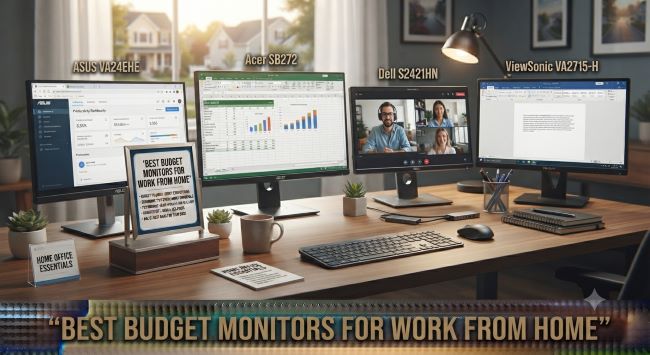
One of the best budget monitors for work from home moves is buying two affordable screens rather than one premium one. For many workers, two 24-inch monitors improve productivity more than a single larger screen, since you can dedicate one to your main task and one to reference material, email, or video calls. Two solid budget monitors often cost less than one high-end display and deliver more usable workspace, making dual monitors one of the smartest budget strategies for a home office.
Setting Up for Comfort
Buying one of the best budget monitors for work from home is half the job; positioning it well is the other half. Set the top of the screen at or slightly below eye level, about an arm’s length away, to protect your neck and eyes. If the included stand does not adjust enough, a cheap monitor arm or even a stack of books can fix the height. Pair the monitor with good lighting to reduce glare, and take regular breaks regardless of how good the screen is.
Budget Tech That Punches Above Its Price
The broader lesson of the best budget monitors for work from home is that smart, affordable tech choices deliver most of the benefit of premium gear for a fraction of the cost. This is true across the tech world right now, where the budget tier has become genuinely capable, and anyone building out a home setup on a budget will recognize the same pattern in other categories, like the surprisingly capable machines covered in Best Budget 3D Printers in 2026, where sub-$300 options now rival what cost far more just recently. The principle holds: you rarely need to buy the most expensive option to get excellent results.
The bottom line on the best budget monitors for work from home is that a modest investment transforms a cramped laptop-only setup into a comfortable, productive workspace. Prioritize an IPS panel and sharp resolution over gaming specs, consider dual monitors for the best productivity per dollar, position the screen at eye level, and you will have a home-office display setup that makes every workday better without straining your budget.
Key Takeaways
- A better monitor or a second one is often the cheapest, highest-impact upgrade to a work-from-home setup.
- For work, 24-27 inches is the sweet spot: a 24″ 1080p IPS as the budget baseline, or 27″ 1440p IPS for sharper text.
- Prioritize an IPS panel and resolution over the high refresh rates gamers pay for, since 60Hz is fine for office work.
- An adjustable ergonomic stand and the right connectivity (HDMI, DisplayPort, or USB-C) matter for comfort and convenience.
- USB-C monitors that charge a laptop over one cable are especially convenient for laptop users.
- Two affordable monitors often boost productivity more than one premium screen, and can cost less.
- Position the screen at or just below eye level, an arm’s length away, and pair it with good lighting.
- Budget tech now punches above its price across categories, so you rarely need the most expensive option for excellent results.