New CPU Installed fTPM/PSP NV Corrupted: How to Fix This Error
You just installed a shiny new CPU. You powered on the computer. Then you see it: a message about fTPM/PSP NV being corrupted. Your first thought is probably panic. Did something go wrong? Is your hardware damaged? Is this a serious problem?
Take a breath. New CPU installed fTPM/PSP NV corrupted is actually a message you can fix. It’s frustrating, but it’s not the hardware disaster it feels like in that moment. This error appears when your system’s firmware can’t access the trusted platform module information the way it expects to. Understanding what’s happening and what to do about it makes the whole situation much less stressful.
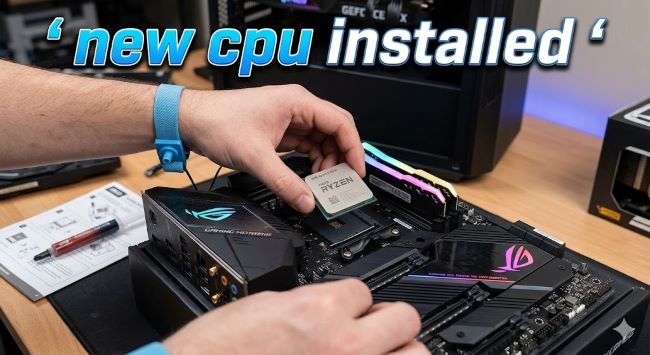
Let’s talk about what this error means and how to get past it.
What Is fTPM and Why It Matters
Before we can tackle the problem, you need to understand what is fTPM. fTPM stands for firmware Trusted Platform Module. Think of it as security software that runs at a very deep level in your system, below the operating system.
A TPM is a security component that stores encryption keys, verifies that your system hasn’t been tampered with, and manages other security-related information. It’s like a vault that keeps sensitive data safe. Your operating system and security software rely on the TPM to function properly.
The “f” in fTPM means it’s firmware-based. It’s not a separate hardware chip. Instead, it’s implemented in your CPU or chipset as part of the firmware. AMD systems use fTPM. Intel systems traditionally use different approaches, though they’re moving toward TPM 2.0 as well.
The NV part stands for non-volatile memory. Non-volatile means the data persists even when the computer is off. This is where the TPM stores its settings and security information. When this area becomes corrupted, the system can’t read the security settings it needs to function properly.
Understanding fTPM/PSP NV Corrupted
The PSP is the Platform Security Processor. On AMD CPUs, the PSP manages security functions including the fTPM. When you see fTPM/PSP NV corrupted, the system is telling you that the PSP can’t read the non-volatile memory where it keeps its data.
This error typically appears during boot. You’ll see a message like “fTPM/PSP NV corrupted” followed by an option to press Y to reset fTPM. The system is offering you a solution right there in the error message.
Why does this happen? Usually because something interrupted the normal fTPM initialization process. A CPU swap is one of those interrupting events. When you change the CPU, the system’s firmware doesn’t recognize that the fTPM data was created on different hardware. The new CPU’s PSP tries to access that data and finds it unreadable.
This is not a sign that you installed the CPU incorrectly or that something is broken. It’s just the system recognizing that fTPM needs to reinitialize on the new hardware.
Why This Error Appears After a CPU Change
When you swap out a CPU, you’re changing the processor that runs the PSP firmware. The AMD CPU fTPM implementation is hardware-specific. The fTPM settings and keys were created on your old CPU’s PSP. Your new CPU’s PSP doesn’t have a direct way to use that data.
The firmware detects that something is wrong. The PSP tries to read the stored fTPM information and fails. This triggers the error message.
This is actually the system working as intended. The firmware is protecting you by not silently trying to use security data that it doesn’t understand. Instead, it stops and asks you what to do.
The error is more common than you might think. Anyone who has upgraded their CPU will encounter this message at some point. It’s an expected part of the CPU upgrade process, even if the error message makes it sound more serious than it is.
Understanding fTPM Meaning in Your System
The fTPM meaning in the context of your system is straightforward. It’s the security module that makes sure your computer is secure and trustworthy. It works with Windows, your antivirus software, and various security features to protect your system from unauthorized changes.
Windows 11 requires a TPM for certain features. Windows 10 can use it but doesn’t require it. Various security features in Windows rely on the TPM being present and functioning. Disk encryption, secure boot verification, and other security functions depend on a working TPM.
Third-party software also uses the TPM. Antivirus programs sometimes rely on it. Some business applications require it. Password managers might use it to securely store information.
When the fTPM is corrupted or not functioning, you might notice:
- Windows security warnings
- Encryption features not working properly
- Some security software refusing to run
- Boot delays while the system tries to figure out the TPM status
These issues aren’t disasters, but they’re problems you want to fix. Fortunately, fixing a corrupted fTPM is straightforward.
How to Fix It: Press Y to Reset fTPM
When you see the error message, you’ll typically see an option to press Y to reset fTPM. This is exactly what you want to do. Don’t hesitate. Don’t try to skip it. Press Y.
What pressing Y does is tell the system to clear the old fTPM data and create fresh fTPM data for your new CPU. It’s like saying “forget the old settings and start fresh.” The system wipes the corrupted or unreadable fTPM data and initializes a brand new fTPM for your current hardware.
This reset:
- Clears the old fTPM data that the new CPU can’t read
- Creates new fTPM settings specific to your current CPU
- Initializes the fTPM in a clean state
- Allows Windows to see the TPM and configure it properly
After pressing Y, the system continues booting. You should get into Windows normally. The fTPM error should not appear again.
The reset doesn’t harm your system. It doesn’t delete files. It doesn’t affect your operating system installation. It only affects the fTPM settings, which you want to reset anyway after a CPU change.
fTPM/PSP NV Corrupted in BIOS
Sometimes you encounter this error in the BIOS itself. The BIOS might show a message about fTPM/PSP NV corrupted and ask if you want to reset it. The solution is the same. Tell it yes. Reset the fTPM.
You might need to:
- Enter the BIOS setup (usually pressing Delete or F2 during boot)
- Find the TPM settings (often under Security settings)
- Look for an option to reset TPM or clear fTPM
- Select yes to reset fTPM
- Save changes and exit
Different motherboard manufacturers organize BIOS menus differently, so you might need to look around. The general principle is the same across all of them. You want to find the TPM or fTPM setting and tell it to reset.
After you reset the fTPM from BIOS, you might see the error message again on next boot. That’s fine. If the option appears to reset it again, press Y again. Sometimes it takes more than one cycle for the system to fully reinitialize the fTPM.
The fTPM Reset Process Explained
When you tell the system to reset fTPM, here’s what happens behind the scenes.
The PSP receives the instruction to clear fTPM data. It wipes the non-volatile memory that was corrupted or unreadable. This memory is now blank.
Next, the PSP initializes fTPM from scratch. It creates new encryption keys and settings. These are specific to your current CPU and its PSP.
The system saves these new settings to the NV memory area. This time, the settings are created on your current hardware, so they’re readable by your current CPU.
When Windows boots, it detects the fTPM and confirms that it’s working. Windows registers the TPM and enables TPM-dependent features.
The entire process usually takes less than a minute. Most of that time is just the system booting and initializing.
Troubleshooting If the Error Persists
In rare cases, the error persists even after you press Y to reset fTPM. This usually means one of a few things.
The CMOS battery might need reseating. Power off completely. Unplug the computer from power. Open the case. Locate the CMOS battery on the motherboard (looks like a coin cell battery). Pop it out. Wait 30 seconds. Put it back in. Power on. This clears all BIOS settings back to factory defaults, which sometimes helps the fTPM reset properly.
Your BIOS might need an update. If your motherboard BIOS is old, it might not handle CPU changes well. Check the motherboard manufacturer’s website for BIOS updates. Update to the latest version and try again.
The CPU might not be seated properly. Power off. Unplug. Open the case. Check that the CPU is fully seated in its socket. Check that the CPU cooler is mounted correctly. Reseat everything and power back on.
You might actually need to clear CMOS settings. Some motherboards have a CMOS jumper you can move to clear all BIOS settings. Refer to your motherboard manual for the exact procedure. This is more involved than popping the battery, but it sometimes helps with stubborn fTPM issues.
Windows Recognition of fTPM After Reset
After you reset the fTPM, Windows needs to recognize it. Usually this happens automatically on the next boot. Windows scans for TPM devices and configures the one it finds.
You can verify that Windows recognizes your fTPM by opening the TPM Management Console:
- Press Windows key + R
- Type “tpm.msc”
- Press Enter
This opens the TPM Management Console. If your fTPM is working, you’ll see “TPM 2.0” listed and it will say the TPM is initialized and ready to use.
If the TPM still shows as not initialized or not recognized:
- Right-click on the TPM in the list
- Select “Initialize TPM”
- Windows will configure it
If no TPM appears at all, something is still wrong. Go back to BIOS and look for a setting to enable fTPM or TPM. It might be disabled. Enable it, save, and reboot.
Prevention for Future CPU Upgrades
Now that you know how to handle this, you can be prepared if you upgrade again.
Before you remove your old CPU, you don’t need to do anything special. The old fTPM will simply become inaccessible after the CPU change.
After you install the new CPU, expect to see the fTPM error. This is normal. Press Y to reset it without worry.
If you’re upgrading and want to be extra careful, you could reset the fTPM before removing the old CPU. Some people like to start fresh. To do this:
- Enter BIOS
- Find TPM settings
- Reset TPM
- Save and exit
- Shut down
- Swap the CPU
- Start up
This gives you a clean slate before the CPU change. When the new CPU boots, it might not show the fTPM error because fTPM was already cleared.
AMD CPU fTPM Specifics
The AMD CPU fTPM is part of AMD’s Ryzen architecture. All Ryzen CPUs from Ryzen 1000 series onward include PSP with fTPM capability. This includes:
- Ryzen 3000 series (Zen 2)
- Ryzen 5000 series (Zen 3)
- Ryzen 7000 series (Zen 4)
- Ryzen 8000 series (Zen 5)
The implementation improved with each generation. Newer Ryzen CPUs handle fTPM more reliably. But the basic process of resetting fTPM after a CPU change remains the same across all generations.
If you’re upgrading from one Ryzen generation to another, expect the fTPM error. If you’re upgrading from an Intel system to Ryzen, you’ll also see this error because Intel uses a different TPM implementation.
What Not to Do
Don’t ignore the fTPM error and try to boot into Windows without addressing it. The system won’t let you do that anyway. It will keep showing you the error until you reset fTPM.
Don’t panic and think your CPU is defective. This error is normal for CPU changes. Manufacturers expect it.
Don’t assume you need to reinstall Windows. You don’t. The fTPM reset is separate from your operating system. Windows stays intact.
Don’t try to use recovery tools or system repair unless you’ve confirmed that resetting fTPM doesn’t work. Start with the simple solution first.
Don’t mess with fTPM settings in Windows settings if the BIOS is already asking you to reset it. Handle it in BIOS first.
Key Takeaways
- New CPU installed fTPM/PSP NV corrupted is a normal error that appears when a CPU change causes the system to detect fTPM data it can’t read on the new hardware.
- What is fTPM is a firmware-based Trusted Platform Module that provides security functions in AMD systems. It’s a security component that Windows and security software depend on.
- The error appears because the new CPU’s PSP can’t read the fTPM settings created by the old CPU. This is expected behavior, not a sign of hardware failure.
- Press Y to reset fTPM when you see the error message. This clears the old fTPM data and creates fresh settings for your new CPU. It’s the correct solution.
- The reset process is harmless. It only affects fTPM settings, not your files or operating system. Your data is safe.
- fTPM meaning in your system is a security module that enables encryption, secure boot verification, and other security features that Windows and other software rely on.
- AMD CPU fTPM is standard on all Ryzen processors from Ryzen 1000 series forward. All Ryzen CPUs include PSP with fTPM capability built in.
- fTPM/PSP NV corrupted errors are so common during CPU changes that motherboard manufacturers include automatic reset options for them.
- After resetting fTPM, verify that Windows recognizes it by opening TPM Management Console (tpm.msc) and checking that TPM 2.0 is shown and initialized.
- If the error persists, try reseating the CMOS battery, updating BIOS, reseating the CPU, or clearing CMOS settings. These address the rare cases where standard reset doesn’t work.
- Future CPU upgrades will likely show the same error. It’s expected. You now know how to handle it quickly.
- Don’t attempt to ignore the error or bypass it. The system won’t boot properly until you address it. Reset fTPM and move on.