What Does Ctrl Shift QQ Do? The Chromebook Shortcut Explained
What does ctrl shift qq do? It signs you out of your Chromebook instantly without warning. This guide explains the shortcut, why it exists, and exactly how to disable ctrl shift qq so it stops catching you off guard.
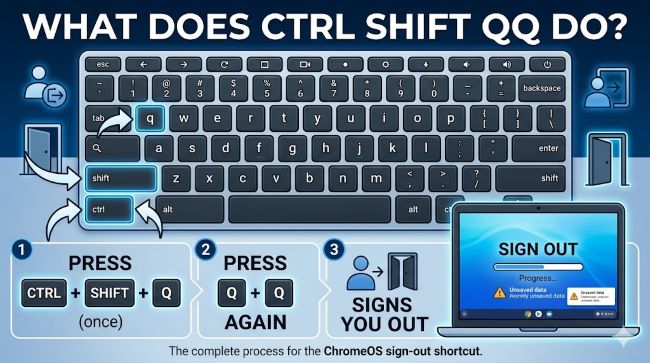
You are typing away on your Chromebook, reach for a key combination, and suddenly everything closes. You are back at the login screen with no warning and no chance to save what you were working on. If that has happened to you, there is a very good chance you hit ctrl shift qq by accident. It is one of the most disruptive keyboard shortcuts in Chrome OS, and unlike most accidental keystrokes that undo themselves or produce a minor annoyance, this one ends your entire session immediately. This guide explains what does ctrl shift qq do, why the shortcut exists, and how to disable ctrl shift qq so it stops happening.
What Does Ctrl Shift QQ Actually Do?
The ctrl shift qq shortcut on a Chromebook signs you out of your Google account immediately. It does not ask for confirmation. It does not wait for you to save your work. It closes every open window, every open tab, every app that is running, and returns the device to the login screen.
To be specific about what the shortcut requires: you press Ctrl and Shift together, then press Q twice in quick succession. Pressing Ctrl + Shift + Q just once produces a logout warning prompt that gives you the chance to cancel. Pressing Q a second time while still holding Ctrl and Shift confirms the logout and executes it without any further prompt.
The distinction matters because single ctrl shift q is survivable. You get a dialogue box and can click Cancel. It is the second Q that causes the problem, and it is easy to hit accidentally when your fingers are moving fast across the keyboard.
The shortcut applies to Chrome OS, which means it works on all Chromebook models. It does not function the same way on Windows or Mac because those operating systems have different keyboard shortcut architectures. On a Windows machine, Ctrl + Shift + Q does nothing by default. On a Mac, the equivalent logout shortcut works differently and requires confirmation by default.
Why Does This Shortcut Exist?
The control shift qq shortcut was built into Chrome OS as a fast logout mechanism for shared devices. In schools, libraries, offices, and other environments where multiple people use the same Chromebook, being able to sign out quickly is genuinely useful. A student finishing a session at a school Chromebook can hit the shortcut and hand the device to the next person without going through menus.
The problem is that it is positioned in a location on the keyboard that makes accidental triggering easy. The Q key sits right next to the Tab key and near the number row. Anyone who types fast and reaches for Ctrl + Shift combinations for other purposes (like selecting text, switching tabs, or using browser shortcuts) can hit Q twice without meaning to.
Google has not removed the shortcut or added a confirmation step to the double-press because it serves a real purpose in managed device environments. School administrators and IT staff rely on it. But for individual Chromebook users who are the sole person using their device, the shortcut is a liability without much corresponding benefit.
How to Disable Ctrl Shift QQ on Chromebook
There are several approaches to disabling or neutralizing the ctrl shift qq shortcut. The method that works best depends on whether you are on a personal Chromebook or a managed school or enterprise device.
Method 1: Remap the Shortcut Using Chrome OS Keyboard Settings
Chrome OS has a built-in keyboard remapping feature that lets you reassign certain keys. Here is how to access it:
- Open Settings (click the clock in the bottom right corner, then click the gear icon).
- Select Device from the left sidebar.
- Click Keyboard.
- Click View keyboard shortcuts to see what is currently assigned.
The limitation of this method is that Chrome OS’s built-in remapping does not cover all shortcuts, and Ctrl + Shift + Q may not appear as a remappable option through the standard settings menu. If it is not listed, move to the next method.
Method 2: Use an Extension to Override the Shortcut
The most reliable way to disable ctrl shift qq in Chrome is to use a browser extension that intercepts the shortcut before Chrome OS processes it.
Keyboard Shortcuts to Disable (or similar extensions): Several extensions in the Chrome Web Store are designed to intercept and block specific keyboard shortcuts. Search the Chrome Web Store for “keyboard shortcut blocker” or “disable keyboard shortcut” and look for extensions with positive reviews and recent updates.
The general process:
- Open the Chrome Web Store in your Chromebook’s Chrome browser.
- Search for a keyboard shortcut blocking extension.
- Install the extension.
- Open the extension’s settings and add Ctrl + Shift + Q (or QQ) to the list of blocked shortcuts.
- Test by pressing Ctrl + Shift + Q to confirm the extension intercepts it.
One thing to be aware of: extensions that block shortcuts need permission to read your keystrokes, which is expected for this type of tool but worth understanding before you install one.
Method 3: Use AutoHotkey (Windows-Based Context)
This method does not apply to Chrome OS directly, but if you are using Chrome on a Windows machine and want to prevent Ctrl + Shift + Q from closing Chrome (since single press does close the browser on Windows), AutoHotkey can intercept and remap the keystroke at the OS level.
For Chromebook users, this option is not available unless you are running Linux through the Crostini container and want to address keyboard behavior in the Linux environment specifically.
Method 4: Adjust Your Typing Habits (The Practical Workaround)
This sounds dismissive but it is the approach many Chromebook users end up with. Once you know that the second Q is what triggers the logout, you become more conscious of double-pressing Q while holding Ctrl + Shift. The accidental trigger almost always happens when someone is reaching for Ctrl + Shift + Tab (previous tab), Ctrl + Shift + W (close tab), or another common shortcut and misses the target key.
Knowing the layout helps. If you are reaching for Tab, the Q is one row below and slightly to the right. If you are reaching for W, the Q is to its left. Being aware of those positions reduces accidental triggers significantly in practice.
How to Turn Off Ctrl Shift QQ on a School or Managed Chromebook
The answer here is straightforward but often not what students want to hear: you cannot disable ctrl shift qq on a school Chromebook without administrator access.
How to disable ctrl shift qq on chromebook in a managed environment is controlled at the admin level through the Google Admin Console. School IT administrators can push keyboard policies to enrolled devices, but individual students on managed devices do not have the access needed to modify system-level keyboard shortcuts.
If accidental logouts are causing you to lose work on a school Chromebook, the practical solutions are:
- Use Google Docs, Google Slides, or Google Sheets for all work. These apps save automatically to Google Drive in real time. An accidental logout will not cause you to lose any work because everything saved before the logout happened is still in your Drive.
- Save any non-Google-native files manually and frequently. Use Ctrl + S whenever you pause in any application that supports manual saving.
- Be aware of the logout prompt. Single Ctrl + Shift + Q produces a warning dialogue with a Cancel button. If you see it, press Escape or click Cancel immediately.
- Talk to your school’s IT administrator. In environments where the shortcut is causing repeated problems, an admin may be able to address it through a device policy update.
Ctrl Shift Q vs Ctrl Shift QQ: Clarifying the Difference
People sometimes search for ctrl shift q and ctrl shift qq interchangeably, but they are technically different:
- Ctrl + Shift + Q (single press): Opens a logout confirmation dialogue. You can cancel from here.
- Ctrl + Shift + Q + Q (double press while holding Ctrl and Shift): Bypasses the confirmation and signs you out immediately.
All the information about how to disable ctrl shift qq specifically addresses the double-press behavior, because that is the version that causes problems. The single-press version, because it prompts for confirmation, is much less dangerous.
If you are testing to see whether a blocking extension works, use the single-press first. If the dialogue does not appear, the extension is working. Then you can test the double press in a situation where you do not mind being logged out (with all work saved) to confirm the block is full.
Other Chrome Shortcuts That Catch People Off Guard
While the logout shortcut is the most disruptive, a few other Chrome shortcuts regularly surprise people:
- Ctrl + W: Closes the current tab.
- Ctrl + Shift + W: Closes the entire window.
- Ctrl + Shift + T: Reopens a recently closed tab (this one is a lifesaver if you hit Ctrl + W accidentally).
- Ctrl + Shift + N: Opens a new incognito window.
- Alt + F4 (on some Chromebooks): Closes the active app window.
Ctrl + Shift + T is worth memorizing specifically because it often rescues you from accidental Ctrl + W presses. It restores recently closed tabs in order, so you can keep pressing it to recover multiple accidentally closed tabs in sequence.
What to Do Immediately After an Accidental Logout
If you hit ctrl shift qq by mistake and are now back at the login screen with unsaved work, here is what to check after logging back in:
- Google Workspace apps (Docs, Sheets, Slides, Forms): All changes auto-save. Log back in and reopen the document. Your work is there.
- Chrome tabs: Reopen Chrome and check if your previous session restores automatically. Chrome often offers to restore your previous session on the new tab page, or you can use Ctrl + Shift + T to restore tabs.
- Downloads and local files: These are not affected by a logout. Files you downloaded or saved locally before the logout are still in your Downloads folder.
- Unsaved work in non-Google apps: Unfortunately, any unsaved work in applications that do not auto-save is gone. This is the real cost of an accidental double-Q logout.
The best long-term protection against lost work from an accidental ctrl shift qq is to use auto-saving apps for anything important and to develop the habit of frequent manual saves in apps that require it.
For anyone using Chrome as their primary working environment, understanding browser tools and extensions for productivity helps you build a setup that protects against this kind of accidental disruption. The broader question of how keyboard shortcuts and usability decisions affect how people interact with software connects to fundamental web and interface usability principles. And for students and professionals managing their work across multiple apps on Chromebook, project and task management tools are worth adding to your workflow so important work lives in places that survive a sudden logout.
Key Takeaways
- What does ctrl shift qq do? It signs you out of your Chromebook immediately, without confirmation, closing all windows, tabs, and apps in the process.
- Ctrl shift qq requires pressing Q twice while holding Ctrl and Shift. Single Ctrl + Shift + Q opens a logout prompt that can be cancelled.
- Control shift qq exists as a fast logout shortcut for shared Chromebook environments like schools and libraries. It is built into Chrome OS intentionally.
- How to disable ctrl shift qq: Use a keyboard shortcut blocker extension from the Chrome Web Store, or remap keys through Chrome OS keyboard settings where available.
- How to disable ctrl shift qq on chromebook in a managed (school) environment: you cannot without admin access. The practical workaround is using auto-saving apps and saving frequently.
- How to turn off ctrl shift qq for individual users comes down to either an extension or remapping. No single in-system toggle exists for this specific shortcut.
- After an accidental logout, Google Workspace documents are safe (they auto-save). Chrome tabs can often be restored with Ctrl + Shift + T. Non-auto-saving work is lost.