io.netty.channel.abstractchannel$annotatedconnectexception: What It Means and How to Fix It
If you are staring at the error io.netty.channel.abstractchannel$annotatedconnectexception and wondering what went wrong, you are not alone. This is one of the most common connection errors in Minecraft Java Edition, and it appears when your game client tries to reach a server but the connection gets refused or times out before it can establish itself. The error message is not very helpful on its own, which is why most people search for it. This guide breaks down what the error actually means, the different forms it takes, and the fixes you should try in order from simplest to most involved.
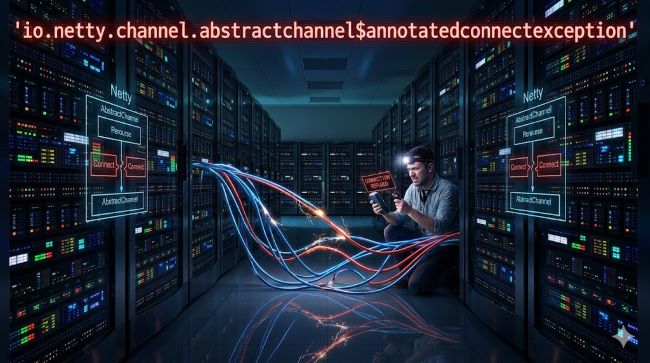
What Does This Error Actually Mean?
The name comes from Netty, a Java-based networking library that Minecraft uses to handle all its client-server communication. AbstractChannel is the class responsible for managing that communication channel, and AnnotatedConnectException is the exception it throws when a connection attempt fails.
In plain terms: your Minecraft client tried to open a connection to a server, and something stopped that connection from completing.
The full error usually comes in one of three forms:
io.netty.channel.AbstractChannel$AnnotatedConnectException: Connection refused: no further informationio.netty.channel.AbstractChannel$AnnotatedConnectException: Connection timed out: no further informationio.netty.channel.ConnectTimeoutException: connection timed out
Connection refused means the server is reachable on the network but actively rejected the connection. This usually points to a server that is not running, an incorrect port, or a firewall blocking the request.
Connection timed out means the request was sent but nothing came back. This usually points to a network path problem, a firewall silently dropping packets, or an IP address issue.
Both variants of io.netty.channel.abstractchannel$annotatedconnectexception minecraft point to the same general category of problem: something between your client and the server is broken.
Step 1: Check the Basics First
Before diving into network settings, run through these first. They fix the error more often than people expect.
- Restart Minecraft. Close the launcher completely, not just the game window.
- Restart your computer. This clears any hanging processes or socket states that might be blocking the connection.
- Power-cycle your router. Unplug the power from the router, wait 60 seconds, then plug it back in. Wait for it to fully reconnect before trying again.
- Check the server status. If you are connecting to a public server, visit their website or Discord to confirm they are not down for maintenance. A server that is offline will return the “Connection refused” variant of this error.
- Test on a known working server. Connect to a public test server to confirm the issue is specific to one server or affects all servers. If you cannot connect anywhere, the problem is local to your machine or network.
Step 2: Check the Server Address and Port
An incorrect IP address or port number causes “Connection refused” errors every time.
The default Minecraft server port is 25565. If the server you are joining runs on a custom port, the address format should be ip:port, for example 192.168.1.100:25566.
If you are hosting the server yourself:
- Open Command Prompt and type
ipconfig. Note your IPv4 Address. - Open the
server.propertiesfile in your server folder and check theserver-portvalue. - In Minecraft, enter the server address as
your-IPv4-address:server-port.
If the server address in Minecraft does not match the actual IP and port the server is running on, the connection will always fail with this error.
Step 3: Fix the Windows Firewall (Most Common Cause)
The Windows Firewall blocking Java or Minecraft is the single most reported cause of the io.netty.channel.abstractchannel$annotatedconnectexception error on Windows machines.
Here is how to add a firewall exception:
- Open the Windows Search bar and type Windows Security, then open it.
- Select Firewall and Network Protection.
- Click Allow an app through firewall.
- Click Change settings (you will need administrator permission).
- Click Allow another app at the bottom.
- Click Browse and navigate to your Minecraft installation folder. Select
MinecraftLauncher.exe. - Repeat the process for your Java installation. The Java executable is usually found at
C:\Program Files\Java\jre[version]\bin\javaw.exe. - If you run a local server, also add the Minecraft Server executable from your server folder.
- Make sure both Private and Public checkboxes are ticked for each entry.
- Click OK and restart Minecraft.
If you have a third-party antivirus with its own firewall (Bitdefender, Avast, Norton, ESET), you need to add the same exceptions there as well. Each antivirus has a different interface for this, but look for “Application Rules,” “Firewall Exceptions,” or “Allowed Applications” in the security software settings.
Testing whether the firewall is the issue: temporarily disable the Windows Firewall entirely, try connecting to the server, and see if the error disappears. If it does, the firewall is blocking the connection and adding the exceptions above will fix it without leaving you unprotected.
Step 4: Reset Your Network Configuration
If your DNS settings or network stack has a problem, connections to Minecraft servers can fail even when other internet activity works fine.
To reset your network settings:
- Open Command Prompt as Administrator (right-click, Run as administrator).
- Run the following commands one at a time, pressing Enter after each:
netsh winsock reset
netsh int ip reset
ipconfig /release
ipconfig /flushdns
ipconfig /renew- Restart your computer after these commands complete.
These commands reset the Windows network stack (Winsock), clear any corrupted IP settings, release and renew your IP address, and flush the DNS cache. Between them, they resolve a wide range of connectivity problems that produce the io.netty.channel.abstractchannel$annotatedconnectexception minecraft error.
Step 5: Switch to Google DNS
Your internet provider’s DNS servers can sometimes be slow or unreliable, which causes connection timeouts even when the actual server is online.
Switching to Google’s public DNS servers (8.8.8.8 and 8.8.4.4) often resolves this:
- Open Control Panel and go to Network and Sharing Center.
- Click Change adapter settings.
- Right-click your active network connection and select Properties.
- Select Internet Protocol Version 4 (TCP/IPv4) and click Properties.
- Select Use the following DNS server addresses.
- Enter
8.8.8.8as the preferred DNS server and8.8.4.4as the alternate. - Click OK and restart your connection.
You can also use Cloudflare’s DNS (1.1.1.1 and 1.0.0.1), which is another fast and reliable option.
Step 6: Update Java
Minecraft Java Edition requires a working Java installation. An outdated or corrupted Java version can conflict with Netty’s networking code and produce this error.
To update Java:
- Go to java.com and download the latest version.
- Install it and restart your computer.
- Try connecting to the server again.
If you use multiple Java versions, make sure Minecraft is pointing to the correct one. In the Minecraft Launcher, go to Installations, select your installation, click More Options, and check the Java Executable path.
Step 7: Check Port Forwarding (For Server Hosts)
If you are running a Minecraft server and players outside your local network cannot connect, port forwarding is likely the missing piece.
Your router needs to forward external traffic on port 25565 (or your custom port) to the internal IP address of the machine running the server.
The exact steps depend on your router model, but the general process is:
- Log into your router’s admin interface (usually at
192.168.1.1or192.168.0.1). - Find the Port Forwarding section.
- Create a new rule: external port 25565, internal IP (your server machine’s IPv4 address), internal port 25565, protocol TCP.
- Save and restart the router.
Without port forwarding, players outside your local network receive a “Connection refused” error because the router does not know where to send their traffic.
Step 8: Check for Discord Overlay Conflicts
Discord’s overlay feature has a known history of conflicting with Minecraft’s networking code. Some users have resolved the io.netty.channel.abstractchannel$annotatedconnectexception error by disabling Discord overlay.
In Discord: go to User Settings, then Game Overlay, and toggle off Enable in-game overlay. Restart Minecraft and try again.
When the Problem Is on the Server Side
If you have tried all the steps above and the error persists on one specific server, the problem may not be on your end at all. A server can produce “Connection refused” errors if:
- It is down for maintenance or has crashed
- It is full and not accepting new connections
- It has banned your IP address
- The server’s port is no longer active
Contact the server’s admin or check their community channels before spending more time troubleshooting your own machine.
Technical troubleshooting like this follows the same structured thinking that applies to other tech problems. For context on how to approach recurring software and connection issues, understanding common software fix processes gives a useful framework. Network-level problems like this one are also connected to broader website and server security practices that matter for anyone running their own Minecraft server. And for developers or power users working through technical configurations, browser and web developer tools can help with inspecting network requests and diagnosing connection behavior.
Key Takeaways
- The
io.netty.channel.abstractchannel$annotatedconnectexceptionerror means Minecraft’s networking layer failed to establish a connection to the server. The two main variants are “Connection refused” (server rejected the request) and “Connection timed out” (no response came back). - For
io.netty.channel.abstractchannel$annotatedconnectexception minecraft, the most common causes are: Windows Firewall blocking Java, incorrect server IP or port, network configuration problems, and outdated Java. - Start with the basics: restart Minecraft, your computer, and your router.
- Add firewall exceptions for the Minecraft Launcher and Java in Windows Security, and in any third-party antivirus.
- Reset network settings using
netsh winsock reset,ipconfig /flushdns, and related commands in an elevated Command Prompt. - Switch to Google DNS (8.8.8.8 / 8.8.4.4) if connection timeouts persist.
- Update Java if it is out of date.
- Set up port forwarding on your router if you are hosting a server for external players.
- Disable Discord overlay if the error only appeared after Discord was running alongside Minecraft.
- If the error is isolated to one server, contact that server’s admin before continuing to troubleshoot locally.