Your Organization’s Data Cannot Be Pasted Here: Why It Happens and How to Fix It
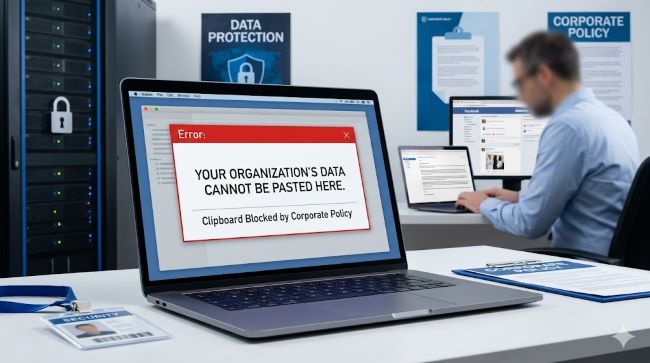
You copy something from Outlook, switch to another app, hit paste, and instead of your content appearing, you get a message: your organization’s data cannot be pasted here. It stops your work cold, and if you don’t know what’s behind it, it can feel completely random. It isn’t. This post explains exactly what triggers this error, why it exists, and the specific steps you can take to resolve it, whether you’re an everyday user or an IT administrator managing the policy that causes it.
What Does the Error Actually Mean?
The message “your organization’s data cannot be pasted here” is a security notification generated by Microsoft Intune, the cloud-based device and app management tool used by most enterprises. It appears when you try to paste content from a managed application (one approved and controlled by your organisation) into an unmanaged application (one outside your organisation’s control).
Intune enforces what are called App Protection Policies (APP). These policies divide all applications on your device into two categories:
- Managed apps: Microsoft applications like Outlook, Word, Excel, Teams, and SharePoint that are tied to your work or school account and governed by your organisation’s security rules.
- Unmanaged apps: Personal or third-party apps like Gmail, Chrome, WhatsApp, or any browser not signed into a work account.
When you try to move data from a managed app to an unmanaged one, Intune intercepts the clipboard transfer and blocks it. The error message is the notification that the block happened. It is not a bug. It is the policy working as intended.
A related variant of this message is “pasting this content here is blocked by your administrator”, which appears in some versions of Microsoft 365 and Windows 11 when DLP (Data Loss Prevention) rules at the tenant level are enforced, rather than just at the app level. Both messages trace back to the same underlying mechanism: your organisation has set rules about where corporate data can travel.
Why Organisations Enable This Restriction
The restriction exists because data leaks are expensive and common. Over 80 percent of companies now use Data Loss Prevention tools specifically to control how data moves between applications. Remote and hybrid work has significantly increased the exposure of corporate data to personal devices and personal apps.
The clipboard is a surprisingly common leak vector. An employee copies a client list from Outlook, pastes it into a personal note-taking app or a browser-based tool that doesn’t have enterprise security controls, and the data is effectively outside the organisation’s security boundary. With no record of it, no encryption, and no control. Multiply that by thousands of employees working on personal devices and the risk becomes clear.
App Protection Policies let IT administrators set precise rules about where data can go. The four main clipboard control options in Intune are: blocked entirely, restricted to policy-managed apps only, restricted to policy-managed apps with paste-in allowed, and unrestricted. Most organisations sit somewhere in the middle, allowing copy-paste between managed Microsoft apps but blocking transfers to anything outside that controlled set. Strong network security requires exactly this kind of layered control at the application level, not just at the network perimeter.
Common Triggers Beyond the Basic Policy
The error doesn’t only appear when you paste from Outlook into Gmail. Several less obvious situations produce the same message.
Outdated Microsoft Office applications. Older versions of Office sometimes misinterpret Intune policy signals, producing the clipboard error even when pasting between two managed apps. This is a compatibility issue rather than a policy intent, and it’s fixed by updating your Office apps to the current build.
Wrong account sign-in. If you’ve opened an Office app but signed into it with a personal Microsoft account rather than your work account, the app may not recognise itself as a managed app. Data copied from a properly managed app (like your work Outlook) then gets blocked when you try to paste into the personally-signed Office app because from Intune’s perspective you’re pasting into an unmanaged destination.
Mobile keyboard clipboard popups. On Android and iOS, the error frequently appears as a suggestion in the keyboard clipboard tray rather than as an absolute block. The keyboard shows you items copied from managed apps and labels them as restricted. The actual paste often works fine if you long-press the target field and select paste from the context menu instead of tapping the clipboard suggestion. This is a known UI behaviour and not a genuine block in most cases.
Device sync issues. If your device has lost sync with Intune (after a network change, a policy update, or being offline for a period), it may apply stale or incorrect policy settings. A device restart usually re-establishes the Intune connection and clears cached policy data.
Character limit variants. Some organisations configure Intune with data transfer limits rather than outright blocks. You may see messages like “only 75 characters are allowed” or “only 255 characters are allowed” alongside the main error. These are fine-grained DLP settings designed to prevent bulk data extraction through the clipboard.
How to Fix It: User-Level Steps
If you’re a regular employee without admin access, your options are more limited but there are still several things worth trying before escalating to IT.
1. Update your Microsoft 365 apps. Open any Office app, go to File > Account > Update Options > Update Now. After updating, restart the application and try the paste again.
2. Sign in with your work account. Open the app you’re trying to paste into and confirm it’s signed into your work or school account, not a personal Microsoft account. In Outlook or Word, go to File > Account to check.
3. Use Microsoft Edge for browser-based work. If you’re trying to paste corporate data into a browser tab, use Microsoft Edge signed into your work account rather than Chrome or another browser. Edge in managed mode is treated as a managed app by Intune.
4. Restart your device. A restart clears cached Intune data and re-syncs your device’s compliance status. Policy changes from your IT team also typically propagate within 30 minutes of a restart.
5. Use the long-press paste method on mobile. On Android and iOS, if the keyboard clipboard shows a restricted item, bypass it by long-pressing the text field and selecting Paste from the context menu that appears.
6. Try pasting between managed apps only. If your job allows it, keep data transfers within the Microsoft ecosystem: Outlook to Word, Word to Teams, Teams to OneNote. All of these are managed apps under standard Intune configurations and copy-paste between them is typically allowed.
How to Fix It: Admin-Level Steps
If you’re an IT administrator managing the policy, the fix involves adjusting the App Protection Policy in Microsoft Endpoint Manager.
1. Navigate to App Protection Policies. Log into the Microsoft Intune admin centre (endpoint.microsoft.com). Go to Apps > App protection policies and select the relevant policy.
2. Locate the clipboard setting. Under Settings > Data Protection > Data Transfer, find the setting labelled “Restrict cut, copy, and paste between other apps.”
3. Adjust the restriction level. Change the setting from “Blocked” to “Policy managed apps” to allow copy-paste between all Intune-managed apps. If you need to allow paste into any destination, set it to “Any app,” though this is not recommended for organisations handling sensitive data.
4. Save and wait for propagation. Save the policy. Changes typically propagate to enrolled devices within 30 minutes. Users may need to restart their apps or devices to receive the updated policy.
5. Check conditional access policies. If the error persists after adjusting the App Protection Policy, review your Azure Active Directory conditional access policies. Location-based or compliance-based restrictions can override app-level settings in some configurations.
Maintaining the right balance between security and usability is one of the core challenges of enterprise device management. The IT services that support enterprise scale need to account for both the security team’s requirements and the day-to-day workflows of employees who are trying to get work done without friction.
The “Pasting This Content Here Is Blocked by Your Administrator” Variant
This slightly different message appears when the restriction comes from a tenant-level DLP policy rather than an Intune App Protection Policy. It’s most common in Windows 11 Insider builds and in organisations using Microsoft Purview compliance policies alongside Intune.
The resolution path is similar: an admin needs to review the DLP rules in the Microsoft Purview compliance portal (compliance.microsoft.com) and adjust the endpoint DLP policy to allow the specific transfer. Users without admin access can’t resolve this variant themselves beyond the basic troubleshooting steps above.
Key Takeaways
- Your organization’s data cannot be pasted here is a Microsoft Intune App Protection Policy restriction, not a bug. It blocks clipboard transfers from managed corporate apps to unmanaged personal or third-party apps.
- Pasting this content here is blocked by your administrator is a related variant enforced by tenant-level DLP policies in Microsoft Purview, with a similar but slightly different resolution path.
- The most common user-level fixes are: update Office apps, sign in with your work account, use managed apps for data transfers, and restart your device.
- Admin fixes involve adjusting the “Restrict cut, copy, and paste between other apps” setting in the Intune App Protection Policy from “Blocked” to “Policy managed apps.”
- On mobile, the keyboard clipboard tray may show the restriction message even when the actual paste works via long-press. This is a UI issue, not a genuine block.
- The restriction exists for a reason: clipboard transfers are a common and underestimated data leak vector. Protecting sensitive data at the application level is an important layer of a complete security posture.
If the error persists after trying these steps, raise a ticket with your IT team and include which apps you’re copying from and pasting into, the device and OS you’re using, and whether the error appeared after a recent update. That information will help your admin locate the exact policy causing the block and adjust it without compromising your organisation’s broader security controls.