PyAutoGUI: The Python Library That Automates Your Mouse and Keyboard
Every developer has a repetitive task they wish they could hand off to a script. Form submissions, screenshot captures, UI testing across applications, data entry that somehow still requires a human clicking through a GUI. PyAutoGUI solves all of these. It’s a cross-platform Python library that lets your code control the mouse and keyboard exactly the way a human would, just faster, more consistent, and without the fatigue. This guide covers what PyAutoGUI is, how to install it, how the key functions work, and where to look when you need to go deeper in the documentation.
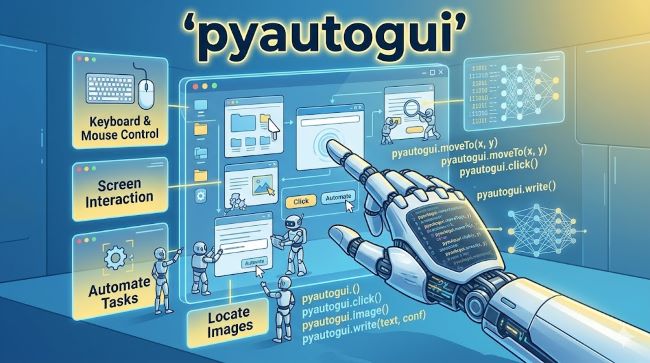
What Is PyAutoGUI?
What is PyAutoGUI? It’s an open-source Python library written by Al Sweigart, author of “Automate the Boring Stuff with Python.” PyAutoGUI lets Python scripts simulate mouse movements, clicks, keyboard input, and screenshot capture. It works on Windows, macOS, and Linux without modification to your code.
The library sits above the operating system’s input event layer. When you call pyautogui.click(500, 300), PyAutoGUI tells the OS to fire a mouse click at screen coordinates (500, 300), exactly as if a physical mouse had been clicked there. The application receiving that click has no way to distinguish it from a real user action.
This makes python pyautogui useful for:
- Automating repetitive tasks in desktop applications that have no API
- UI testing for applications that can’t be tested programmatically through code
- Generating screenshots and screen recordings at specific steps
- Controlling one application from another
- Building bots for tasks like form filling, data entry, and file management
- Accessibility tools that require simulated input
It does not work for web automation where Selenium or Playwright is the better fit. PyAutoGUI operates at the screen level, not the browser DOM level.
How to Install PyAutoGUI
How to install PyAutoGUI takes one command in most environments:
pip install pyautoguiOn Linux, you also need to install a dependency for screenshot support:
pip install python3-xlib
sudo apt-get install scrot
On macOS, Accessibility permissions are required. When your script first runs PyAutoGUI functions, macOS will prompt you to grant access in System Preferences > Security & Privacy > Accessibility. If you skip this step, keyboard and mouse functions will fail silently or throw permission errors.
Verify the installation:
import pyautogui
print(pyautogui.size())  # Returns your screen resolution
If this prints your screen size as a tuple like Size(width=1920, height=1080), the installation is working.
PyAutoGUI Documentation: Where to Find It
The official PyAutoGUI documentation lives at pyautogui.readthedocs.io. The docs are well-structured and cover every function with parameters, return values, and short examples. Al Sweigart also covers PyAutoGUI in detail in “Automate the Boring Stuff with Python,” which is available free online at automatetheboringstuff.com.
The documentation organises functions into four main categories:
- Mouse functions: move, click, drag, scroll
- Keyboard functions: typewrite, hotkey, keyDown, keyUp, press
- Screenshot functions: screenshot, locateOnScreen, locateAllOnScreen
- Message box functions: alert, confirm, prompt, password
For most automation tasks you’ll spend the most time in mouse and keyboard functions, with screenshot-based location finding as the bridge between them.
Mouse Control: The PyAutoGUI Click Documentation
The PyAutoGUI click documentation covers the click() function, which is the workhorse of most automation scripts.
Basic click:
import pyautogui

pyautogui.click(100, 200)  # Left click at x=100, y=200
Full click function signature:
pyautogui.click(x=None, y=None, clicks=1, interval=0.0, button='left', duration=0.0, tween=pyautogui.linear, logScreenshot=False)Key parameters:
x, y: Screen coordinates. If omitted, clicks at the current cursor position.clicks: Number of clicks. Set to 2 for double-click.interval: Seconds between clicks whenclicks > 1.button:'left','right', or'middle'.duration: How long the movement to the target coordinates takes. Higher values look more human.
Common click variations:
pyautogui.doubleClick(500, 300)        # Double-click
pyautogui.rightClick(500, 300)         # Right-click
pyautogui.tripleClick(500, 300)        # Triple-click (selects all text in a field)
pyautogui.click(500, 300, button='middle')  # Middle-click
Moving the mouse:
pyautogui.moveTo(500, 300, duration=0.5)    # Move to absolute position
pyautogui.moveRel(100, 0, duration=0.3)     # Move relative to current position
Dragging:
pyautogui.dragTo(800, 400, duration=1, button='left')   # Drag to absolute position
pyautogui.dragRel(200, 0, duration=1, button='left')    # Drag relative distance
Keyboard Control
Python pyautogui keyboard functions handle text input and key combinations.
Type text:
pyautogui.typewrite('Hello world', interval=0.05)The interval parameter adds a delay between keystrokes. This matters for some applications that drop characters if they arrive too fast.
Press specific keys:
pyautogui.press('enter')
pyautogui.press('tab')
pyautogui.press('f5')
Key combinations:
pyautogui.hotkey('ctrl', 'c')   # Copy
pyautogui.hotkey('ctrl', 'v')   # Paste
pyautogui.hotkey('alt', 'f4')   # Close window
pyautogui.hotkey('ctrl', 'shift', 'esc')  # Task Manager
Hold and release:
pyautogui.keyDown('shift')
pyautogui.press('left')  # Select one character to the left
pyautogui.keyUp('shift')
Screenshot and Image Recognition
One of PyAutoGUI’s most powerful features is finding elements on screen by image rather than by fixed coordinates. This makes scripts more robust when UI layouts change or windows are positioned differently.
Take a screenshot:
screenshot = pyautogui.screenshot()
screenshot.save('screen.png')
Find an image on screen:
location = pyautogui.locateOnScreen('button.png', confidence=0.9)
if location:
    pyautogui.click(location)
The confidence parameter requires the opencv-python package:
pip install opencv-pythonWithout it, PyAutoGUI uses exact pixel matching, which breaks if the image is rendered at a slightly different size or DPI. With confidence=0.9, it finds matches that are 90% similar, which handles minor rendering differences.
Find center of located image:
location = pyautogui.locateOnScreen('button.png', confidence=0.9)
center = pyautogui.center(location)
pyautogui.click(center)
The Fail-Safe: Critical Before You Run Any Script
PyAutoGUI includes a built-in fail-safe. Move your mouse cursor to any corner of the screen and PyAutoGUI raises a FailSafeException, stopping the script immediately. This prevents a runaway automation script from taking over your system with no way to interrupt it.
The fail-safe is enabled by default. You can disable it, but it’s not recommended:
pyautogui.FAILSAFE = False # Don't do this unless you know what you're doingAlways test new scripts at slow speeds first using pyautogui.PAUSE:
pyautogui.PAUSE = 1 # Adds a 1-second pause after every PyAutoGUI function callThis gives you time to react and move the mouse to a corner if something goes wrong.
A Practical Example: Automating a Repetitive Form
Here’s how a real automation script might look for filling out a form field repeatedly:
import pyautogui
import time

pyautogui.PAUSE = 0.5

# Click on the Name field
pyautogui.click(400, 300)
time.sleep(0.3)

# Clear existing content and type new value
pyautogui.hotkey('ctrl', 'a')
pyautogui.typewrite('John Smith', interval=0.05)

# Tab to the next field
pyautogui.press('tab')
pyautogui.typewrite('[email protected]', interval=0.05)

# Submit
pyautogui.press('enter')
The time.sleep() calls give the application time to respond between actions. PyAutoGUI fires events faster than most GUIs can process them, so adding small delays makes scripts significantly more reliable.
As automation patterns become more sophisticated, they increasingly overlap with machine learning-driven approaches that can handle dynamic UIs without fixed coordinates. PyAutoGUI sits at the practical end of that spectrum: no model training required, immediate results, and a learning curve measured in hours rather than weeks.
Common Errors and Fixes
FailSafeException: You moved the mouse to a screen corner. This is the fail-safe working. Restart the script.
ImageNotFoundException: The image passed to locateOnScreen wasn’t found on screen. Check that the screenshot is taken at the same resolution and DPI as your current display, and use confidence with opencv-python installed.
Characters being dropped during typewrite: Add an interval value of 0.05 to 0.1. Some applications can’t keep up with instant keyboard input.
Script works on one machine but not another: Screen resolution and DPI scaling affect coordinates. Use image recognition rather than fixed coordinates for portable scripts.
Understanding how hardware and software interact at the input level gives useful context for why PyAutoGUI behaves differently across operating systems. The library abstracts OS-level differences, but the underlying input event systems on Windows, macOS, and Linux each have distinct behaviours.
PyAutoGUI vs Alternatives
| Tool | Use case |
|---|---|
| PyAutoGUI | Desktop app automation, any GUI application |
| Selenium | Web browser automation via DOM |
| Playwright | Modern web automation, faster than Selenium |
| pywinauto | Windows-only, works with accessibility APIs |
| Sikuli/SikuliX | Image-based automation, Java-based |
PyAutoGUI’s advantage is simplicity and cross-platform support. Its limitation is that it’s coordinate-based rather than accessibility-API-based, which means it can’t query an element’s state or text without screenshot analysis. Choosing the right automation approach for your specific environment makes the difference between a script that runs reliably and one that breaks every time a window is repositioned.
Key Takeaways
- PyAutoGUI is a cross-platform Python library for simulating mouse clicks, keyboard input, and screenshots.
- What is PyAutoGUI: a tool for automating any desktop GUI application through simulated user input, with no application-side API required.
- How to install PyAutoGUI:
pip install pyautogui. Linux needs additional dependencies; macOS needs Accessibility permissions. - PyAutoGUI documentation:
pyautogui.readthedocs.iois the official reference. Four main function categories: mouse, keyboard, screenshot, and message boxes. - PyAutoGUI click documentation:
click(x, y, clicks, interval, button, duration). Supports single, double, right, and middle clicks. Image-based clicking vialocateOnScreenis more robust than fixed coordinates. - Always enable
FAILSAFE(default), usePAUSEduring testing, and addtime.sleep()calls to handle application response delays. - Use
confidenceparameter withopencv-pythoninstalled for reliable image recognition that handles minor display differences.