How to Change Home Address on Google Maps: A Simple Guide
Moving house involves an endless list of address updates, and one that is easy to forget until it becomes annoying is the one saved in your maps app. Suddenly every “directions home” request sends you to your old place, your commute estimates are meaningless, and your suggested routes make no sense. Fortunately, updating it takes about thirty seconds once you know where the setting lives. Here is a simple guide on how to change home address on Google Maps, on both mobile and desktop.
Why Your Saved Home Address Matters
Your saved home address powers a surprising number of features: one-tap directions home, commute estimates, traffic alerts, personalized recommendations, and location suggestions as you type. When it is wrong, all of those quietly degrade, which is why knowing how to change home address on Google Maps is worth the two minutes it takes.
How to Change Home Address on Google Maps (Mobile)
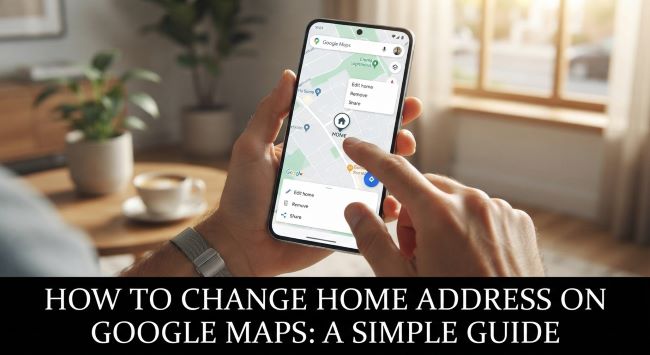
Here is the process for how to change home address on Google Maps using the mobile app on Android or iOS:
- Open the Google Maps app and make sure you are signed in to your Google account, since saved addresses are tied to your account.
- Tap “Saved” at the bottom of the screen. This opens your saved places.
- Select “Labeled” from the list of saved place categories.
- Find “Home” in the labeled places list.
- Tap the three-dot menu or the option next to the Home entry, then choose to edit or change the address.
- Enter your new address, either by typing it or selecting it from the map.
- Save the change, and your new home address is set.
Wording and menu placement vary slightly between app versions, but the path through Saved and Labeled places is consistent. You can also tap your profile picture, go to Settings, and look for edit home or work options there.
How to Change Home Address on Google Maps (Desktop)
On a computer, how to change home address on Google Maps follows similar logic:
- Go to Google Maps in your browser and confirm you are signed in to the correct Google account.
- Click the menu icon (the three horizontal lines) in the top left corner.
- Select “Your places” from the menu.
- Click the “Labeled” tab.
- Find your Home entry and select the option to edit it.
- Enter your new address and save.
Because the setting is tied to your Google account rather than your device, changing it in one place updates it everywhere, so the change appears on your phone too.
Changing Your Work Address Too
The same process handles your work address, which sits alongside Home in Labeled places. Follow the identical steps but select Work instead, since the two together drive most of the app’s commute and routing features. You can also add other labeled places for locations you visit frequently.
What If the Pin Is in the Wrong Place?
A related problem is when the address is correct but the pin lands in the wrong spot, causing trouble for deliveries and visitors. Drag the pin to the precise location when setting the address rather than relying only on the typed version. Google Maps also lets users suggest edits, which is the right route if an address appears wrong on the map for everyone rather than just in your saved places.
Privacy Considerations
Since your home address is sensitive, a few privacy points are worth knowing:
- The address is tied to your Google account, so anyone with access can see it. Use a strong password and two-factor authentication.
- It syncs across devices signed in to the same account, including shared ones.
- You can review location settings in your Google account to manage location history separately.
- Removing the saved address entirely is always an option in the same Labeled section if you prefer not to store it, though you lose the convenience features that depend on it.
Troubleshooting
A few common issues arise:
The change did not save. Confirm you are signed in with a working connection, since offline changes may not sync.
The old address still appears. Close and reopen the app, or sign out and back in, since cached data lags.
You cannot find the Home entry. If you never set one, there will be an option to add rather than edit.
You are signed in to the wrong account. A surprisingly common cause of confusion for people with both personal and work accounts.
Rediscovering Your New Neighborhood
Once you have handled how to change home address on Google Maps after a move, one pleasure of relocating is discovering what is nearby, and the businesses you find early often become long-term favorites. Choosing to spend your money at nearby independent places has a real effect on a neighborhood, and the guidance in Best Ways to Support Local Businesses covers practical ways to do that, which pairs naturally with settling into a new address since the shops and services near your updated home location are exactly the ones that benefit most from your custom.
The bottom line on how to change home address on Google Maps is that it takes under a minute once you know where to look. On mobile, tap Saved, then Labeled, find Home, and edit the address. On desktop, open the menu, choose Your places, click the Labeled tab, and edit from there. The setting syncs across all your devices because it is tied to your Google account, so you only need to do it once. Update your work address at the same time, drag the pin if the placement is imprecise, and if you prefer not to store the information at all, removing it entirely is always an option.
Key Takeaways
- Your saved home address in Google Maps powers directions home, commute estimates, traffic alerts, and personalized suggestions.
- On mobile, tap Saved, select Labeled, find Home, tap the menu beside it, and edit the address.
- On desktop, open the menu, select Your places, click the Labeled tab, and edit the Home entry.
- The setting is tied to your Google account, so changing it on one device updates it everywhere you are signed in.
- Update your work address the same way, since Home and Work together drive most commute and routing features.
- If the pin lands in the wrong spot, drag it to the precise location rather than relying only on the typed address.
- You can remove a saved home address entirely if you prefer not to store it, losing the related convenience features.
- Keep your Google account secure, since anyone with access to it can see your saved addresses.
- Common issues include being signed in to the wrong account, cached data showing the old address, or offline changes not syncing.
- Menu wording varies slightly between app versions, so look for Saved, Your places, or Settings as starting points.