How to Fix Slow Boot Mac: Every Solution That Actually Works
A Mac that takes increasingly longer to boot up is one of those gradual problems that’s easy to dismiss day to day until you realize you’re regularly waiting several minutes for a process that used to take under thirty seconds. Slow boot issues almost always trace back to a manageable set of common causes, and working through them systematically usually restores reasonable startup performance without needing a full system reinstall.
Step 1: Check Your Login Items and Startup Applications
One of the most common causes of slow Mac boot times is an accumulation of applications configured to automatically launch at startup, each adding to the total time before your Mac becomes genuinely responsive and usable.
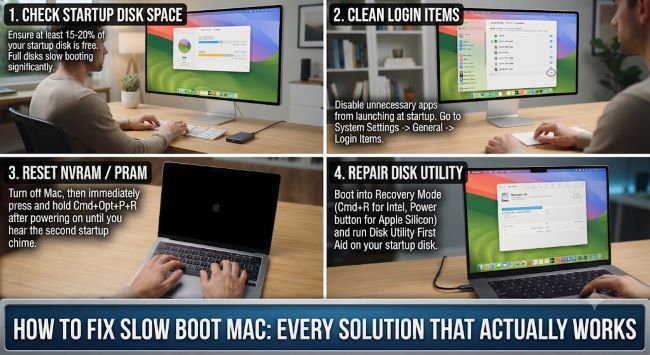
Go to System Settings > General > Login Items (on macOS Ventura and later) or System Preferences > Users & Groups > Login Items (on older macOS versions), and review the full list of applications set to launch automatically.
Remove anything you don’t genuinely need running immediately at startup, selecting unnecessary items and clicking the minus button to remove them from the automatic launch list. Common candidates worth reconsidering include cloud storage sync clients, communication apps you don’t need open immediately, and any utility software you only use occasionally rather than constantly.
Pay particular attention to “Allow in Background” items in the same settings area, since some applications run background processes even without appearing as a visible login item, contributing to startup load without being immediately obvious in your standard login items list.
Step 2: Check Available Storage Space
A Mac with very limited free storage space, particularly on the system drive containing macOS itself, can experience meaningfully degraded performance across many functions, including startup time, since the operating system needs adequate free space for virtual memory swap files and various temporary system operations.
Check your available storage through Apple menu > About This Mac > Storage, reviewing how much free space remains relative to your drive’s total capacity.
As a general guideline, keeping at least 10-15% of your total drive capacity free (more for drives with smaller total capacity) helps maintain better overall system performance, including boot time, compared to running with storage nearly completely full.
Use macOS’s built-in storage management tools (accessible through the same Storage panel, often including a “Manage” button with recommendations) to identify and remove large unused files, old downloads, unnecessary application data, and other reclaimable storage.
Step 3: Manage Startup Disk Selection
If you have multiple bootable volumes or have recently used Boot Camp, an external bootable drive, or macOS Recovery, your Mac’s startup disk selection can sometimes become misconfigured in ways that add delay to the boot process while the system determines which disk to actually boot from.
Check your startup disk setting through System Settings > General > Storage > Startup Disk (or the equivalent location depending on your specific macOS version), confirming your primary internal drive is correctly selected as the default startup disk rather than an external or secondary volume that might be adding selection delay.
Step 4: Reset NVRAM/PRAM (Intel Macs) or SMC
For Intel-based Macs specifically (this step doesn’t apply to Apple Silicon M1/M2/M3 Macs, which handle this differently), resetting NVRAM (or PRAM on older models) can resolve certain startup-related configuration issues.
To reset NVRAM on an Intel Mac: shut down completely, then turn it on and immediately press and hold Option, Command, P, and R simultaneously for about 20 seconds, until you hear the startup sound a second time (or see the Apple logo appear and disappear a second time on Macs without a startup chime), then release the keys and let the Mac continue booting normally.
SMC (System Management Controller) resets address a different category of hardware-related settings and can sometimes help with startup issues, though the specific reset procedure varies depending on whether your Mac has a removable battery, a non-removable battery, or is a desktop model, making it worth checking Apple’s current official support documentation for the exact steps applicable to your specific Mac model.
Step 5: Check for Failing Storage Hardware
If your Mac’s boot times have gradually worsened over an extended period, particularly accompanied by other signs of potential storage issues (applications crashing unexpectedly, files failing to save properly, general system instability beyond just slow boots), failing storage hardware becomes a genuine possibility worth investigating.
Run Disk Utility’s First Aid feature (Applications > Utilities > Disk Utility, select your startup disk, then click First Aid) to check for and attempt to repair any detected disk errors, which can sometimes resolve performance issues including slow boot times if minor file system corruption is contributing to the problem.
For Macs experiencing more severe, persistent symptoms suggesting actual hardware failure rather than software-level configuration issues, professional diagnosis through an authorized Apple service provider becomes the appropriate next step, since storage hardware failure isn’t something most standard software troubleshooting can resolve.
Step 6: Check for macOS Updates and Background Processes
Ensure you’re running a current, fully updated version of macOS, since Apple periodically releases performance and bug fix updates that can address known startup performance issues from previous version releases, accessible through System Settings > General > Software Update.
Be aware of Spotlight indexing and Time Machine backup processes, since these legitimate background system processes can sometimes coincide with and contribute to a perceived slow boot experience if they’re actively running immediately following startup, particularly after a significant macOS update or when a large number of new files have been added since the last indexing or backup cycle completed.
When Slow Boot Issues Might Indicate a Different Problem
If you’re also experiencing other unusual Mac behavior alongside slow boot times, it’s worth checking whether a related but distinct issue might be contributing to your overall experience of the system feeling sluggish or behaving unexpectedly. For a specific macOS clipboard-related error some users encounter, sorry, no manipulations with clipboard allowed Mac fix guide covers troubleshooting for that particular issue. And if you’re noticing unexpected system resource usage that might be contributing to overall sluggishness beyond just boot time specifically, how to stop screen recording on Mac covers how to check for and manage screen recording processes that can sometimes run unexpectedly in the background and affect overall system performance.
Key Takeaways
- Review and trim your Login Items list in System Settings, since accumulated startup applications and background processes are one of the most common causes of gradually worsening Mac boot times
- Maintain at least 10-15% free storage space on your system drive, since very limited free space can degrade overall performance including startup time
- Confirm your correct internal drive is selected as the startup disk, particularly if you’ve recently used Boot Camp, an external bootable drive, or macOS Recovery
- For Intel Macs specifically, resetting NVRAM (Option+Command+P+R at startup) can resolve certain startup-related configuration issues, though this step doesn’t apply to Apple Silicon Macs
- Run Disk Utility’s First Aid to check for and repair file system errors that might be contributing to slow boot performance, particularly if accompanied by other signs of potential storage issues
- Keep macOS updated to its current version, since Apple periodically releases updates addressing known performance issues from previous releases
- If slow boot symptoms persist alongside other unusual behavior suggesting actual hardware failure, professional diagnosis through an authorized Apple service provider is the appropriate next step beyond standard software troubleshooting