Sorry, No Manipulations with Clipboard Allowed: Mac Fix Guide
You’re trying to copy something from a website on your Mac. You select the text, use Command+C, and expect it to copy. Instead, a message appears saying “Sorry, no manipulations with clipboard allowed.” You can’t copy. You can’t paste. Your clipboard isn’t working, and you have no idea why.
This error message appears on Mac computers and blocks your ability to copy and paste content. It’s frustrating because copy-paste is such a basic function that you assume should always work. The message itself doesn’t explain what went wrong or how to fix it. You’re left wondering if something is seriously broken on your Mac.
The good news is that sorry, no manipulations with clipboard allowed is a known issue with several straightforward solutions. Understanding what causes this error and how to fix it takes the stress out of the situation. Most of the time, you can solve this problem without visiting an Apple Store or dealing with complicated system repairs.
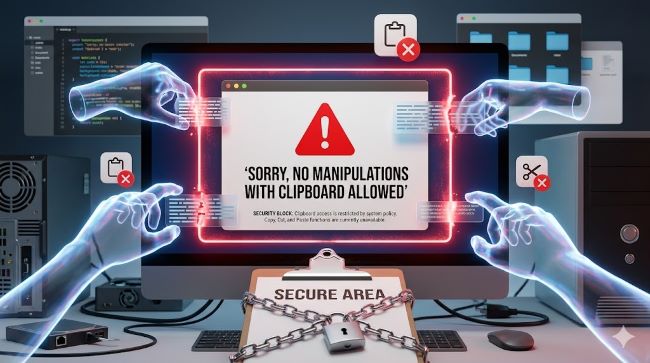
What This Error Message Means
Your Mac has a clipboard, which is a temporary storage area for anything you copy. When you press Command+C, the data goes to the clipboard. When you press Command+V, the data comes from the clipboard and pastes into the new location. This happens thousands of times per day on most Macs.
The “sorry, no manipulations with clipboard allowed” error means your Mac is blocking clipboard access. Something is preventing the copy and paste function from working. The system sees a request to use the clipboard and denies it. The exact reason varies, but the result is the same: you can’t copy or paste until the issue is fixed.
This error is specific to Apple computers. You won’t see it on Windows or Linux machines. It’s part of Mac’s security system, which provides extra protection but sometimes gets too strict.
Why Your Mac Blocks Clipboard Access
Several things trigger the “sorry, no manipulations with clipboard allowed” error on your Mac:
Security settings are too restrictive. macOS has security features that prevent certain websites or applications from accessing your clipboard. This protects your privacy because copy-paste access is sensitive. A malicious website could theoretically read what’s in your clipboard and steal sensitive information.
A background process is frozen. The pboard process manages your clipboard on Mac. If this process crashes or freezes, clipboard functions stop working. Your Mac throws the error message instead of letting you copy or paste.
WindowServer is having issues. The WindowServer process manages everything you see on your screen. If WindowServer has problems, it affects clipboard functionality along with other features.
Malware or third-party software is blocking clipboard access. Certain security software or clipboard managers can conflict with Mac’s clipboard functions.
Your clipboard is corrupted. If clipboard data becomes corrupted, your Mac locks clipboard access to protect the system.
The Quick Fix: Restart Your Mac
Before trying anything complicated, restart your Mac. A restart clears temporary glitches and resets background processes. Many sorry, no manipulations with clipboard allowed errors go away with a simple restart.
Hold the power button on your Mac. Select Restart when the dialog appears. Wait for your Mac to shut down completely and boot back up. Once your Mac is back on, try copying something again. If the error is gone, you’re done.
This works because a restart resets the pboard process and clears any temporary clipboard corruption. It’s the simplest solution and works more often than you might expect.
Force Quit the Clipboard Process
If restarting doesn’t work, force quit the clipboard background process directly. The pboard process handles all clipboard functions on Mac. Killing this process and letting it restart sometimes fixes the problem.
Open Finder and go to Applications. Then go to Utilities. Open Activity Monitor. Search for “pboard” in the search box at the top. Click on the pboard entry when you find it. Click the X button in the top left to force quit it.
Your clipboard temporarily stops working while pboard restarts. Let it restart naturally. Once it’s running again, try copying and pasting. The error message should be gone.
This method works because it forces a fresh start for the clipboard service without restarting your entire Mac.
Using Terminal to Fix Clipboard
You can also force quit the clipboard process using Terminal. This is more technical but doesn’t require navigating through menus.
Open Terminal from Applications > Utilities. Type this command exactly:
killall pboardPress Enter. The pboard process quits immediately. Don’t expect any confirmation message. The process just stops and restarts automatically.
After running this command, try copying and pasting again. This method works the same as using Activity Monitor but is faster if you’re comfortable with Terminal.
Clear Your Clipboard Completely
Sometimes your clipboard contains corrupted data that causes the error. Clearing it completely removes any bad data. This is a nuclear option that erases everything in your clipboard, but sometimes it’s necessary.
Open Terminal. Type this command:
pbcopy < /dev/nullPress Enter. This command clears everything from your clipboard. Now restart your Mac. Once it restarts, try copying and pasting again.
Warning: This command permanently deletes anything in your clipboard. Make sure you’ve already pasted anything important before running it.
Check Your Security and Privacy Settings
macOS has security settings that control which apps can access your clipboard. Sometimes these settings get too restrictive and block legitimate copy-paste operations.
Go to System Preferences or System Settings depending on your Mac’s age. Click Security & Privacy. Look for Privacy in the left sidebar. Click Clipboard if you see it listed.
Check which apps have permission to access your clipboard. If an app you need is blocked, click the lock icon to enable changes. Then add the app to the approved list or remove blockers.
Note: Newer versions of macOS call this App Privacy. The process is similar but the menu names differ slightly.
Restart WindowServer
WindowServer is responsible for displaying everything on your Mac screen. If WindowServer freezes or crashes, clipboard functions stop working. Restarting WindowServer fixes some cases of the sorry, no manipulations with clipboard allowed error.
Open Terminal. Type this command:
killall DockPress Enter. Your dock disappears briefly. The system restarts WindowServer automatically. Once everything comes back, try copying and pasting.
Warning: Killing WindowServer logs you out of your Mac. All open applications close. Any unsaved work is lost. Use this only if other methods haven’t worked.
Update Your Mac’s Operating System
Outdated macOS versions sometimes have clipboard bugs. Apple releases updates that fix known issues. If your Mac is running an old version of macOS, updating might solve the problem.
Click the Apple menu in the top left. Select System Preferences or System Settings. Look for Software Update or General. Click Update Now if updates are available. Your Mac downloads and installs updates.
After updating, restart your Mac and try copying again. The “sorry, no manipulations with clipboard allowed” error often goes away after a macOS update.
Check for Malware or Third-Party Conflicts
Certain security software or clipboard managers can conflict with Mac’s clipboard. If you recently installed new software and the error appeared, that software might be the culprit.
Try uninstalling the suspect software. Restart your Mac. Try copying again. If the error goes away, the software was causing the problem.
If you use a clipboard manager, disable it temporarily. Restart your Mac. If copy-paste works without the manager, the manager is conflicting with macOS clipboard functions.
When to Seek Professional Help
If none of these methods fix the sorry, no manipulations with clipboard allowed error, your Mac might have a deeper problem. Hardware issues or severe software corruption requires professional help.
Contact Apple Support or visit an Apple Store. Explain what error you’re getting and which fixes you’ve already tried. Apple technicians have tools to diagnose problems you can’t fix yourself.
If your Mac is under warranty, repair or replacement might be free. If it’s out of warranty, technicians can still help but you’ll pay for the service.
Key Takeaways
- The “sorry, no manipulations with clipboard allowed” error is specific to Mac computers and means your system is blocking clipboard access for copy-paste functions. This is usually a software glitch rather than hardware failure.
- Restart your Mac first. A simple restart fixes many clipboard errors by resetting background processes like pboard that manage clipboard functionality.
- Force quit the pboard process using Activity Monitor or Terminal if restarting doesn’t work. This process handles clipboard operations and restarting it often resolves access blocks.
- Open Activity Monitor, search for “pboard,” and click the X button to force quit. Or use Terminal with the command
killall pboardfor the same result. - Clear your clipboard completely using Terminal command
pbcopy < /dev/nullif corrupted data is causing issues. Warning: This permanently erases everything in your clipboard. - Check Security & Privacy settings to ensure your apps have permission to access the clipboard. Overly restrictive security settings can block legitimate copy-paste operations.
- Update macOS to the latest version. Apple releases updates that fix known clipboard bugs and other issues in older macOS versions.
- If manual fixes fail, contact Apple Support. The error might indicate hardware problems or severe software corruption that requires professional diagnosis and repair.
Related Resources
Understanding how your Mac’s systems work helps you troubleshoot issues more effectively. Learn more about Mac fundamentals by checking out free Adobe Illustrator brushes which covers design tools and creative software that relies on clipboard functions. If you’re interested in improving your overall Mac workflow and productivity, best office suites for teams includes information about software that uses copy-paste heavily. For those wanting to understand more about Mac maintenance and optimization, online writing apps covers tools that depend on clipboard functionality for efficient workflow.