How to Add Fonts to InDesign
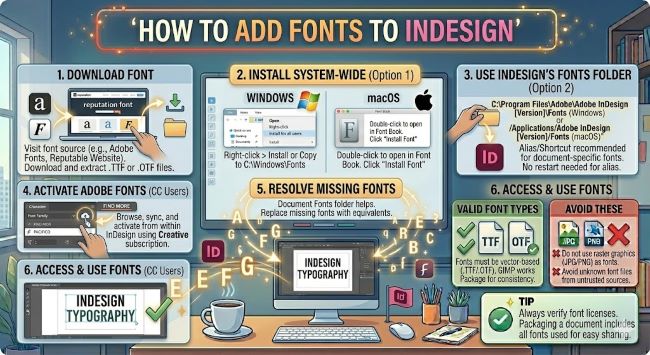
Learn how to add fonts to InDesign on Windows and Mac. This guide covers system font installation, Adobe Fonts activation, and fixing missing font warnings in your documents.
InDesign is the industry standard for layout and print design, and typography sits at the center of almost every project you will build in it. If you have a font you need to use and cannot find it in InDesign’s character panel, the fix is not inside the application. Adding fonts to InDesign works the same way as adding fonts to any Adobe application: you install them on your operating system or activate them through Adobe Fonts, and InDesign reads them automatically. This guide walks you through both methods and covers what to do when fonts go missing in an existing document.
How InDesign Handles Fonts
InDesign pulls fonts from two sources:
- System fonts installed on your computer, available to every application on your machine
- Adobe Fonts, which syncs through your Creative Cloud subscription and installs to your system in the background
There is no font upload tool inside InDesign itself. Whatever fonts your operating system has access to, InDesign can use. Install the font correctly and it appears in InDesign’s font picker the next time you open the app.
How to Add Fonts to InDesign on Windows
- Download the font you want. Google Fonts, Adobe Fonts, DaFont, and Font Squirrel are all reliable sources. The file usually arrives as a .zip folder.
- Right-click the .zip file and select Extract All to unzip it.
- Open the extracted folder and locate the font file. It will end in .ttf (TrueType) or .otf (OpenType).
- Right-click the font file and select Install to add it for your user account, or Install for all users to make it available system-wide. The second option requires administrator permissions but is the better choice for professional environments where multiple users share a machine.
- Close InDesign completely if it is already running.
- Reopen InDesign and open a document.
- Open the Character panel or click into a text frame and use the font picker in the Control bar. Search for your font by name.
It should be there. If it is not, restart your computer and try again.
How to Add Fonts to InDesign on Mac
- Download and unzip the font file.
- Find the .ttf or .otf file inside the unzipped folder.
- Double-click the font file. A preview window opens showing the typeface.
- Click Install Font in the bottom right corner of the preview.
- The font installs to your Mac’s Font Book.
- Quit InDesign completely and reopen it.
- The font will be available in the font picker inside any text frame.
To install multiple fonts at once on Mac, select all the font files in Finder, right-click, and choose Open With > Font Book. Font Book will prompt you to install the entire selection in one step.
How to Add Fonts to InDesign Using Adobe Fonts
If you have a Creative Cloud subscription, Adobe Fonts gives you access to thousands of professional typefaces that sync directly to InDesign. This is the cleanest method because it requires no manual file handling and keeps your font library organized within your Adobe account.
Through the Creative Cloud app:
- Open the Creative Cloud desktop app.
- Click the Fonts icon in the navigation (the stylized f) or go to the Fonts section.
- Search for the font you want.
- Click Activate. The font syncs to your system in the background.
- Switch back to InDesign. In most cases the font appears in the font picker without restarting. If it does not, restart InDesign.
Directly from within InDesign:
- Click into a text frame and open the font picker in the Control bar or Character panel.
- At the top of the font dropdown, look for the option to Find More or Add Fonts from Adobe Fonts.
- This opens the Adobe Fonts browser within InDesign where you can activate fonts without leaving the application.
- Activated fonts appear in your font list immediately after syncing.
Adobe Fonts is particularly useful in professional workflows because activated fonts are tied to your Creative Cloud account, not just your machine. When you open a document on a different computer where you are signed into Creative Cloud, InDesign can prompt you to activate the missing fonts through your Adobe account rather than hunting for font files.
How to Fix Missing Fonts in InDesign
When you open an InDesign document and see a missing fonts warning, it means the document uses a font that is not installed on your current machine. InDesign flags missing fonts with a pink highlight on the affected text.
Here is how to resolve it:
- Go to Type > Find Font. This opens a dialog showing every font used in the document and flags which ones are missing.
- For each missing font, you have two options:
- Install the font on your system using the steps above, then close and reopen the Find Font dialog to confirm it is resolved.
- Replace the font with one you have installed by selecting it in the Find Font dialog and choosing a replacement from the Change To dropdown.
- If the missing font is an Adobe Font, you can activate it directly through the missing fonts warning dialog in newer versions of InDesign. Click Activate Fonts and InDesign handles it through your Creative Cloud account.
Missing fonts do not prevent you from viewing or exporting a document, but they will cause text reflow and layout shifts if the substitute font has different spacing or metrics than the original.
Tips for Managing Fonts in InDesign Projects
- Use Adobe Fonts for shared projects. When multiple people work on the same InDesign file, Adobe Fonts ensures everyone has access to the same typefaces through their Creative Cloud accounts, without sharing font files manually.
- Package your files before sharing. When you send an InDesign file to a printer or collaborator, use File > Package. This collects all the linked images and fonts into a single folder so the recipient has everything they need to open the document correctly.
- Stick to OpenType fonts for professional print work. OpenType (.otf) fonts support advanced typographic features like ligatures, small caps, and alternate characters that TrueType fonts often lack. InDesign’s OpenType panel gives you access to these features when working with compatible fonts.
The Short Answer
Adding fonts to InDesign means installing them on your operating system or activating them through Adobe Fonts. Install the font, restart InDesign, and it appears in the font picker. For missing fonts in existing documents, use Type > Find Font to identify and resolve them. Adobe Fonts is the most seamless option if you work within the Creative Cloud ecosystem, particularly on shared or multi-machine projects.
Get the font installed and InDesign takes it from there.