How to Change the Time Font on iPhone
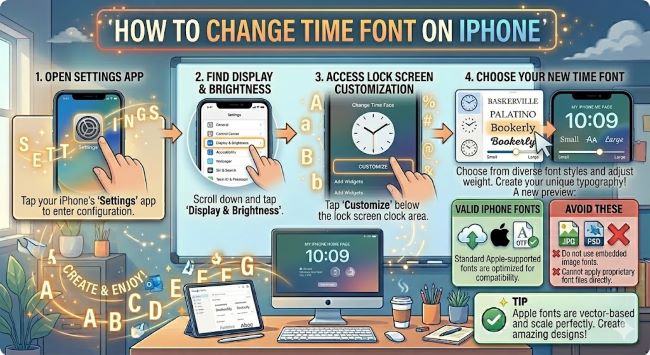
Want to change the time font on your iPhone lock screen? This guide covers every option available in iOS, from built-in customization to watch faces and widgets.
The time display on your iPhone lock screen is one of the first things you see every time you pick up your phone. If you have ever wanted to change how it looks, you are not imagining that there should be a way to do it. Since iOS 16, Apple has given iPhone users real control over the lock screen, including the ability to change the time font. It is one of those features that is genuinely fun to customize once you know where to find it.
This guide walks you through exactly how to change the time font on your iPhone lock screen, what options are available, and what to do if you want to go further.
What You Need Before You Start
Font customization for the lock screen time display requires iOS 16 or later. If your iPhone is running iOS 15 or older, this option is not available. To check your iOS version, go to Settings > General > About and look at the Software Version field.
If you are on iOS 16 or later, you are good to go.
How to Change the Time Font on Your iPhone Lock Screen
- Wake your iPhone and go to the lock screen.
- Press and hold on the lock screen (long press on an empty area, not the time itself). This enters lock screen customization mode.
- Tap Customize at the bottom of the screen.
- Select Lock Screen from the options that appear.
- Tap directly on the time display at the top of the lock screen. A font and color panel will appear at the bottom of the screen.
- Swipe through the font options in the panel. iOS offers several font styles including a rounded style, a serif option, a condensed style, and others. Each one updates the time display in real time as you swipe.
- Once you find a font you like, tap anywhere outside the panel to confirm your selection.
- Tap Done in the top right corner to save your lock screen.
The time on your lock screen will now display in the font you chose.
How to Change the Color of the Time Font on iPhone
While you are in the same customization panel, you can also change the font color. Directly below the font style options, you will see a row of color swatches.
- Tap any color swatch to apply it to the time font instantly.
- Tap the color wheel on the far left of the row to open a full color picker where you can choose any color using sliders or a hex code.
The color and font options sit in the same panel, so you can adjust both in one session without going back and forth through menus.
How to Change the Time Font Weight on iPhone
Some of the font options in iOS also let you adjust the weight, which controls how thick or thin the characters appear. After selecting a font style, look for a Weight slider beneath the font options. Drag it left for a lighter, thinner look or right for a heavier, bolder appearance.
Not all font styles show the weight slider, but most of the standard options include it. If you do not see a slider after selecting a font, that style does not support weight adjustment.
Can You Use Custom Fonts for the iPhone Lock Screen Time?
Not directly. iOS does not let you install third-party fonts for the lock screen time display the way you can install fonts on a computer. The options available are limited to what Apple provides in the customization panel.
That said, there are a few ways to get more variety:
- Use a custom lock screen wallpaper with text baked in. Design a wallpaper in Canva or Photoshop with a decorative element around the time area. The clock itself will still use an iOS font, but the overall look can feel more personalized.
- Try a third-party lock screen widget app. Apps like Widgetsmith let you create custom widgets with different fonts and styles that you can place on your lock screen alongside the standard time display.
- Use StandBy mode on iPhone 15 and later. When your iPhone is charging and placed on its side, StandBy mode shows the time in a large format with additional clock face options that include different visual styles.
How to Change the Time Display Style in StandBy Mode
If you have an iPhone 15 or later running iOS 17 or above, StandBy mode gives you additional clock styles with different time font aesthetics.
- Place your iPhone on a MagSafe charger or any wireless charger in landscape orientation.
- StandBy mode activates automatically.
- Swipe up or down on the clock display to cycle through different clock faces, each with its own font and layout style.
- Long press on a clock face to access additional customization options for that style.
StandBy mode is separate from your standard lock screen, so changes here do not affect what you see when you pick up your phone.
The Short Answer
To change the time font on your iPhone, long press your lock screen, tap Customize, select Lock Screen, then tap the time display. A panel appears with font styles, colors, and a weight slider. Pick what you like, tap Done, and your lock screen updates immediately.
It is a small change that makes your phone feel a little more like yours every time you look at it.