My Computer Won’t Turn On: Solutions That Actually Work
A computer that won’t turn on at all is one of the more alarming tech problems to encounter, mostly because the lack of any response gives you so little information to work with compared to an error message or unusual behavior you could at least research directly. The good news is that “won’t turn on” has a fairly limited set of actual causes, and working through them systematically, starting with the simplest and most common, resolves the vast majority of these situations without needing professional repair.
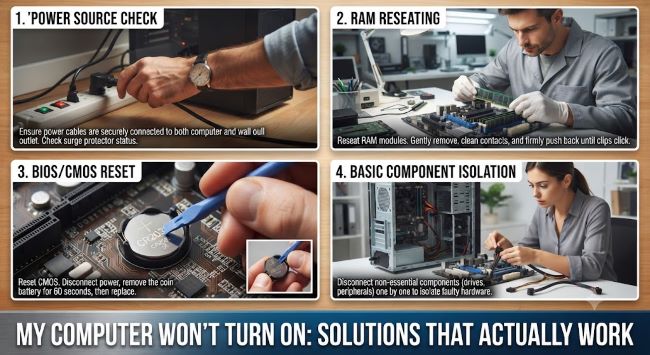
Step 1: Confirm It’s Actually a Power Issue
Before assuming a serious hardware failure, rule out the simplest possible causes first.
Check the power connection itself. Make sure the power cable is firmly plugged into both the computer (or power adapter, for laptops) and the wall outlet, and try a different outlet entirely in case the original outlet itself isn’t working, which is a surprisingly common and easily overlooked cause.
For laptops, check the charging indicator light. Most laptops have a small LED light near the charging port that indicates whether the device is receiving power, even if the screen itself shows nothing. If this light isn’t on at all when plugged in, the issue may be with the power adapter, the cable, or the wall outlet rather than the laptop itself.
Try a different power cable or adapter if you have access to one, since cables and power adapters fail more often than people expect, and a failed cable produces symptoms identical to a more serious internal problem.
For desktops, check the power supply switch. Many desktop power supplies have a physical on/off switch on the back of the unit, separate from the front power button, that can accidentally get switched off.
Step 2: Look and Listen for Any Signs of Life
Even when the screen shows nothing, your computer might be partially powering on, which provides important diagnostic information about where the problem actually lies.
Listen for fan noise or any sound when you press the power button, even briefly. Any sound at all (fans spinning, a brief beep, drive activity) indicates the power supply and at least some internal components are receiving power, narrowing the problem toward a display or boot issue rather than complete power failure.
Check for any lights on the case, keyboard, or laptop body, since even a single indicator light briefly flickering on tells you something is receiving power even if the system isn’t fully booting.
Listen for beep codes. Many desktop motherboards produce a series of beeps during startup that indicate specific hardware problems, with the beep pattern (number and timing of beeps) corresponding to specific diagnostic codes documented by the motherboard manufacturer. If you hear beeping but no display, looking up your specific motherboard’s beep code pattern can pinpoint the exact failed component.
Step 3: Rule Out Display Issues vs. True Power Failure
Sometimes a computer that “won’t turn on” is actually turning on perfectly fine but failing to display anything, which is a meaningfully different problem with a different fix.
Try connecting to a different monitor or TV, if you have one available, to rule out a failed display or a bad video cable.
For laptops, try connecting an external monitor via HDMI or the relevant video port, since this can reveal whether the laptop itself is functioning but the built-in screen specifically has failed.
Check the monitor’s own power and input source if you’re working with a desktop, since occasionally the actual computer is running fine but the monitor is off, on the wrong input, or has its own power issue entirely separate from the computer.
Step 4: Perform a Hard Reset
Many power-on failures, particularly on laptops, resolve through a hard reset that clears residual electrical charge that can sometimes interfere with normal startup.
For laptops: disconnect the charger, remove the battery if it’s removable (many modern laptops have non-removable batteries, in which case skip this step), hold the power button down for 30 seconds, then reconnect the charger (and battery if removed) and try powering on again.
For desktops: unplug the power cable entirely, hold the power button down for 10-15 seconds to discharge any residual power in the system, then reconnect the power cable and try again.
Step 5: Check for Loose Internal Connections (Desktops)
If you’re comfortable opening your desktop case and have basic technical confidence, loose internal connections are a common cause of power failures, particularly after the computer has been moved, after recent internal upgrades, or simply over time as connections can work themselves slightly loose.
Check the RAM seating by reseating the memory modules firmly in their slots, since loose RAM is one of the most common causes of a computer that powers on (fans spin, lights come on) but produces no display and sometimes a series of beep codes.
Check power supply connections to the motherboard and other components, ensuring all cables are firmly seated.
Check for any obviously failed components, such as visibly swollen or leaking capacitors on the motherboard, which indicate hardware failure requiring replacement rather than a connection issue you can resolve yourself.
Only attempt this step if you’re genuinely comfortable working inside a computer case, and always ensure the power is fully disconnected before touching any internal components.
Step 6: Consider Battery and Power Supply Failure
For laptops, an aging or fully depleted battery that’s also failed to hold any charge can sometimes prevent the laptop from powering on at all, even when plugged in directly, particularly on older laptops where the battery has degraded significantly. If your laptop has a removable battery, try powering on with the battery removed and only the charger connected, which can sometimes work around a fully failed battery.
For desktops, a failed power supply unit (PSU) is one of the most common causes of complete power failure, and PSUs are a relatively affordable and straightforward component to replace if you’ve ruled out simpler causes through the steps above.
When to Seek Professional Repair
If you’ve worked through the above steps without resolution, particularly if you’re hearing concerning beep codes you can’t resolve, seeing physical damage to internal components, or simply don’t have the technical comfort to go further with internal troubleshooting yourself, professional repair becomes the reasonable next step rather than continuing to guess.
For other specific Windows error situations that sometimes accompany or follow power-on problems once you do get a display working again, this device cannot start (Code 10): complete Windows troubleshooting guide covers a related but distinct category of hardware recognition error that can occur after your computer successfully powers on but specific components fail to initialize properly.
Once you do have your computer working reliably again, getting back into an efficient daily workflow, including navigating between your open programs quickly, is worth revisiting — what is the quickest way to switch between application windows on a computer covers the keyboard shortcuts that make daily computer use significantly more efficient once your hardware issues are resolved.
Key Takeaways
- Start with the simplest possible causes: confirm power cables are firmly connected, try a different outlet, and check for a physical power supply switch on desktops before assuming a serious hardware failure
- Listen and look for any signs of life (fan noise, lights, beep codes) even with no display, since this narrows the problem toward a display issue rather than complete power failure
- Rule out a display-specific problem by connecting to a different monitor or, for laptops, an external display via HDMI
- A hard reset (discharging residual power by holding the power button for 30 seconds with the power source disconnected) resolves many power-on failures, particularly on laptops
- For desktops, loose RAM and other internal connections are common causes of power-on-but-no-display symptoms, and reseating components can resolve the issue if you’re comfortable opening the case
- A failed laptop battery or desktop power supply unit are both common hardware-level causes of complete power failure and are relatively affordable to diagnose and replace
- If systematic troubleshooting doesn’t resolve the issue, particularly with unresolved beep codes or visible component damage, professional repair is the appropriate next step