This Device Cannot Start. (Code 10): Complete Windows Troubleshooting Guide
You open Device Manager on your Windows computer. A device shows an error. The yellow exclamation mark stares at you. The message reads: “This device cannot start. (Code 10)”.
Your device isn’t working. You don’t know why. The error message doesn’t explain what actually went wrong.
This device cannot start. (Code 10) is a Windows error that frustrates countless users. Understanding what causes it and how to fix it gets your device working again.
Let’s talk about what Code 10 means and how to solve it.
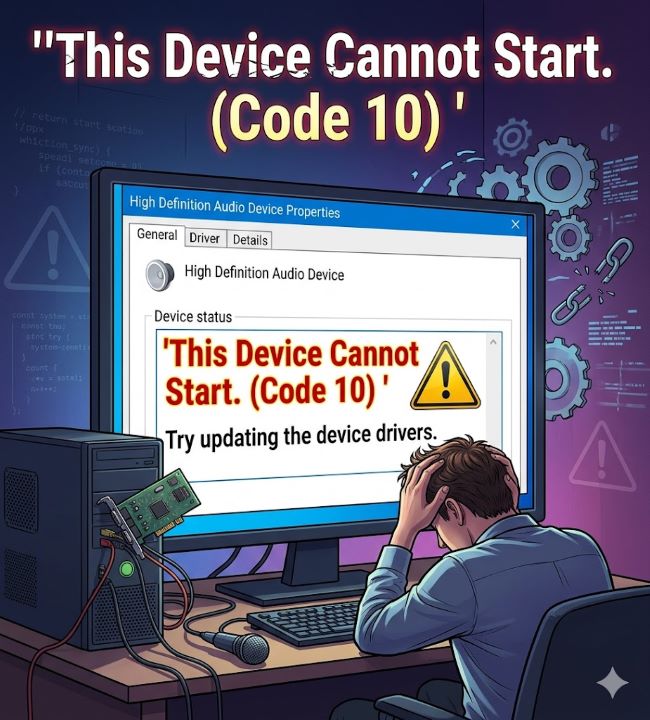
Understanding Code 10
Windows Device Manager uses error codes to indicate problems. Code 10 is one of the most common.
Code 10 means Windows cannot start the device. The device exists in Device Manager. Windows recognizes it. But something prevents it from functioning.
The causes are varied. A missing driver. A corrupted driver. Hardware resource conflict. Damaged hardware. BIOS mismatch. Multiple causes trigger the same error code.
This vagueness makes Code 10 frustrating. The error doesn’t tell you which of these problems you have.
The message “This device cannot start” is generic. It applies to any device. A network adapter. A printer. A graphics card. A touchpad. The device type doesn’t matter. The error is the same.
Common Causes of Code 10
Several situations trigger Code 10.
Missing or outdated driver. The most common cause. Windows needs a driver to communicate with the device. Without it, the device cannot start.
Corrupted driver. A driver exists but is damaged. Windows tries to use it but fails. The device cannot start.
Hardware resource conflict. Two devices compete for the same resource. IRQ, memory address, or I/O port conflict. Windows resolves the conflict by disabling one device.
Hardware failure. The device itself is broken. The hardware cannot function. Windows recognizes this and cannot start it.
BIOS settings. The device is disabled in BIOS. Windows cannot start a disabled device.
Power supply issues. Some devices don’t receive adequate power. Power management settings or hardware problems prevent operation.
Loose connections. Physical connections are loose. The device isn’t properly connected to the motherboard or power.
Driver incompatibility. The driver is for a different version of Windows or incompatible hardware.
Malware or corruption. Malware damages drivers or system files. Corruption prevents device operation.
Understanding which cause applies to your situation helps you fix it.
Solution 1: Update the Driver
The first and most common fix is updating the driver.
Right-click the device in Device Manager. Select “Update driver”.
Windows searches for updated drivers online. It checks the manufacturer’s website and Microsoft’s driver database.
If an update is found, Windows downloads and installs it. Restart your computer. The device often works after updating.
If Windows doesn’t find an update, visit the device manufacturer’s website. Download the latest driver directly.
Uninstall the old driver first. Then install the new one. Restart your computer.
Updating drivers fixes many Code 10 errors. It’s the first thing to try.
Solution 2: Uninstall and Reinstall the Driver
Sometimes completely removing and reinstalling works when updating doesn’t.
Right-click the device. Select “Uninstall device”.
If an option appears to delete the driver software, check that box.
Restart your computer. Windows detects the device and installs a basic driver.
Visit the manufacturer’s website and download the latest driver.
Install the new driver.
Restart your computer again.
This fresh start often clears driver corruption that update doesn’t fix.
Solution 3: Check BIOS Settings
Some devices are disabled in BIOS. Windows cannot start disabled devices.
Restart your computer and enter BIOS (usually by pressing Delete, F2, F12, or another key during startup).
Find the setting for your device. It might be under Integrated Peripherals, Onboard Devices, or similar.
Enable the device if it’s disabled.
Save and exit BIOS.
Let Windows boot. The device might work now.
BIOS settings vary by manufacturer. Consult your computer’s manual or manufacturer’s website for specific instructions.
Solution 4: Check Device Connections
For external devices, connection issues cause Code 10.
Unplug the device from the USB port or power source.
Wait 30 seconds.
Plug it back in firmly. Make sure the connection is secure.
Restart your computer.
Sometimes a simple reconnection fixes the issue. Loose or partially connected devices trigger Code 10.
For internal devices, opening the computer case and reseating the hardware helps. Power off the computer completely. Open the case. Find the device. Remove it slightly then reinstall it firmly. Close the case. Power on and restart Windows.
Solution 5: Disable Power Management
Some power management settings prevent devices from starting.
Right-click the device. Select “Properties”.
Go to the “Power Management” tab (if it exists).
Uncheck “Allow the computer to turn off this device to save power”.
Click OK.
Restart your computer.
Power management settings sometimes prevent devices from fully operating. Disabling this setting helps.
Solution 6: Check for Hardware Conflicts
Hardware resource conflicts cause Code 10.
In Device Manager, look for other devices with error symbols. Conflicts often appear as multiple errors.
Right-click the problematic device. Select “Properties”.
Go to the “Resources” tab.
Look for conflicts listed at the bottom.
If conflicts exist, the solution is complex. You might need to reassign resources or disable conflicting devices.
For simple cases, disabling conflicting devices temporarily tests whether the conflict is the problem.
Solution 7: Run Hardware Troubleshooter
Windows includes a hardware troubleshooter.
Right-click the device. Select “Troubleshoot”.
Windows runs automated diagnostics. It attempts to identify and fix common problems.
Follow the on-screen prompts.
This doesn’t fix all Code 10 errors, but it works for some cases.
Solution 8: Update Windows
Sometimes updating Windows includes driver fixes.
Go to Settings. Click “Update & Security”.
Click “Check for updates”.
Install any available updates.
Restart your computer when prompted.
Windows updates sometimes fix driver and compatibility issues.
Solution 9: Check for Malware
Malware can corrupt drivers and cause Code 10.
Run a full system scan with Windows Defender or another antivirus program.
Quarantine or remove any threats detected.
Restart your computer.
Sometimes clearing malware resolves Code 10 errors.
Solution 10: Reinstall Chipset Drivers
Chipset drivers control communication between devices. Corrupted chipset drivers cause Code 10 on multiple devices.
Visit your motherboard or computer manufacturer’s website.
Download chipset drivers for your specific model.
Uninstall current chipset drivers in Device Manager.
Install the new chipset drivers.
Restart your computer.
This more advanced solution works when Code 10 affects multiple devices.
Specific Device Examples
Code 10 affects different devices in different ways.
Graphics cards. Code 10 with a graphics card usually means a driver problem. Updating or reinstalling the GPU driver often fixes it.
Network adapters. Code 10 with network adapters prevents internet connection. Updating the network driver usually solves it.
Sound cards. Code 10 with sound devices means no audio. Driver update typically fixes this.
Touchpads. Code 10 with touchpads (like Lenovo touchpad not working) means the touchpad doesn’t function. Driver reinstall usually works.
Printers. Code 10 with printers prevents printing. Updating the printer driver is the fix.
USB devices. Code 10 with USB devices means the USB device doesn’t work. Updating USB drivers or the device-specific driver helps.
Each device type has slightly different troubleshooting, but driver updates remain the most common solution.
When to Seek Professional Help
Some Code 10 errors require professional help.
Hardware failure. If the device is physically broken, no software fix helps. Professional replacement is needed.
Complex hardware conflicts. If multiple devices conflict in complex ways, professional diagnosis helps.
BIOS corruption. If BIOS is corrupted, professional help is needed to restore it.
Persistent after multiple solutions. If you’ve tried all these solutions and Code 10 persists, professional technicians have more advanced diagnostics.
Most Code 10 errors respond to driver updates. But some require professional assistance.
Prevention
Preventing Code 10 is easier than fixing it.
Keep drivers updated. Regularly check for driver updates. Old drivers cause many problems.
Use proper shutdown procedures. Don’t force shut down your computer. Proper shutdown prevents corruption.
Protect from power fluctuations. Use surge protectors and UPS devices to protect against power damage.
Keep malware off. Use antivirus software and safe browsing practices.
Maintain proper ventilation. Overheating can damage hardware. Keep your computer cool.
Handle hardware carefully. If opening your computer, ground yourself to prevent static damage.
These prevention measures reduce Code 10 and other errors.
Key Takeaways
- This device cannot start. (Code 10) means Windows recognizes the device but cannot start it.
- The most common cause is a missing or outdated driver.
- Updating the driver is the first solution to try.
- Uninstalling and reinstalling the driver works when updating doesn’t.
- BIOS settings might disable the device. Check BIOS to enable it.
- Physical connections should be checked for loose or damaged connections.
- Power management settings sometimes prevent devices from working. Disabling power management helps.
- Hardware resource conflicts can cause Code 10. Check for conflicts in device properties.
- Windows troubleshooter provides automated diagnostics.
- Windows updates sometimes fix driver issues.
- Malware can corrupt drivers and cause Code 10. Run antivirus scans.
- Chipset driver problems affect multiple devices. Reinstalling chipset drivers helps.
- Different device types have slightly different troubleshooting approaches.
- Code 10 with graphics cards usually requires graphics driver updates.
- Code 10 with network adapters requires network driver updates.
- Some Code 10 errors require professional help, especially if hardware is damaged.
- Preventing Code 10 through regular driver updates and proper maintenance is easier than fixing it.
- If you encounter Code 10, start with driver updates and work through these solutions systematically.