What Is the Quickest Way to Switch Between Application Windows on a Computer?
Switching between open applications and windows is one of the most frequent actions on a computer, and doing it efficiently makes a genuine difference in how fast you work. If you’re reaching for the mouse every time you need to switch programs, you’re spending more time and effort than necessary. The keyboard shortcuts below are faster in every context, and learning a handful of them takes only a few minutes.
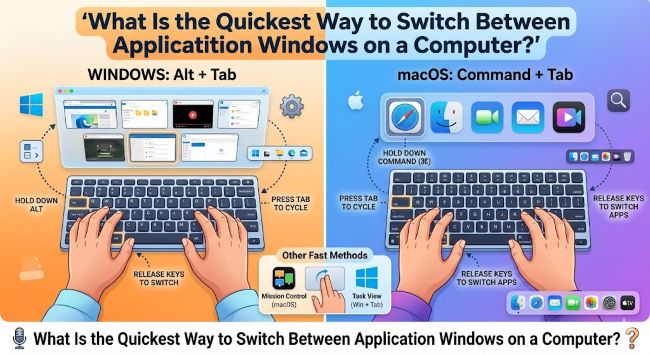
The Quickest Way on Windows: Alt + Tab
The fastest and most universal shortcut for switching between application windows on Windows is Alt + Tab.
Hold Alt and press Tab once: a thumbnail switcher appears showing all open windows. While holding Alt, press Tab again to move to the next window. Release Alt to switch to the selected window.
If you only have two applications open and want to toggle between them, a single press of Alt + Tab (hold Alt, tap Tab once, release both) switches directly to the previous window without showing the switcher at all. This is the fastest possible toggle when you’re working between exactly two applications.
Alt + Shift + Tab reverses the direction through the switcher if you’ve gone too far.
Windows Key + Tab: Task View
Windows + Tab opens Task View, a full-screen switcher that shows all open windows and virtual desktops. Unlike Alt + Tab, Task View stays open after you release the keys, letting you click the window you want or use arrow keys to navigate. It’s slower than Alt + Tab for quick switching but more useful when you have many windows open and need to see them all at once.
Switching Between Windows of the Same Application
Alt + Tab cycles through all windows of all applications. If you want to switch between multiple windows of the same application (for example, two Chrome windows, or two Word documents), use Alt + ` (backtick/grave accent) in some setups, or use the taskbar: right-click or hover over the application’s taskbar icon to see all open windows of that application.
In Windows 11, hovering over a taskbar icon shows thumbnails of all windows for that app.
The Quickest Way on Mac: Command + Tab
On macOS, the equivalent of Alt + Tab is Command + Tab.
Hold Command and press Tab: the App Switcher appears showing all open applications as icons in a horizontal bar. Press Tab again (while holding Command) to move right through the applications. Release Command to switch to the selected app.
Command + Shift + Tab moves left through the App Switcher.
Important Mac distinction: Command + Tab switches between applications, not between individual windows of an application. If you have multiple Safari windows open, Command + Tab brings the Safari application to the front but may not show you the specific Safari window you want.
Switching Between Windows of the Same App on Mac
For multiple windows of the same application on Mac, use Command + ` (backtick): this cycles through all open windows of the currently active application. This is the Mac equivalent of a within-app window switcher.
Expose/Mission Control also helps: pressing F3 (or the Mission Control button on supported keyboards) shows all open windows spread out on screen. You can also activate Mission Control by swiping up with three or four fingers on a trackpad.
Quickest Way on Linux (varies by desktop environment)
GNOME (Ubuntu default): Super + Tab (Super is the Windows key) or Alt + Tab opens the application switcher. Alt + ` (backtick) switches between windows of the same application, similar to Mac.
KDE Plasma: Alt + Tab works the same as Windows. KDE’s switcher is highly customizable.
XFCE: Alt + Tab opens the switcher.
The behavior on Linux depends more on the desktop environment than the underlying OS.
Switching to a Specific Application Directly
All major operating systems support pinning applications to the taskbar or dock and switching to them with a shortcut:
Windows: Windows + [number] switches to the application in that position on the taskbar. Windows + 1 goes to the first pinned app, Windows + 2 to the second, and so on. This is faster than Alt + Tab when you’re switching to a specific frequently used application.
Mac: No built-in numeric shortcut for dock items by default, but third-party apps like HiDock or custom keyboard shortcuts in System Settings can replicate this behavior. Spotlight (Command + Space, then type the app name) is the fastest way to switch to a specific app by name.
Virtual Desktop Switching
Windows: Ctrl + Windows + Left/Right Arrow moves between virtual desktops. Windows + Ctrl + D creates a new virtual desktop.
Mac: Ctrl + Left/Right Arrow moves between Spaces (virtual desktops). Ctrl + Up Arrow shows all Spaces in Mission Control.
Virtual desktop shortcuts let you organize work by context (one desktop for email, one for code, one for research) and switch between contexts with a single key combination.
Quick Reference Summary
| Action | Windows | Mac | Linux (GNOME) |
|---|---|---|---|
| Switch between all apps | Alt + Tab | Command + Tab | Super + Tab or Alt + Tab |
| Switch between windows of same app | Alt + ` | Command + ` | Alt + ` |
| Reverse direction in switcher | Alt + Shift + Tab | Command + Shift + Tab | Alt + Shift + Tab |
| Switch to specific taskbar/dock item | Windows + [1-9] | — | Super + [1-9] in some setups |
| Switch virtual desktops | Ctrl + Win + ←/→ | Ctrl + ←/→ | Super + Page Up/Down |
Tips for Faster Window Switching
Keep fewer windows open. The more windows you have open, the more steps it takes to find the right one with Alt + Tab. Closing windows you’re done with keeps the switcher manageable.
Use virtual desktops. Organizing work into virtual desktops by project or task type reduces the number of windows in any single desktop’s Alt + Tab cycle.
Learn the two-app toggle. When you’re actively working between exactly two applications, Alt + Tab (Windows) or Command + Tab (Mac) followed by immediate release toggles directly between them in one keystroke. This is the fastest possible window switch.
Keep your hands on the keyboard. The time cost of moving from keyboard to mouse and back is small per instance but adds up significantly across a workday. Any window switch you can make with a keyboard shortcut instead of a mouse click reduces that overhead.
Key Takeaways
- The quickest way to switch between application windows on a computer is Alt + Tab on Windows and Command + Tab on Mac: hold the modifier key, press Tab to cycle through open windows, release to switch
- For toggling between exactly two applications, a single Alt + Tab (hold Alt, tap Tab once, release) switches directly without showing the full switcher
- Alt +
(Windows/Linux) and Command +(Mac) switch between multiple windows of the same application: useful when you have two Chrome windows or two document windows open - Windows + [number] switches directly to the application in that taskbar position without cycling: faster than Alt + Tab for frequently used apps
- Virtual desktop shortcuts (Ctrl + Win + Arrow on Windows, Ctrl + Arrow on Mac) move between organized workspaces for context-switching at a higher level
- Keeping fewer windows open at any given time makes Alt + Tab more efficient: a switcher with 4 options is faster to navigate than one with 14