How to Unhide All Rows in Excel: Every Method Explained
Hidden rows in Excel are one of the most common sources of confusion, especially when working with a spreadsheet someone else built. You’re scrolling through data, the row numbers jump from 4 to 9, and you know rows are hiding somewhere but can’t immediately see how to get them back. This guide covers every method for how to unhide all rows in Excel, from the quickest keyboard shortcut to the nuclear option of VBA for sheets with persistent issues.
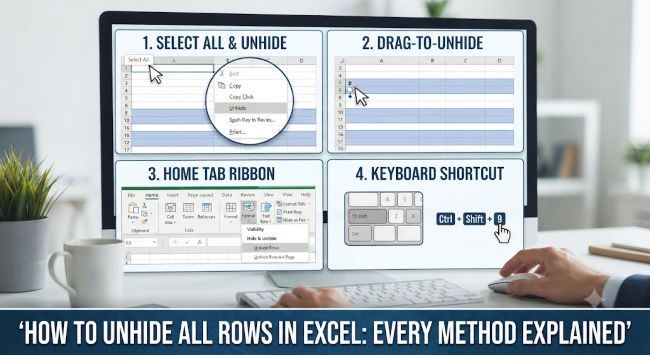
Method 1: Unhide All Rows at Once (Fastest Method)
If you want to unhide all rows in Excel across the entire sheet in one move, this is the approach:
Step 1: Select all cells in the worksheet by clicking the grey rectangle in the top-left corner where the row numbers and column letters meet (the Select All button). Alternatively, press Ctrl + A.
Step 2: Right-click on any row number in the row header area on the left side of the screen.
Step 3: Select Unhide from the context menu.
This unhides every hidden row in the worksheet simultaneously. It works because selecting all cells first ensures the unhide command applies to every row, not just a specific selection.
Method 2: Using the Ribbon
Step 1: Select all cells (Ctrl + A or click the Select All button).
Step 2: Go to the Home tab on the ribbon.
Step 3: In the Cells group, click Format.
Step 4: Hover over Hide & Unhide.
Step 5: Click Unhide Rows.
This produces the same result as the right-click method. The ribbon path is useful when the right-click context menu feels unfamiliar.
Method 3: Keyboard Shortcut to Unhide Rows
Excel has a direct keyboard shortcut to unhide rows:
Step 1: Select all cells with Ctrl + A.
Step 2: Press Alt + H + O + U + R in sequence (not simultaneously). This navigates through the ribbon: Home > Format > Hide & Unhide > Unhide Rows.
Alternatively, after selecting your rows, the shortcut Ctrl + Shift + 9 unhides rows in the selected range. This is the most direct keyboard method to unhide all rows in Excel when you have the right range selected.
Method 4: Unhide Specific Rows (Not All Rows)
If you want to unhide specific rows rather than all rows at once:
Step 1: Click the row number above the hidden rows and drag to select the row number below them. For example, if rows 5-8 are hidden, click row 4 and drag to row 9 to select both visible rows surrounding the hidden section.
Step 2: Right-click on the selected row numbers.
Step 3: Click Unhide.
If the hidden rows are at the very top of the sheet (rows 1-3 are hidden, for example), you can’t click above them. Instead: click in the Name Box (the cell reference box to the left of the formula bar), type A1 (or whichever row is the first hidden row, e.g., 1:3 to select rows 1 through 3), press Enter, then right-click any row header and select Unhide.
Method 5: Using Go To to Reach Hidden Rows at the Top
When the first few rows of the sheet are hidden and there’s nothing to click above them:
Step 1: Press Ctrl + G to open the Go To dialog, or use F5.
Step 2: In the Reference field, type the cell reference of a hidden row, for example A1 or 1:5 for rows 1 through 5.
Step 3: Click OK. Excel selects the hidden cell or row range.
Step 4: Go to Home > Format > Hide & Unhide > Unhide Rows, or right-click the row header area and select Unhide.
Method 6: Drag the Row Height
If only one or a few rows are hidden and you can see a gap in the row numbers, you can manually reveal them:
Step 1: Position your mouse cursor on the row header border between the row numbers where the hidden row should be. The cursor will change to a double-headed arrow with a horizontal bar.
Step 2: Click and drag downward to manually expand the hidden row’s height.
This is less precise than the other methods but works well for revealing a single hidden row.
Method 7: VBA to Unhide All Rows (For Persistent Issues)
If rows won’t unhide through normal methods (this can happen with protected sheets or when a filter is active), a VBA macro forces all rows visible:
Step 1: Press Alt + F11 to open the Visual Basic Editor.
Step 2: Go to Insert > Module.
Step 3: Paste the following code:
Sub UnhideAllRows()
    Rows.Hidden = False
End Sub
Step 4: Press F5 to run the macro, or close the editor and run it from the Developer tab > Macros.
This sets every row in the active sheet to visible regardless of why they were hidden.
Why Rows Might Still Not Unhide
If you’ve tried the methods above and rows still won’t appear, a few things could be causing the issue:
Row height is set to zero. A row isn’t technically hidden but has its height set to 0, which looks identical to a hidden row. To fix this: select the rows around the problem area, go to Home > Format > Row Height, and set a specific height (like 15 or 20). This reveals zero-height rows that the unhide command doesn’t affect.
A filter is active. When a filter is applied, rows that don’t match the filter criteria are hidden by filtering, not by the standard hide function. The Unhide command doesn’t remove filter-hidden rows. To fix this: go to Data > Clear (in the Sort & Filter group) to remove all filters, which reveals all filtered rows.
The sheet is protected. A protected sheet may prevent changes including unhiding rows. Go to Review > Unprotect Sheet. You may need a password if one was set.
For other Excel tasks that come up alongside row management, how to freeze a row in Excel is a closely related skill that helps you keep header rows visible while scrolling through large datasets.
Key Takeaways
- The fastest way to unhide all rows in Excel: press Ctrl + A to select all, then right-click any row number and select Unhide
- The keyboard shortcut Ctrl + Shift + 9 unhides rows in a selected range after you’ve selected the appropriate rows
- For hidden rows at the very top of the sheet, use Ctrl + G, type the row reference (e.g., A1 or 1:5), press Enter, then use the Unhide command
- If rows won’t unhide, check three things: row height may be set to zero (fix with Format > Row Height), a filter may be active (fix with Data > Clear), or the sheet may be protected (fix with Review > Unprotect Sheet)
- The VBA macro Rows.Hidden = False is the most reliable method when other approaches fail
- Zero-height rows and hidden rows look identical but require different fixes: Unhide handles hidden rows, Row Height handles zero-height rows