Reboot and Select Proper Boot Device: Complete Fix Guide
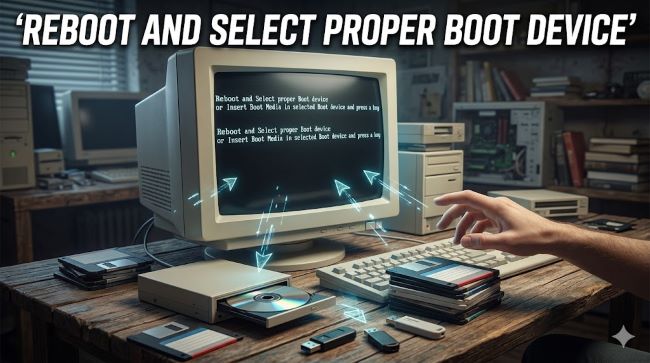
Your computer won’t start. Instead of loading Windows, you see a message that says “reboot and select proper boot device”. The screen is black and unforgiving. Your computer is telling you to restart and pick the right boot device, but you have no idea what that means or how to do it.
This error message stops your computer dead. You can’t access your files. You can’t work. You can’t do anything until this is fixed. The message seems technical and intimidating, but the fix is usually straightforward once you understand what’s happening.
A reboot and select proper boot device error means your computer is confused about where to find Windows or whatever operating system it normally runs. The boot device is the storage drive that holds your operating system. Your computer can’t find it, so it stops and asks you to help. This guide walks you through understanding the problem and fixing it yourself.
What Is a Boot Device
Your computer has multiple storage devices. It might have an internal hard drive, an SSD, a USB drive plugged in, or even a CD or DVD in the drive. When your computer starts up, the BIOS needs to know which device to use to load the operating system.
The boot device is whichever storage device contains your operating system. Usually it’s your main hard drive or SSD. The BIOS checks this device first during startup. It looks for the operating system files and starts loading them.
When the BIOS can’t find the operating system on the boot device, it throws up the “reboot and select proper boot device” message. The computer is saying: I looked where you told me to look, but I didn’t find what I needed. You need to tell me where to look instead.
Why Boot Device Not Found Happens
Several things can cause boot device not found errors:
Your hard drive failed or is dying. The storage device that holds Windows stopped responding. The cable connecting the drive to the motherboard came loose. The drive isn’t properly seated in its slot. Your BIOS settings were changed and the boot order is now pointing to the wrong device. A virus or malware damaged system files on the boot drive. A failed Windows update left the boot files corrupted. You accidentally unplugged a drive or removed it from the computer.
The select proper boot device error happens because the BIOS looked in the BIOS settings, found a list of storage devices, and tried to boot from the first one in the list. It didn’t find a valid operating system on that device, so it fails.
The Quick Restart Test
Before doing anything technical, try the simplest fix: restart your computer. Sometimes a temporary glitch causes the reboot and select proper boot device message. A fresh restart clears that glitch.
Hold down the power button until the computer turns off completely. Wait 30 seconds. Press the power button again. Your computer might boot normally now.
If it boots fine, the problem was temporary. If the message appears again, you’ll need to dig deeper.
Check for Loose Cables
Physical connections come loose sometimes. The cable connecting your hard drive or SSD to the motherboard might have vibrated free. The power cable to your drive might have disconnected.
Only do this if you’re comfortable opening your computer case. Power down completely and unplug the computer from the wall. Wait 10 seconds. Open the case carefully.
Look at the SATA cables running from the motherboard to your drives. Gently push on the connectors at both ends to make sure they’re fully seated. Check that the power cables running to your drives are also fully connected.
Close the case and plug the computer back in. Power on and see if the error persists. Often, a loose cable is the culprit behind select proper boot device error.
Access the BIOS and Check Boot Order
Your BIOS is a menu that runs before Windows loads. It controls hardware settings including which device boots first. You need to enter the BIOS and check the boot order.
Power on your computer. Immediately start pressing a key repeatedly. The key varies by manufacturer. It’s usually Delete, F2, F12, or Esc. Look at your screen during startup. It should tell you which key to press to enter setup or BIOS. Press that key until the BIOS menu appears.
Once in the BIOS, look for a menu called Boot, Boot Order, or Boot Priority. This shows which devices your computer will try to boot from in order. The first device in the list is tried first. The second device is tried if the first one fails.
Make sure your main hard drive or SSD is listed first. If a USB drive or external drive is listed first, your computer will try to boot from that device instead of your main drive. That’s why you see boot device not found. You need to move your main drive to the top of the list.
Look for arrow keys or + and – keys to reorder the devices. Move your main hard drive to the top position. Save your changes and exit the BIOS. Usually you press F10 or look for a Save and Exit option.
Your computer should boot normally now. If the Windows boot issues persist, move to the next step.
Check for a Bootable USB or CD
Sometimes a USB drive or CD containing installation media is plugged in or in the drive. Your BIOS tries to boot from that device instead of your hard drive. That triggers the how to fix boot device error situation.
Remove any USB drives from your computer. Open any CD or DVD drive and remove any discs. Close the tray. Restart your computer.
If your computer boots normally now, you found the problem. A removable drive was interfering with the boot order. You can plug the USB drive back in once Windows is running.
If the error persists, it’s not a removable drive causing the problem.
Update or Reset the BIOS
BIOS settings sometimes get corrupted or reset to defaults. If your BIOS boot settings aren’t working right, you might need to reset them.
The Clear CMOS or Reset BIOS option is available in your BIOS menu. This resets all settings to factory defaults. Navigate to this option using your BIOS menu. Select it and confirm. Your computer will restart with default settings.
After the reset, enter the BIOS again and set your hard drive as the first boot device. Save and exit.
This nuclear option fixes many BIOS boot settings problems because it starts from scratch.
Check the Hard Drive is Recognized
Your BIOS menu usually shows all connected storage devices. Check that your main hard drive is actually listed there. If your BIOS doesn’t see your hard drive at all, it won’t boot from it.
In the BIOS, look for a Storage Devices, Drives, or System Information menu. This should list all connected drives. Your main hard drive should be there with its capacity showing.
If your main hard drive doesn’t appear in this list, it’s not being recognized by the computer. This could mean:
The hard drive failed or is dying. The cable is disconnected or not fully seated. The hard drive needs to be reseated in its slot. The SATA port on the motherboard is broken.
Check cables again. Reseat the hard drive by removing it and putting it back in firmly. Try different SATA ports and cables if you have extras available.
If the drive still doesn’t show up in the BIOS, the drive might be failing. This requires professional data recovery service or hard drive replacement.
Windows Boot Files Are Corrupted
Sometimes your hard drive is recognized, the boot order is correct, but Windows boot issues still occur. This happens when the Windows boot files themselves are corrupted.
You need the Windows installation media. You can create this on a USB drive using another computer or purchase a Windows installation DVD. Plug the USB drive in and boot from it.
The Windows installer will start. Don’t install Windows. Instead, look for Repair Your Computer or Troubleshoot option. This opens a recovery menu. Select Startup Repair or Automatic Repair.
Windows will scan your drive and try to repair corrupted boot files. This often fixes how to fix boot device error when the drive itself is fine but the files are damaged.
Replace the Hard Drive
If none of these steps work, your boot device not found problem might be hardware failure. The hard drive might be dying or already dead.
Listen to the hard drive when you power on. Do you hear unusual clicking sounds? A loud beeping noise? These are signs of hardware failure. These drives need replacement.
You have options:
Remove the old drive and install a new one. You’ll need to install Windows on the new drive using installation media. Take the old drive to a data recovery service if you have important files on it. This is expensive but recovers your data. Buy a USB external hard drive enclosure. Put the old drive in the enclosure and connect it to another computer to recover your files that way.
A new drive costs between $50 and $200 depending on capacity. Installation is straightforward if you’re comfortable opening your computer. If not, any computer repair shop can install it for you.
Try a Different Boot Device Temporarily
If you need to access your computer right away but can’t fix the boot device problem, you have a temporary solution.
Create a bootable USB with Linux or a lightweight operating system. Plug it in and boot from it. Your computer will load from the USB drive instead of your hard drive.
This won’t fix the problem permanently, but it lets you access your files and work while you figure out the hard drive issue. Once the drive is fixed or replaced, you can boot normally again.
Key Takeaways
- The “reboot and select proper boot device” message means your computer can’t find the operating system on the boot device you configured in BIOS. The drive is either not connected, not recognized, or has corrupted boot files.
- Boot device not found errors are often caused by loose cables, wrong boot order in BIOS, or removable drives interfering with startup. Check cables first, then access BIOS to verify boot order.
- Access your BIOS boot settings by pressing Delete, F2, F12, or Esc during startup. Check the boot order and make sure your main hard drive is listed first.
- Remove any USB drives or discs from your computer if the error appears. External devices in the boot order can cause the select proper boot device error by interfering with normal startup.
- If your hard drive isn’t showing up in the BIOS at all, reseat it by removing and reinstalling it firmly. Check all cable connections and try different SATA ports if available.
- Windows boot issues with corrupted files require Windows installation media. Use the Startup Repair or Automatic Repair option to fix corrupted boot files without reinstalling the entire operating system.
- How to fix boot device error when hardware is failing: listen for unusual clicking or beeping sounds from the drive. These indicate hardware failure and require drive replacement, which costs $50-$200 for a new drive.
- If nothing works, create a bootable USB with Linux as a temporary solution. This lets you access files while planning a permanent fix like hard drive replacement.
Related Resources
Understanding your computer’s startup process helps with many troubleshooting issues. Learn more about system fundamentals by exploring 35-best-color-tools which covers visualization tools for understanding system processes. If you’re interested in learning about hardware components and how they interact, mastering-css includes sections on how systems communicate. For those wanting deeper technical knowledge, 15-vue-js-frameworks covers how software interacts with hardware at the boot level.