How to Fix Phone Screen Unresponsive Touch: Solutions That Work
An unresponsive phone screen creates instant panic. Your device stops responding to taps and swipes. You can’t answer calls or unlock the phone. Nothing works. Before assuming the hardware is broken, understand that how to fix phone screen unresponsive touch problems usually involves simple troubleshooting steps. Many unresponsive screen issues resolve through basic interventions that cost nothing.
The frustration is real, but most people can solve this without professional help. Understanding what causes unresponsive touch and trying solutions in order of complexity gives you the best chance of getting your phone working again.
Why Phone Screens Stop Responding
Several issues cause phone screen unresponsiveness. Software glitches cause the majority of cases. A crashed app, corrupted system file, or memory overload can freeze the touch functionality.
Sometimes physical interference blocks touch input. Moisture, dust, or damage to the screen or internal connections prevents proper communication between the touch sensors and the phone’s processor.
Temperature also affects responsiveness. Phones that overheat sometimes disable touch input as a safety measure. Cold temperatures can temporarily reduce responsiveness.
Understanding the cause helps you choose the right fix. A software issue requires different treatment than physical damage.
Basic Restart
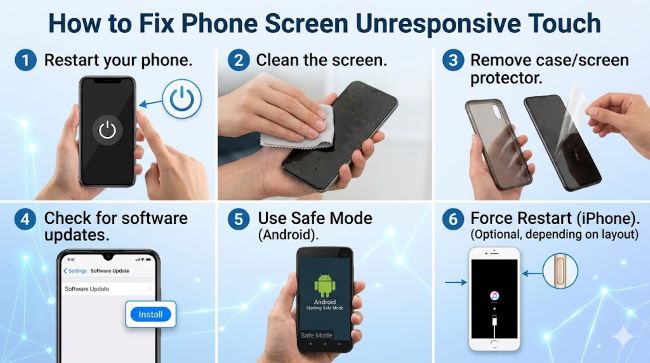
The simplest solution often works. Power off your phone completely and turn it back on. This clears temporary glitches and resets the touch system.
For most phones, hold the power button until the shutdown screen appears. Drag to power off completely. Wait 30 seconds. Press the power button to restart.
This basic restart resolves many unresponsive screen issues. If this works, no other steps are necessary.
Force Restart If Your Phone Is Frozen
If your phone won’t respond to power button presses, force restart it. Different phone models have different methods.
For recent iPhones, quickly press and release the volume up button, then the volume down button, then hold the side button until the Apple logo appears.
For Samsung phones, hold the power button and volume down together for 10 seconds until the phone vibrates and restarts.
Force restart clears deeper software issues than normal restart.
Check for Physical Obstruction
Examine your screen for dust, debris, or moisture. Wipe the screen gently with a soft, dry cloth. Pay special attention to the edges where dust accumulates.
If your phone was exposed to moisture, don’t use it yet. Turn it off immediately and place it in a dry location. Let it air dry for at least 24 hours. Rice or silica gel can help absorb moisture faster.
Don’t use heat sources to dry the phone. Hair dryers and ovens damage internal components.
Clear Your Phone’s Cache
Sometimes cached files become corrupted and interfere with touch responsiveness. Clearing cache doesn’t delete your data, just temporary files.
On Android, go to Settings, Apps, and select each app you use frequently. Choose Storage and tap Clear Cache.
On iPhone, open Settings, General, iPhone Storage. The list shows your apps. Delete apps you rarely use, then reinstall them. This accomplishes a similar cache clearing.
Check Storage Space
Phones running low on storage sometimes become unresponsive. When storage fills up, the system struggles to function properly.
On Android, go to Settings, Storage to see how much space you’re using. If you’re above 85% capacity, delete photos, videos, and apps you don’t need.
On iPhone, go to Settings, General, iPhone Storage. Delete large files or apps to free up space.
Disable Recent App Updates
Sometimes app updates introduce bugs that cause unresponsiveness. If your screen became unresponsive after updating an app, rolling back helps.
On Android, go to Settings, Apps, and select the recently updated app. Tap the menu and choose Uninstall Updates. Reinstall the app fresh.
On iPhone, you can’t easily roll back app updates, but you can close the app and clear its cache through Settings.
Update Your Phone’s Software
Conversely, outdated software sometimes causes unresponsiveness. New updates include bug fixes and stability improvements.
Check for updates in Settings. On Android, go to Settings, About Phone, System Update. On iPhone, go to Settings, General, Software Update.
If an update is available, plug your phone into power and connect to WiFi before updating. Large updates require resources and stable connectivity.
Check for Physical Damage
Examine your screen closely for cracks, chips, or damage. Even hairline cracks can cause touch problems. Damage to the phone’s frame can affect how the screen sits, impacting touch sensors.
Minor surface cracks might still work fine. Damage affecting the touch layer beneath the glass prevents proper responsiveness.
If you see damage, professional repair might be necessary. However, try software fixes first since damage isn’t always the issue.
Safe Mode Troubleshooting
Safe mode disables third-party apps and runs only system software. This helps identify whether a problematic app causes unresponsiveness.
On Android, hold the power button until the shutdown menu appears. Hold Power Off until Safe Mode appears. Choose it.
On iPhone, there isn’t a traditional safe mode, but you can use Recovery Mode through Settings.
In Safe Mode, test if your screen responds. If it does, a third-party app is likely the cause. Uninstall recently downloaded apps in normal mode.
Factory Reset as Last Resort
If nothing else works, factory reset restores your phone to original factory condition. This erases all data, so back up everything first.
On Android, go to Settings, System, Reset Options, Erase All Data.
On iPhone, use iCloud or a computer to back up first, then Settings, General, Reset, Erase All Content and Settings.
Back up everything before doing this. A factory reset should be your last software option before seeking professional repair.
When to Seek Professional Help
If you’ve tried these steps and your phone screen remains unresponsive, professional repair is necessary. The problem likely involves hardware damage or internal component failure.
Visit the phone manufacturer’s official service center or a reputable repair shop. They can diagnose the exact problem and replace damaged components.
Screen replacement is common and relatively affordable. Internal component repairs cost more but fix deeper issues.
Key Takeaways
- How to fix phone screen unresponsive touch often involves simple troubleshooting before considering professional repair.
- Basic restart solves most temporary unresponsiveness issues caused by software glitches.
- Force restart works when your phone is completely frozen and won’t respond to normal commands.
- Physical obstruction like dust or moisture prevents touch input even when the phone functions normally otherwise.
- Clearing cache and freeing storage space can restore responsiveness when software issues cause problems.
- Disabling recent app updates helps if unresponsiveness started after installing a new version.
- Updating your phone’s software fixes bugs that might cause touch problems.
- How to fix phone unresponsive issues starts with software troubleshooting before assuming hardware damage.
- Safe mode testing identifies whether third-party apps cause unresponsiveness.
- iPhone screen not responding to touch often resolves through the same basic troubleshooting steps that work for Android.
- Factory reset should be your last software option before seeking professional help.
- Professional repair becomes necessary when hardware damage or internal component failure prevents touch responsiveness.
- Temperature extremes sometimes temporarily reduce responsiveness. Allow your phone to return to normal temperature.
- Never use heat to dry a wet phone. Air drying or silica gel works safely.
- Testing each solution in order lets you identify the actual cause and fix it properly.