Apple Watch Stuck on Apple Logo: Complete Fix Guide
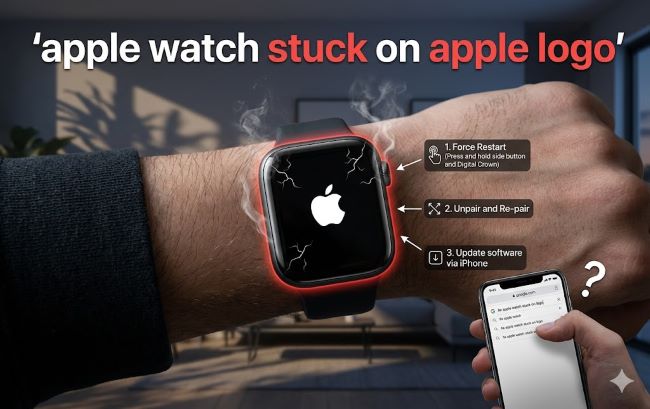
Your Apple Watch is frozen. You swipe, tap, press the crown. Nothing happens. The screen shows the Apple logo and won’t move past it. Your watch was working fine yesterday. Now it’s stuck, and you have no idea what went wrong or how to fix it.
An Apple Watch stuck on Apple logo is one of the most frustrating issues users face. The watch looks like it’s starting up, but something is broken in that startup process. It’s not responding to any input. You’re stuck staring at that glowing logo wondering if you’ll ever use your watch again.
The good news is that this problem has solutions. Most of the time, an Apple Watch stuck on Apple logo can be fixed without visiting an Apple Store or sending it in for repair. The fixes are simple enough that anyone can do them. You just need to know what to try and in what order.
Why Your Apple Watch Gets Stuck on the Logo
Your Apple Watch starts up in stages. First, the device powers on and loads the boot code. The Apple logo appears on the screen, which is normal. Then the system loads the operating system, and the watch face eventually appears. Usually this takes less than a minute.
When your watch gets stuck on Apple logo, one of these startup stages is broken. The boot code loaded fine enough to show the logo. But then something prevented the operating system from loading completely. The watch is trying to start but can’t finish the job.
Common causes include:
A software bug in the current watchOS version that breaks startup. A failed software update that left the system in an incomplete state. Corrupted files in the system storage that prevent normal boot. A low battery that doesn’t have enough power to complete startup. Hardware issues like a failing storage component, though these are rare.
The device gets stuck in a loop. It keeps trying to start, the Apple logo appears, and then something stops it from progressing further.
The First Thing to Try: Force Restart
Before you panic or assume the worst, try a force restart. This is different from a normal restart. A force restart interrupts whatever is happening and forces the device to shut down and reboot.
Here’s how to force restart Apple Watch:
Hold down both the side button and the digital crown at the same time. Keep holding them. You’ll see a power-off slider appear on the screen. Keep holding. The slider will fade away. Keep holding. You’ll see the Apple logo appear. At this point, keep holding for about 10 seconds total from when you started. The watch will vibrate and the screen will go black. Release the buttons.
This force restart interrupts whatever process was stuck and forces a clean reboot. Wait about 30 seconds for the watch to restart completely. In many cases, the watch boots normally and you’re done.
If it gets stuck on the Apple logo again, move to the next method.
How to Restart Apple Watch Properly
A normal restart apple watch is different from a force restart. A normal restart is gentler and lets the system shut down properly. It’s worth trying if the force restart didn’t work.
Go to Settings on your Apple Watch. Scroll down to General. Tap Shut Down. Slide to power off. Wait about 30 seconds for the watch to fully shut down. Then hold the side button until the Apple logo appears and the startup screen shows. The watch should boot normally.
If your watch is stuck on Apple logo and you can’t even access Settings, skip this method and try the others. You can only use this method if the watch is responding at all.
How Do I Reset My Apple Watch
When normal restarts fail, a reset Apple Watch becomes necessary. There are different levels of reset. A soft reset just clears the system cache without erasing anything. A factory reset erases everything and restores the watch to factory defaults.
To perform a soft reset, hold the side button and digital crown together for about 15 seconds. Unlike a force restart, you’re looking for the shutdown screen to appear. Let it appear, then release. Don’t complete the shutdown. Just trigger the shutdown state and release. This sometimes clears stuck processes.
For a factory reset, you’ll need access to either your Apple Watch directly or your paired iPhone. If the watch is completely stuck and won’t respond, you might not be able to do this from the watch itself.
On your iPhone, open the Watch app. Go to General and look for Reset option. If your watch is stuck on the Apple logo, Apple Watch won’t turn on normally, so this might be the only way to reset it. The iPhone app can send a reset command to the watch even if it’s not responding visually.
A factory reset erases all apps, data, and settings. Everything goes back to factory defaults. You’ll need to set up the watch again afterward, but a factory reset sometimes fixes Apple Watch stuck on Apple logo when nothing else works.
Reboot Apple Watch Using Recovery Mode
If your watch won’t start normally no matter what you try, recovery mode might work. Recovery mode is a special state that lets you restore the watch’s system files without full startup.
To enter recovery mode, hold the side button and digital crown together. This time, wait for the Apple logo to appear, then continue holding. You’ll see a charging cable icon appear on the screen. This is recovery mode. Once you see the cable icon, release the buttons.
Now connect your watch to power immediately. Use the official Apple Watch charger. Your watch needs to stay powered during the recovery process.
On your iPhone, open the Watch app. Go to General and look for Reset or Restore option. Tap it and confirm. Your iPhone will communicate with the watch and push a fresh copy of watchOS to it. This overwrites any corrupted files.
The process takes 10-15 minutes. Your watch might show the Apple logo multiple times during this process. This is normal. Let it finish without interruption. Once it completes, the watch should reboot normally.
Apple Watch Won’t Turn On At All
Sometimes the problem is worse than being stuck on the logo. Your Apple Watch won’t turn on at all. The screen stays black. Nothing appears. This might seem like a different problem, but the fix is similar.
First, charge your Apple Watch. A completely dead battery won’t power on. Connect it to the official charger and let it charge for at least 15 minutes. Sometimes a watch that seems dead just needs charging.
While charging, you might see the Apple logo appear briefly. This is normal. It means there’s enough power for the startup process to begin. Let it charge more.
If the screen shows a red battery icon, the battery is very low. Charge for at least 30 minutes before trying anything else.
If your Apple Watch won’t turn on even after charging, try a force restart. Some watches need a restart command to wake from very low battery states. Follow the force restart steps even if the screen is black.
Check for Overheating
Apple Watch has thermal sensors. If the watch overheats, it shuts down to protect itself. Your watch might be stuck on Apple logo because it’s in a protected shutdown state due to heat.
Feel the back of the watch. Is it hot? If so, remove it and let it cool down in a room temperature environment. Don’t put it in the refrigerator or freezer. Just let it sit on a table for 15-20 minutes.
Once it cools, try a force restart again. If overheating was the issue, the watch should boot normally now.
Overheating usually happens if you were exercising intensely, charging it in a hot environment, or something covered the watch face trapping heat. It’s a safety feature, not a broken device.
Updating watchOS While Stuck
Sometimes your watch gets stuck on Apple logo in the middle of a watchOS update. The update started but didn’t finish. The watch is frozen in an incomplete state.
If you suspect an update caused this, put your watch on the charger and leave it for a few hours. Some updates take longer than expected. The watch might complete the update if given enough time and power.
If the watch stays stuck for more than 2 hours while on the charger, try a force restart. Then put it back on the charger and wait another hour to see if the update resumes.
As a last resort, use recovery mode as described above. This will push a fresh copy of watchOS and complete any interrupted updates.
How to Reboot Apple Watch Using Activity App
Here’s a method that works on some watch models. Your watch might have reboot Apple Watch functionality built into specific apps.
If your watch is responding even slightly, try force-quitting the app that seems to be frozen. You do this by holding the side button until the power-off menu appears, then releasing before fully powering down.
Sometimes an app crash causes the startup hang. Force-quitting that app and restarting the watch helps.
When to Seek Professional Help
If your Apple Watch stuck on Apple logo won’t respond to any of these methods, the device might have a hardware problem. Hardware issues are rare but possible. A failing storage component, battery issue, or screen problem could cause this.
Contact Apple Support or visit an Apple Store. Explain what you’ve tried. Apple technicians have specialized tools to diagnose hardware issues. If your watch is under warranty, repair or replacement might be free.
If your watch is out of warranty and hardware failure is confirmed, you’ll pay for repair. Sometimes replacement is cheaper than repair for older models.
Before giving up though, try every method in this guide. Most Apple Watch stuck on Apple logo problems are software-related and fixable at home.
Prevention and Maintenance
To avoid future issues, keep your watch updated. Install watchOS updates when Apple releases them. Don’t interrupt updates even if they take longer than expected.
Charge your watch regularly. Don’t let the battery fully drain frequently. A watch that runs out of power is more likely to have startup issues.
Keep the watch cool. Don’t wear it during intense exercise in hot environments if possible. Let it cool down if it feels warm to the touch.
Restart your watch monthly even if it’s working fine. A periodic restart apple watch clears cache and prevents soft issues from building up.
Pair your watch with your iPhone and keep the pair connection strong. A watch that hasn’t communicated with its paired iPhone in weeks is more likely to have issues.
Key Takeaways
- An Apple Watch stuck on Apple logo indicates the watch started booting but couldn’t complete the startup process. The good news is that most cases are software-related and fixable at home.
- Force restart is always the first step. Hold the side button and digital crown together for about 10 seconds until the watch vibrates and the screen goes black, then release.
- If force restart doesn’t work, try a soft reset by holding both buttons for 15 seconds to access the shutdown screen, then release without completing the shutdown.
- Recovery mode is your next option if normal restarts fail. Hold both buttons until the charging cable icon appears, then use your iPhone’s Watch app to restore watchOS from recovery mode.
- A factory reset erases everything but often fixes Apple Watch won’t turn on problems. You can initiate this from your iPhone’s Watch app even if the watch itself isn’t responding.
- Charging is sometimes the solution to Apple Watch not turning on. Let it charge for at least 30 minutes before trying restarts, as a dead battery won’t power the startup process.
- Check for overheating. A very hot watch might be in a protected shutdown state. Let it cool for 15-20 minutes, then try restarting.
- If your watch is stuck on Apple logo after trying all methods, the device likely has a hardware problem. Contact Apple Support or visit an Apple Store for professional diagnosis and repair.
Related Resources
If you’re dealing with tech troubleshooting, understanding how devices work helps. Check out 20 most popular code editors for insights into how software engineers diagnose issues. For those interested in learning more about device management, employee management systems often include device tracking information. If you want to explore more about technology fundamentals and how systems communicate, how to use AI tools covers troubleshooting modern tech systems.