Discord Developer Portal: The Complete Guide to Building on Discord
The discord developer portal is where you create and manage Discord applications, bots, and OAuth2 integrations. This guide covers everything from setting up your first application to using the Discord API effectively.
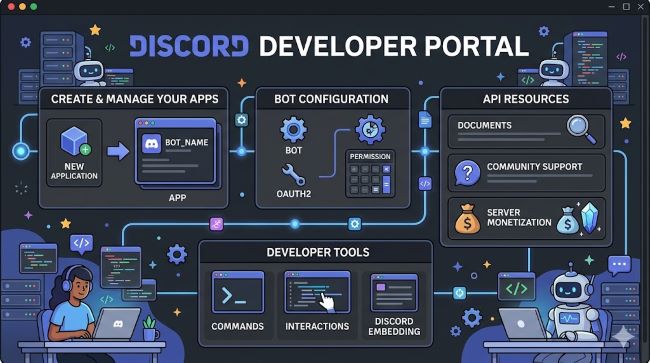
Building something on Discord starts in one place: the discord developer portal at discord.com/developers/applications. Whether you want to create a bot that moderates a server, build an app that integrates with an external service, or set up OAuth2 so users can log into your website with their Discord account, the developer portal is where every project begins. The portal is not complicated, but there are enough moving parts that first-time users often get stuck at specific points: where to find the bot token, how to set OAuth2 redirect URIs, what permissions to request, and how to actually connect the Discord API to working code. This guide walks through all of it in a logical sequence so you can go from zero to a running application without getting lost in the documentation.
What the Discord Developer Portal Actually Is
The discord dev portal is Discord’s web interface for creating and managing applications. An application in Discord’s model is a container that holds everything your project needs: a bot user, OAuth2 credentials, webhook configurations, and the permissions your app will request from users or servers.
Every application you create in the developer portal gets:
- A unique Application ID (also called Client ID), which identifies your application across Discord’s systems
- A Client Secret, used for OAuth2 authentication flows
- A Bot Token, if you add a bot to the application, which is how your code authenticates with the Discord API
- A Public Key, used to verify incoming interactions if you use slash commands or other interaction-based features
The discord dashboard for your application lives at discord.com/developers/applications. You need a Discord account to access it. There are no special account types required; any Discord user can create an application.
Creating Your First Application in the Developer Portal
The first step in any Discord project is creating an application. Here is how it works:
- Go to discord.com/developers/applications and log in with your Discord account.
- Click New Application in the top right corner.
- Give your application a name. This name is what users will see when they authorize your app or interact with your bot.
- Accept the Discord Terms of Service and Developer Policy.
- Click Create.
You now have an application. The General Information page shows your Application ID, Client Secret, and Public Key. Keep the Client Secret private. It is used in server-side authentication flows and should never be exposed in client-side code or public repositories.
The application name and description you set here appear in authorization prompts when users grant your application access to their account, so choose something that accurately represents what your app does.
Adding a Bot to Your Discord Application
Most developers create a discord application specifically to run a bot. A bot is an automated Discord user that can read messages, respond to commands, manage server roles, and interact with users in real time.
To add a bot to your application:
- In the left sidebar of your application page, click Bot.
- Click Add a Bot.
- Confirm. Discord creates a bot user attached to your application.
Once you add the bot, you see the bot’s Token. This token is your bot’s password for the Discord API. Copy it immediately and store it somewhere secure, ideally in an environment variable in your project. Do not put it in your code directly. Do not commit it to a public GitHub repository. If your token is exposed, anyone can log into your bot and do anything it is permitted to do.
If you suspect your token has been compromised, go back to the Bot page and click Reset Token to generate a new one. The old token becomes invalid immediately.
Bot Settings Worth Knowing
The Bot page has several toggle settings that control how your bot behaves:
- Public Bot: Controls whether anyone can add your bot to their server. Turn this off while developing to prevent unexpected installations.
- Require OAuth2 Code Grant: Forces a full OAuth2 flow before the bot can be added to a server. Most bots leave this off.
- Presence Intent: Allows your bot to receive presence updates (when users go online or offline). Requires enabling in the portal and in your code.
- Server Members Intent: Allows your bot to receive events about server members joining, leaving, and updating. Also requires explicit enabling.
- Message Content Intent: Required if your bot reads the content of messages (not just slash command interactions). All three privileged intents must be enabled here before they work in your code.
Privileged intents (Presence, Server Members, Message Content) require explicit approval from Discord if your bot is in more than 100 servers. For bots below that threshold, enabling them in the portal is sufficient.
The Discord API: How Your Code Talks to Discord
The Discord API is the set of HTTP endpoints and WebSocket connections that let your code interact with Discord. Everything your bot can do, sending messages, managing roles, creating channels, responding to commands, runs through the Discord API.
The base URL for the Discord API is https://discord.com/api/v10 (version 10 is current as of 2024). Most developers do not call this URL directly. They use a Discord library for their language of choice, which handles the API calls, WebSocket connection, and event handling automatically.
Popular Discord libraries by language:
- JavaScript/TypeScript: discord.js, Eris
- Python: discord.py, nextcord, py-cord
- Java: JDA (Java Discord API), Javacord
- C#: Discord.Net, DSharpPlus
- Go: discordgo
- Rust: serenity
All of these libraries use your bot token to authenticate with the Discord API. Your workflow is always: get the token from the developer portal, pass it to the library, write the logic for what your bot does.
OAuth2: Letting Users Log In with Discord
Beyond bot tokens, the developer portal also manages OAuth2 credentials. OAuth2 is the protocol that lets users authorize your application to access their Discord data, or lets you implement “Login with Discord” on a website or app.
To set up OAuth2:
- In your application’s sidebar, click OAuth2.
- Under Redirects, add the URL where Discord should send users after they authorize your app. This must match exactly the redirect URI you use in your authorization URL.
- Use the OAuth2 URL Generator at the bottom of the page to build authorization URLs with the specific scopes and permissions your app needs.
Common OAuth2 scopes:
identify: Lets your app read the user’s basic information (username, avatar, ID)email: Lets your app read the user’s email addressguilds: Lets your app read what servers the user is inbot: Adds your bot to a server (combined with bot permissions)applications.commands: Installs slash commands to a server
For a “Login with Discord” implementation, you typically need identify and optionally email. For adding a bot to a server, you combine the bot scope with the specific permission integer for what your bot needs to do.
Inviting Your Bot to a Server
Once your bot exists and you have set your OAuth2 permissions, you need a link to add it to a server. The OAuth2 URL Generator in the developer portal builds this link for you.
- Go to OAuth2 in the sidebar, then URL Generator.
- Under Scopes, select
bot(andapplications.commandsif you use slash commands). - Under Bot Permissions, check the permissions your bot needs.
- Copy the generated URL at the bottom of the page.
- Open the URL in a browser while logged into Discord. Select the server you want to add the bot to and click Authorize.
The bot joins the server with the permissions you selected. You can generate different invite links with different permission sets for different use cases.
Slash Commands and Interactions
Modern Discord bots use slash commands rather than prefix-based commands. Slash commands appear in Discord’s command menu when users type /, and they work through Discord’s interaction system rather than reading message content.
To use slash commands, your application needs to register the commands with Discord through the API. Most Discord libraries have built-in support for registering and handling slash commands. The developer portal itself does not have an interface for building slash commands directly; you register them through API calls or library methods.
Your application also needs an Interactions Endpoint URL if you want to receive interactions via HTTP rather than through a persistent WebSocket connection. This URL is configured in the General Information section of the developer portal. Discord sends POST requests to this URL when users use slash commands, click buttons, or interact with other components in your app.
Common Mistakes in the Discord Dev Portal
A few errors come up repeatedly for developers working with the discord dev portal for the first time.
Exposing the bot token: The most serious one. Tokens committed to public GitHub repositories are scanned by bots that immediately use them. Use environment variables and add your .env file to .gitignore.
Not enabling privileged intents: If your bot needs to read message content or get member data and you have not enabled the relevant intent in the portal, your code will either error or receive empty data. The portal setting and the code-level intent declaration both need to match.
Wrong redirect URI in OAuth2: The redirect URI in your authorization URL must exactly match one of the URIs you added in the portal, including the protocol (http vs https) and trailing slashes. A mismatch produces an error.
Using an outdated API version: Discord deprecates old API versions over time. If you are working from an old tutorial that specifies an older API version, check that it is still supported.
Bot permissions too broad or too narrow: Requesting Administrator permission for a bot that does not need it is a red flag that makes server owners reluctant to install it. On the other hand, a bot that requests too few permissions will fail to perform its actual functions. Match the permissions to what the bot genuinely does.
For developers building tools and applications on platforms like Discord, understanding how to create effective app interfaces provides useful context that applies across any platform API. The security practices involved in managing bot tokens and OAuth2 secrets connect to broader web security principles that every developer working with APIs should understand. And for discord bot developer teams managing multiple applications and deployments, project management tools keep development organized across different environments and versions.
Key Takeaways
- The discord developer portal at discord.com/developers/applications is where you create and manage all Discord applications, bots, and OAuth2 integrations.
- Every discord application gets an Application ID, Client Secret, Public Key, and (if you add a bot) a Bot Token. The token is your bot’s authentication credential for the Discord API.
- Never expose your bot token in public code. Store it in an environment variable and keep it out of version control.
- Privileged intents (Presence, Server Members, Message Content) must be enabled in the discord dev portal AND declared in your code before they work.
- OAuth2 in the developer portal handles “Login with Discord” flows and bot invite links. Redirect URIs must match exactly.
- The Discord API is called through libraries in your language of choice: discord.js for JavaScript, discord.py for Python, JDA for Java, and others.
- Use the OAuth2 URL Generator in the developer portal discord to build bot invite links with specific permissions rather than constructing them manually.
- Modern bots use slash commands registered through the API rather than prefix-based message commands that require the Message Content intent.