Cloudflare Speed Test: The Complete Guide to Testing and Understanding Your Internet Speed
The cloudflare speed test at speed.cloudflare.com measures download, upload, latency, jitter, and bufferbloat in one place. This guide explains every metric, how it compares to other speed tests, and what the results actually mean for your connection.
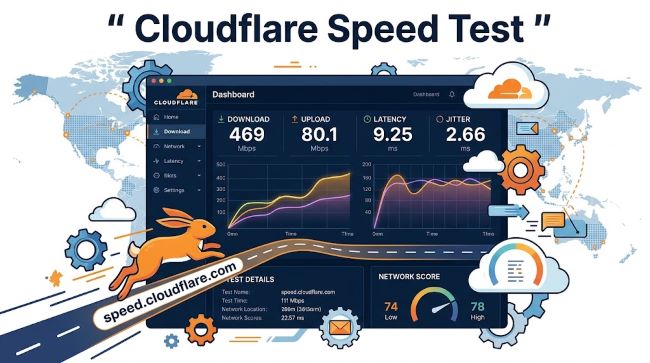
Most people run a speed test when something feels slow and they want a number to confirm it. The problem is that most speed tests give you two numbers, download and upload, and leave you to figure out what they mean for streaming, gaming, video calls, or whatever you were actually trying to do. The cloudflare speed test at speed.cloudflare.com takes a different approach. It measures download speed, upload speed, latency, jitter, and bufferbloat in a single run and gives you a more complete picture of how your connection actually behaves under real-world conditions. This guide covers what each metric means, how to run a proper speed test, how Cloudflare’s tool compares to speed test ookla, google internet speed test, and others, and what numbers to aim for based on what you use the internet for.
How to Run a Cloudflare Speed Test
Running the cloudflare speed test takes about 30 seconds and requires nothing beyond a browser.
- Open any browser and go to speed.cloudflare.com
- The test starts automatically when the page loads
- Wait for all measurements to complete (download, upload, latency, jitter, bufferbloat)
- Review the results on the same page
No account is required. No app to download. The test uses Cloudflare’s global network of data centers to measure your connection from multiple servers, which gives the latency readings more real-world accuracy than a test that pings a single server in a known location.
For the most accurate results:
- Run the test on a wired (Ethernet) connection rather than Wi-Fi if you want to test your ISP’s connection rather than your wireless network
- Close other apps and browser tabs that might be using bandwidth
- Run the test at different times of day since ISP congestion affects speeds during peak hours (typically early evening)
- Run it 3 to 5 times and look at the range of results, not just a single reading
What the Cloudflare Speed Test Measures
Download Speed
Download speed is the rate at which data comes from the internet to your device, measured in megabits per second (Mbps). This is the number that determines how fast web pages load, how quickly files download, and how smoothly video streams. When people ask “what is my internet speed,” they typically mean download speed.
The cloudflare speed test measures download speed across multiple test files of different sizes and calculates the result based on the 90th percentile of those measurements rather than the peak, which gives a more realistic figure than tests that report the maximum burst speed.
Upload Speed
Upload speed is the rate at which data goes from your device to the internet. This matters for video calls, cloud backups, posting large files, and live streaming. Cable and DSL connections typically have upload speeds significantly lower than download speeds. Fiber connections often provide symmetric or near-symmetric speeds.
The upload speed test runs the same multi-file process as the download test. If your upload speed is low and you do video calls regularly, the cloudflare speed test results will explain why your video looks fine to you but looks pixelated to the person on the other end.
Latency (Ping)
Latency is the time it takes for a signal to travel from your device to a server and back, measured in milliseconds (ms). You may see this called “ping” in gaming contexts. Lower is better.
The cloudflare speed test measures two latency values:
- Unloaded latency: Your ping when the connection is idle
- Loaded latency: Your ping while the download or upload test is running
The difference between these two numbers is where bufferbloat comes in.
Jitter
Jitter is the variation in latency over time. If your ping bounces between 15ms and 80ms repeatedly, your jitter is high. Consistent latency matters more than absolute latency for real-time applications. A steady 50ms ping is better for gaming and video calls than a connection that alternates between 10ms and 100ms.
High jitter causes choppy audio in calls, rubber-banding in games, and stuttering in video. The continuous ping measurement in the Cloudflare test shows how your latency behaves over time rather than just giving you one number.
Bufferbloat
Bufferbloat is one of the most useful measurements in the cloudflare speed test and one that most other speed tests do not report at all. It measures how much your latency increases when your connection is under load.
Here is the practical version: when you are downloading a large file or uploading a video while also trying to make a voice call or play an online game, your router’s buffers fill up. This causes packets to queue up and your latency spikes significantly. The connection technically has bandwidth, but the latency becomes so bad that real-time applications fall apart.
The Cloudflare speed test shows your bufferbloat as the difference between your loaded and unloaded latency. A difference of under 5ms is excellent. A difference of 50ms or more is a problem that no amount of download speed will fix.
Bufferbloat is usually caused by router firmware that does not implement modern queue management algorithms like CAKE or FQ-CoDel. Upgrading your router firmware or replacing an older router can resolve severe bufferbloat without changing your ISP plan.
Cloudflare Speed Test vs. Other Speed Tests
Speed Test Ookla (speedtest.net)
Speed test ookla is the most widely used internet speed test and typically shows the highest numbers. It chooses the nearest server and tests against it, often selecting an ISP-operated server that is specifically tuned to perform well. It reports download and upload speeds and ping but does not measure bufferbloat or loaded latency.
Ookla’s results are useful for seeing what your connection is theoretically capable of. Cloudflare’s results are more useful for diagnosing real-world performance problems.
Google Internet Speed Test (speedtest google / Google Fiber Speed Test)
Searching “internet speed test” in Google pulls up a built-in google speedtest widget in the search results. The google internet speed test is powered by Measurement Lab (M-Lab) and connects to servers hosted in Google’s infrastructure. It measures download and upload speed and gives a simple, fast result.
It is convenient for a quick check. It does not measure bufferbloat, jitter under load, or latency separately from the test run. For diagnosing performance issues beyond simple speed, it is not detailed enough.
Fast.com
Fast.com is Netflix’s speed test and focuses almost entirely on download speed from Netflix’s own CDN. It tells you whether your connection can handle Netflix streaming at different quality levels. It does not measure upload speed, latency, or bufferbloat unless you expand the “More Info” section.
The Practical Recommendation
For a quick check of what’s my internet speed, any of the above tools work. For diagnosing why video calls drop, games lag, or streaming stutters despite good download speeds, run the cloudflare speed test. It gives you the information the others do not.
Packet Loss Test: What Cloudflare Shows and Why It Matters
The cloudflare speed test also reports packet loss as part of the latency measurements. Packet loss is when some of the data packets sent over your connection fail to arrive at the destination and have to be retransmitted.
Small amounts of packet loss (0.1 to 0.5%) are normal on most connections. Anything above 1% will cause noticeable problems: voice calls break up, video freezes, gaming becomes unplayable, and downloads slow significantly because data has to be resent repeatedly.
If the cloudflare speed test shows packet loss, the likely causes are:
- A faulty Ethernet cable or damaged port
- Wi-Fi interference from other networks, devices, or physical obstacles
- A failing modem or router
- Problems in your ISP’s network between you and their backbone
The continuous ping feature shows packet loss over time, which helps identify whether the problem is consistent or intermittent.
What Is a Good Internet Speed? The Practical Benchmarks
Running a speed test is only useful if you know what the numbers should be for your situation.
For Streaming
- HD streaming (Netflix, YouTube, Disney+): 5 to 10 Mbps download per stream
- 4K streaming: 20 to 25 Mbps per stream
- Multiple users streaming simultaneously: Add the per-stream requirement for each concurrent stream
If your household has four people potentially streaming 4K at the same time, you need 80 to 100 Mbps download as a practical minimum. Anything below that and someone will experience buffering during peak usage.
For Video Calls
- 1:1 calls (Zoom, Google Meet, FaceTime): 3 to 5 Mbps upload and download
- Group calls with video: 5 to 10 Mbps upload
The speed numbers here are modest. What matters more for video calls is latency and jitter. A 10 Mbps connection with 5ms jitter will handle video calls better than a 100 Mbps connection with 80ms jitter.
Good Internet Speed for Gaming / What Is a Good Internet Speed for Gaming
Gaming is frequently misunderstood when it comes to internet requirements. Online games actually use very little bandwidth, typically 1 to 10 Mbps download and 1 to 5 Mbps upload during active gameplay. The number that actually matters for gaming is latency.
Good internet speed for gaming in terms of latency:
- Under 20ms: Excellent. Competitive gaming, fast-paced shooters, fighting games.
- 20 to 50ms: Good. Suitable for most online games.
- 50 to 100ms: Acceptable for casual play. Some disadvantage in competitive games.
- Above 100ms: Noticeable lag. Difficult to play reaction-dependent games.
For what is a good internet speed for gaming, 25 Mbps download with latency under 50ms and low jitter covers every game. The xbox speed test at the system level checks these same metrics. What kills gaming performance is not a slow download speed but high latency, jitter, or bufferbloat.
The network latency measurement in the cloudflare speed test is exactly what gamers should be checking, not just the download number.
For Working from Home
- Video conferencing: 10 Mbps upload for reliable quality
- Cloud file syncing: 10 to 25 Mbps upload prevents backups from running all day
- VPN usage: Adds overhead; expect 10 to 20% speed reduction through most VPNs
For General Use
The FCC defines broadband as 25 Mbps download and 3 Mbps upload. For a single user who streams, browses, and video calls, that is sufficient. For households with multiple users and devices, 100 to 200 Mbps download is a more practical minimum to avoid congestion.
How to Check WiFi Speed vs. Your Actual Internet Speed
There are two different things people test when they run a speed test: their internet connection (the link between their home and their ISP) and their WiFi connection (the link between their device and their router).
To test your internet connection: Connect your device directly to the router with an Ethernet cable, then run the cloudflare speed test. This bypasses WiFi and shows what your ISP is actually delivering.
To test your WiFi speed: Run the test on your device over WiFi. The result reflects both your ISP’s connection and your wireless network performance.
If your wired speed test result matches what your ISP promises and your WiFi speed test result is significantly lower, your WiFi network is the bottleneck, not your internet plan. Common causes:
- Distance from the router
- Walls, floors, or other physical obstructions
- Router using an older WiFi standard (WiFi 4/802.11n) rather than WiFi 5 or WiFi 6
- Too many devices on the same WiFi band
- Interference from neighboring networks
A WiFi health check or wifi tester app can show signal strength, channel congestion, and other metrics that the internet speed test alone does not reveal.
How to check wifi speed specifically: run the cloudflare speed test twice, once wired and once on WiFi, and compare the results. The difference is what your wireless network is costing you.
Internet Health Check: Reading the Full Picture
The cloudflare speed test provides an internet health check across five dimensions simultaneously:
- Download speed: Can you receive data at the rate your plan promises?
- Upload speed: Can you send data effectively for calls and backups?
- Unloaded latency: Is your base ping acceptable for real-time use?
- Loaded latency / bufferbloat: Does your connection stay usable while under load?
- Jitter: Is your latency consistent enough for calls and gaming?
A connection can pass on some dimensions and fail on others. Fast download and upload with terrible bufferbloat is a common pattern with consumer cable connections. Understanding which metric is causing your specific problem directs you toward the right fix.
For anyone managing network performance across multiple devices and connections, website and network security principles are worth understanding alongside speed diagnostics. The infrastructure decisions that affect internet speed also connect to foundational usability concepts for web and software performance. And for professionals managing remote teams who depend on reliable upload speeds for video calls, productivity and project management tools help coordinate work even when individual connections vary in quality.
Key Takeaways
- The cloudflare speed test at speed.cloudflare.com measures download speed, upload speed, unloaded latency, loaded latency, jitter, and bufferbloat in one run, making it the most comprehensive free internet speed test available.
- Download speed determines streaming and browsing performance. Upload speed determines video call and backup performance.
- Latency (ping) matters more than speed for gaming. Under 50ms is acceptable, under 20ms is excellent.
- Bufferbloat is the gap between your idle and loaded latency. High bufferbloat causes everything to suffer under load. It is fixable with router firmware updates or hardware replacement.
- Jitter is latency variation over time. High jitter causes choppy audio and video even when average latency is low.
- Good internet speed for gaming is not about raw Mbps. It is about low latency (under 50ms), low jitter, and minimal bufferbloat. 25 Mbps download covers any online game.
- To check wifi speed vs. actual internet speed, run the test twice: once wired (Ethernet) and once on WiFi. The difference is your wireless overhead.
- Packet loss above 1% causes significant real-world problems. Check cables, router hardware, and WiFi conditions if the cloudflare speed test reports packet loss.
- For a broadband speed test or a quick internet speed check, any major tool (Ookla, Google, Fast.com) works. For diagnosing specific problems, the cloudflare speed test gives more actionable detail.
- Run the test multiple times at different hours to account for ISP congestion patterns, which affect results during peak evening hours.