Which of the Following Best Explains What Happens When a New Device Is Connected to the Internet?
Plug a laptop into a router, connect a phone to Wi-Fi, or power on a smart TV for the first time and within seconds it is on the internet. Most people never think about what happens in those seconds. But if you are studying networking, preparing for a quiz, or just curious, the question becomes important: which of the following best explains what happens when a new device is connected to the internet? The answer is not a single sentence. It is a sequence of events involving protocols, addresses, and handshakes that happen automatically and silently every single time. This guide walks through the full process in plain language, from the moment a device joins a network to the moment it can load a web page.
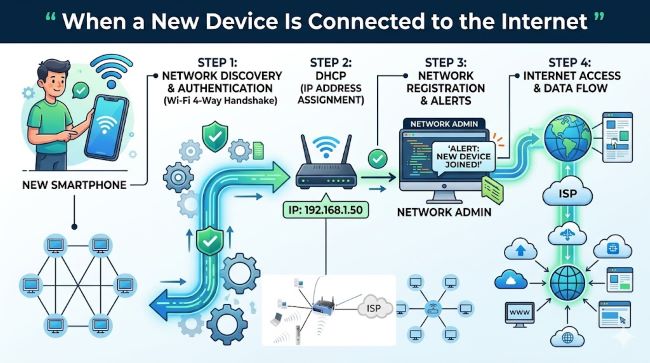
Step One: The Device Requests an IP Address
The first thing that happens when a new device connects to a network is that it needs an identity. On the internet, that identity is an IP address. Without one, the device cannot send or receive data because other devices and servers have no way to address traffic to it.
The process of getting an IP address is handled by a protocol called DHCP, which stands for Dynamic Host Configuration Protocol. Here is how it works:
- Discovery: The new device broadcasts a message across the local network saying, in effect, “I am here and I need an IP address.” This message goes out to every device on the network because the new device does not yet know where the DHCP server is.
- Offer: The DHCP server, which typically lives inside your router, responds with an offer. It proposes a specific IP address, a subnet mask, a default gateway address, and the address of a DNS server.
- Request: The new device receives the offer and sends back a request confirming it wants that specific address.
- Acknowledgment: The DHCP server confirms the assignment. The device now has a working IP address for a set period of time called a lease.
This four-step process is abbreviated as DORA (Discovery, Offer, Request, Acknowledgment). The whole exchange takes milliseconds.
The IP address the device receives is typically a private address on your local network, something in the 192.168.x.x range. Your router has its own separate public IP address assigned by your internet service provider, which is how your home network communicates with the broader internet.
Step Two: The Device Learns the Network Layout
Alongside the IP address, the DHCP server hands the device two other critical pieces of information.
The default gateway: This is the address of the router. When the device wants to send data anywhere outside the local network, which is basically everything on the internet, it sends that data to the default gateway first. The router then forwards it onward.
The DNS server address: DNS stands for Domain Name System. It is the internet’s address book. When you type a web address like google.com, the device does not inherently know what server to contact. It asks the DNS server to translate the human-readable domain name into a numerical IP address that computers can actually route data to.
Without these two pieces, a device with an IP address can still only communicate with other devices on the same local network. The default gateway and DNS server are what give it access to the wider internet.
Step Three: DNS Resolution
Type a web address into a browser and before any web content loads, a DNS lookup happens. The device asks the DNS server: what is the IP address for this domain?
The DNS resolution process:
- The device checks its own local cache first. If it has looked up this domain recently, the answer is already stored and the process skips ahead.
- If there is no cached answer, the device sends a query to the DNS resolver, which is usually your ISP’s DNS server or a public one like Google’s 8.8.8.8.
- The resolver checks its own cache. If it has the answer, it returns it immediately.
- If not, the resolver queries a root name server, which points it toward the authoritative name server for the top-level domain (.com, .org, .net, etc.).
- The authoritative name server for the specific domain returns the IP address.
- The resolver passes that IP address back to the device and caches it for future lookups.
This entire process typically takes under 100 milliseconds. From the user’s perspective, it is invisible.
Step Four: Establishing a Connection with TCP
Now the device has an IP address, knows its gateway, and has resolved the domain name of the server it wants to reach. The next step is establishing an actual connection to that server. This happens using TCP, which stands for Transmission Control Protocol.
TCP is one half of the TCP/IP model that underpins internet communication. It provides reliable, ordered data delivery. Before any data transfers, TCP requires a three-way handshake between the device and the remote server:
- SYN: The device sends a synchronization packet to the server, signaling that it wants to start a connection.
- SYN-ACK: The server responds with a synchronization-acknowledgment, confirming it received the request and is ready to connect.
- ACK: The device sends an acknowledgment back, completing the handshake.
After these three steps, the connection is established and data transfer can begin. Every time you load a web page, this handshake happens. For secure connections (HTTPS), an additional TLS handshake happens on top of the TCP handshake to establish encryption before any data moves.
Step Five: Data Travels in Packets
Once the connection is established, data does not travel as one continuous stream. It breaks into small chunks called packets. Each packet contains:
- A header with the source and destination IP addresses
- A sequence number that tells the receiving device how to reassemble the packets in the correct order
- Error-checking data
- A portion of the actual content being transmitted
Packets from the same request can take different routes across the internet and arrive out of order. The receiving device uses the sequence numbers to put them back in the right order. If any packet fails to arrive, TCP requests it again. This is what makes TCP reliable: it guarantees delivery and correct order, which matters for things like web pages and file downloads.
The protocol responsible for addressing and routing packets between networks is IP, the Internet Protocol. Together, TCP and IP form the TCP/IP stack, which is the fundamental model for how data moves across the internet.
What the Router Does: NAT and the Public Internet
There is an important layer most explanations skip: how your private IP address (the one the DHCP server assigned) connects to the public internet.
Your router performs a process called NAT, which stands for Network Address Translation. Here is what that means:
When you send a request to a web server, the packet leaves your device with your private IP address (192.168.x.x). Your router intercepts it, replaces the private source address with the router’s public IP address, records the translation in a table, and forwards the packet to the internet.
When the response comes back from the web server, it arrives at the router’s public IP address. The router checks its translation table, identifies which device on the internal network made that request, and forwards the packet to the correct private IP address.
This is why multiple devices in your home can all access the internet simultaneously through a single public IP address. NAT handles the translation for each one.
The Full Sequence: What Actually Happens
When someone asks which of the following best explains what happens when a new device is connected to the internet, the most complete answer covers this sequence:
- DHCP: The device broadcasts a request and receives an IP address, default gateway, and DNS server address from the DHCP server (usually the router).
- Network configuration: The device now knows its own address, where to send outbound traffic (the gateway), and where to look up domain names (the DNS server).
- DNS resolution: When the device makes a request to a domain name, it queries the DNS server to translate the name into an IP address.
- TCP handshake: The device establishes a reliable connection with the destination server using a three-way handshake (SYN, SYN-ACK, ACK).
- Data transfer in packets: Data moves in small packets, each addressed with source and destination IPs, reassembled at the destination in the correct order.
- NAT: The router translates between the device’s private IP address and the public IP address, managing simultaneous connections from multiple devices.
Every time you connect a new device, all of these steps happen automatically in the background. You see a Wi-Fi icon change from connecting to connected. What happened underneath was the entire sequence above.
Why This Matters Beyond the Quiz
Understanding this sequence matters beyond passing a networking exam. It explains why some problems happen and how to troubleshoot them.
If a device connects to Wi-Fi but cannot reach the internet, the problem could be at any of these layers. A failed DHCP lease means no IP address. A misconfigured DNS means domain names do not resolve. A router issue means the default gateway is unreachable. Knowing the sequence tells you where to look.
It also explains why security matters at each layer. When a device joins a network and broadcasts its DHCP discovery, anyone on that network can see it. On public Wi-Fi, other devices can potentially intercept unencrypted traffic. The TLS layer in HTTPS exists specifically to address this vulnerability by encrypting data after the TCP connection is established.
Understanding how website security works at a foundational level builds on exactly this knowledge. For developers and designers thinking about how connected devices affect user experience, usability principles in web design connect directly to how reliably a device can reach the services it depends on. And for anyone managing devices across a home or office network, project management and organization tools help track configurations and keep networks running cleanly.
Key Takeaways
- Which of the following best explains what happens when a new device is connected to the internet? The most complete answer is: the device obtains an IP address via DHCP, learns its default gateway and DNS server, resolves domain names via DNS, establishes connections via TCP handshake, exchanges data in packets, and relies on NAT for translation between its private address and the public internet.
- DHCP assigns the IP address automatically through a four-step exchange: Discovery, Offer, Request, Acknowledgment (DORA).
- DNS translates human-readable domain names into IP addresses, enabling the device to find and connect to remote servers.
- TCP provides reliable, ordered data delivery through a three-way handshake before any data transfers. HTTPS adds a TLS handshake on top for encryption.
- Packets are the unit of data transfer. Each packet carries addressing information and a sequence number. TCP ensures all packets arrive and are reassembled correctly.
- NAT allows your router to connect multiple devices with private IP addresses to the internet using a single public IP address.
- If a connected device cannot reach the internet, troubleshoot in sequence: check IP assignment (DHCP), then gateway reachability, then DNS resolution, then the TCP connection.